

With a paid subscription (YouTube Music Premium or YouTube Premium), you can download playlists, songs, or albums from YouTube Music on your mobile devices, including Android/iOS phones and tablets. However, when switching to a new phone or tablet, you might wonder whether you can transfer YouTube Music downloads. Unfortunately, YouTube Music downloads are encrypted and device-specific, meaning you cannot move the downloaded files to other devices or apps. But don’t worry. Here’s a workaround to enjoy downloaded YouTube Music on any supported device, even with a free account.
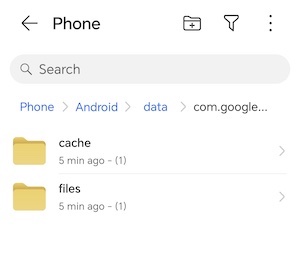
Although YouTube Music downloads are encrypted and can’t be played with a regular file manager app, you can still locate where they’re stored. On most Android devices, they’re stored within the app’s internal storage directory. The exact path may vary depending on your device and Android version, but it could be something like:
Android/data/com.google.android.apps.youtube.music/files/music/
Related: How to Download YouTube Music Songs to SD Card
Unlike Android, YouTube Music downloads on iPhone are stored in an encrypted format that’s not directly accessible through the device’s file manager. You’ll have to access your YouTube Music downloads through the app:
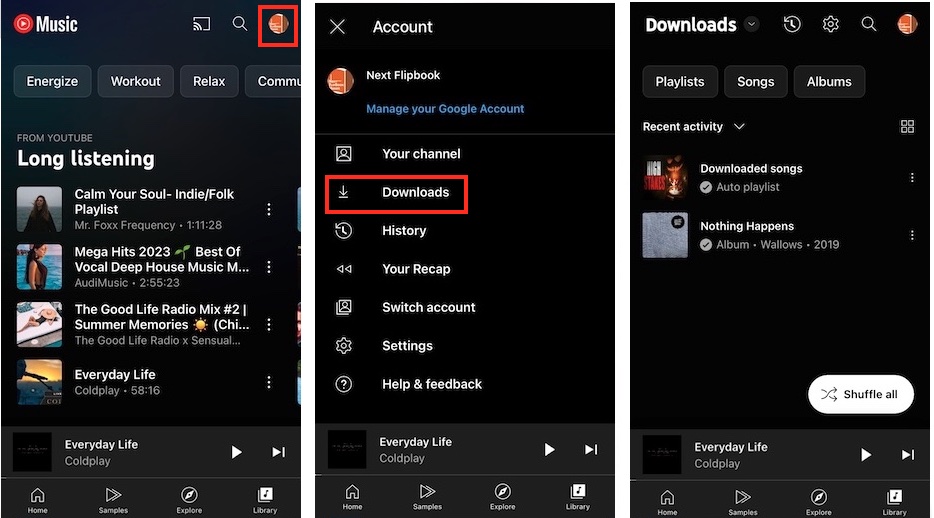
Premium users can download YouTube Music for offline playback, but these downloads are encrypted and can’t be played on other apps or devices. You can’t play them outside the YouTube Music app, and transferring them to other devices won’t make them playable. If you switch phones, you’ll need to download your music again.
While downloads from the YouTube Music app cannot be transferred, Pazu YouTube Music Converter offers an alternative solution to access offline music across devices, even with a Free YouTube Music account.
Pazu YouTube Music Converter is designed for both Free and Premium users to download YouTube Music songs, albums, playlists, and podcasts on Mac and Windows. Unlike the YouTube Music app’s downloads, it converts music to formats including MP3, M4A, WAV, FLAC, AAC, and AIFF, allowing you to transfer and play them on any compatible device. Pazu also features a built-in web player for YouTube Music, so you don’t need to copy and paste URLs for downloading. You can search for music directly in Pazu and batch download in high quality with complete ID3 tags.
Here are the detailed steps for downloading YouTube Music to MP3 with Pazu YouTube Music Converter.
1. Run Pazu YouTube Music Converter
To get started, download, install and run Pazu YouTube Music Converter on your Mac or Windows, which features a built-in YouTube Music web player.
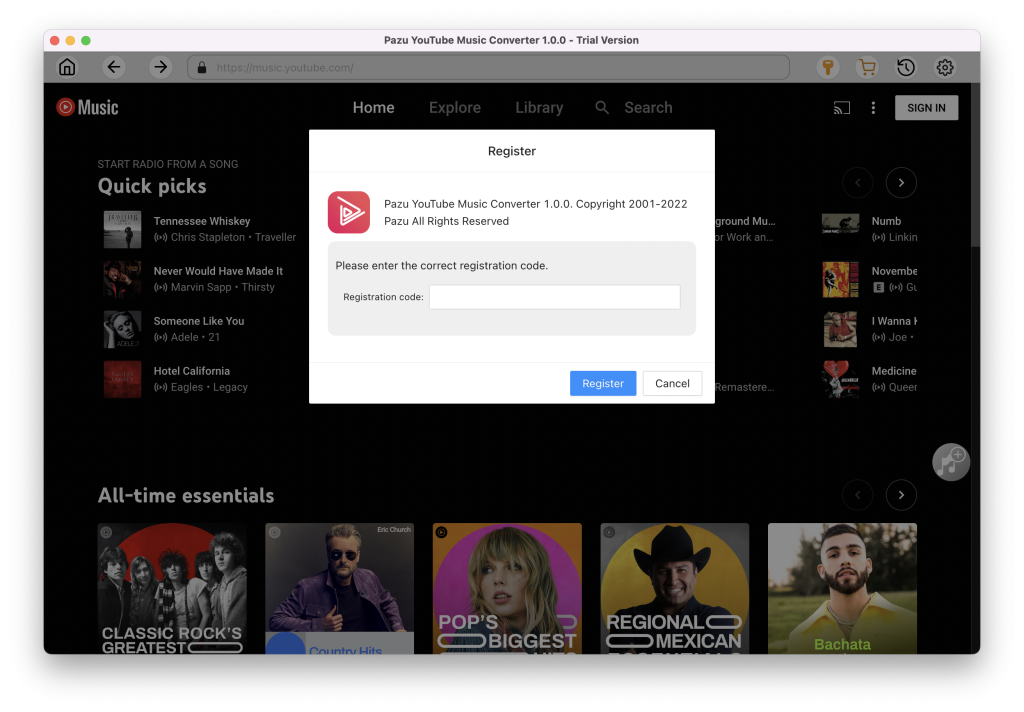
Launch the YouTube Music to MP3 Converter. If you have already purchased a license, click the key icon to register the converter. Otherwise, continue using the trial version.
You don’t need to sign in to your YouTube Music account.
2. Customize the Output Settings
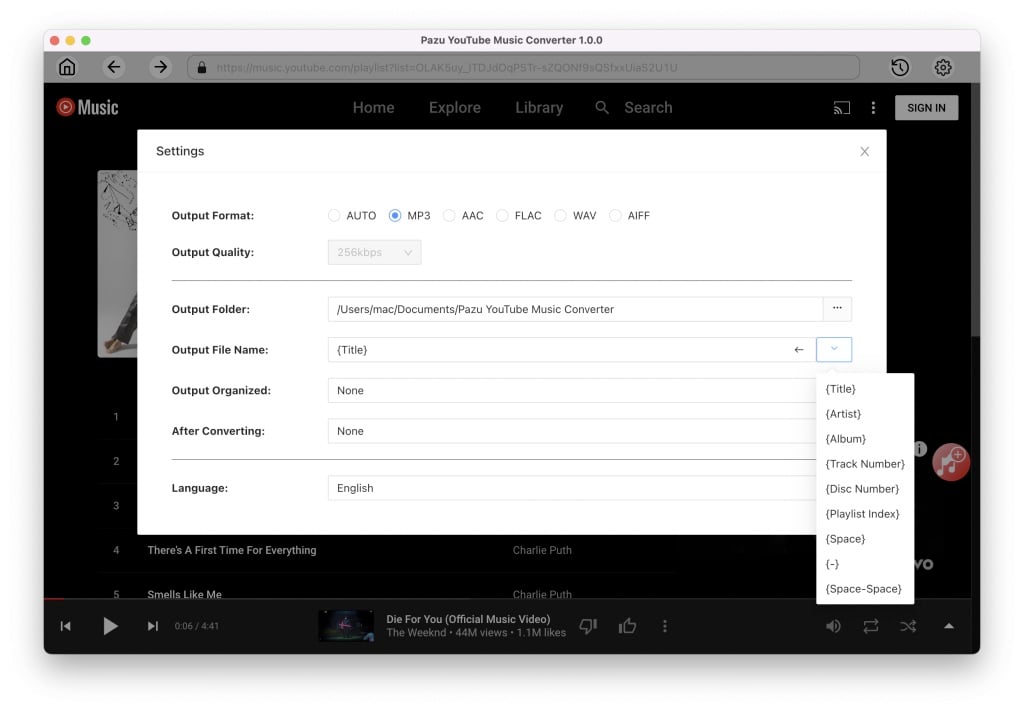
Click Settings (the gear icon) in the upper right corner and set the output format to MP3. You can also customize the output quality, folder, file name, language, and more for your downloaded music files.
3. Add Songs to Download
Browse or use the search function to find the songs, albums, or playlists you want to convert to MP3, then click the red Add to List icon to load the songs.
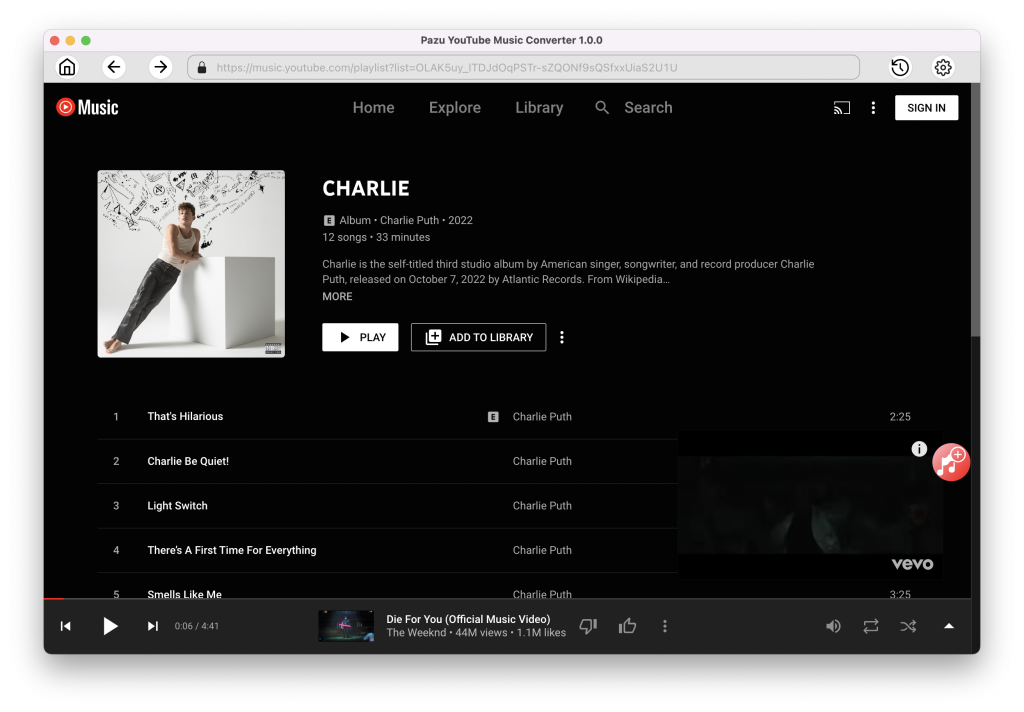
All songs in the playlist/album will be selected by default. You can uncheck the songs you don’t want to download.
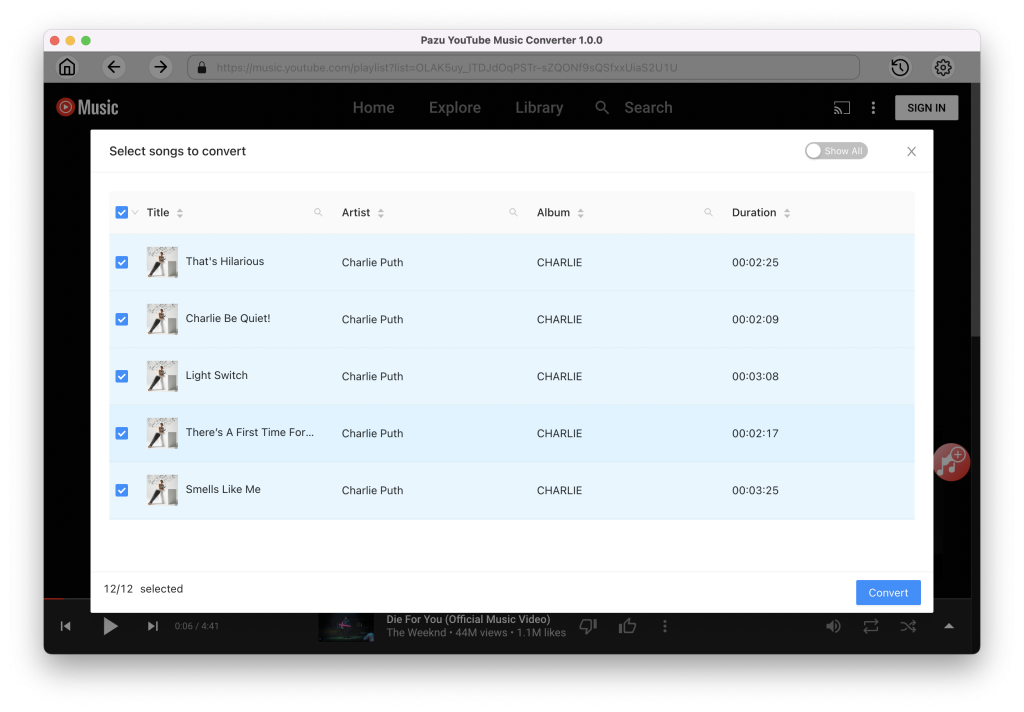
4. Download YouTube Music to MP3
Click the Convert button and the program starts converting the YouTube Music songs.
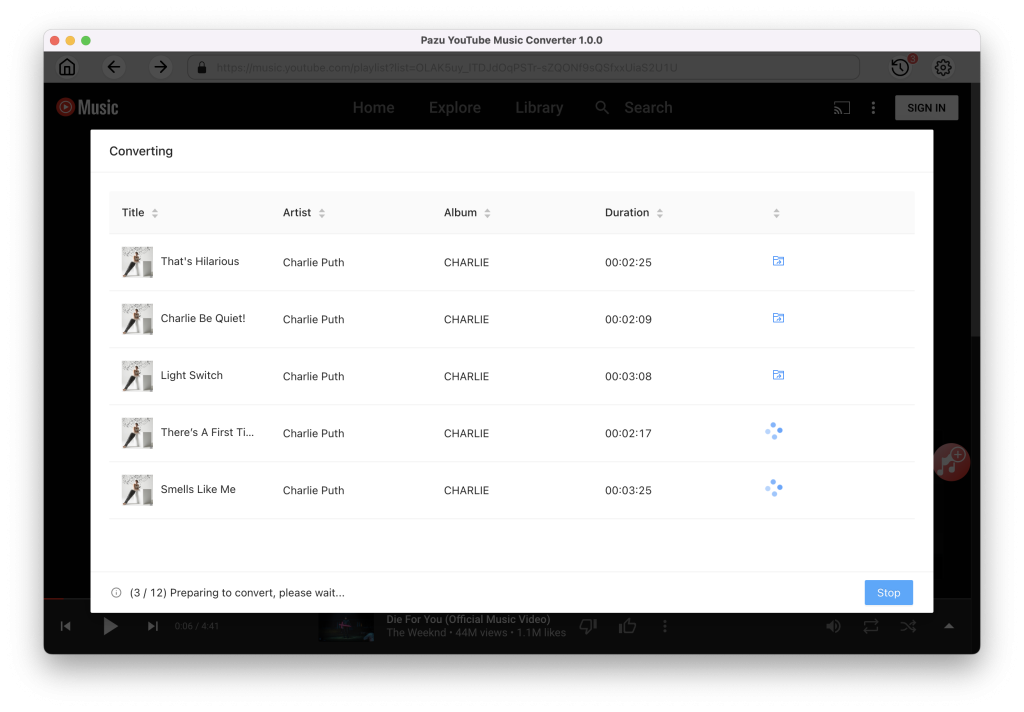
5. Locate the Converted Songs
After the conversion is complete, click on the clock icon in the upper right corner to access the converted YouTube Music songs. To locate the converted YouTube Music songs:
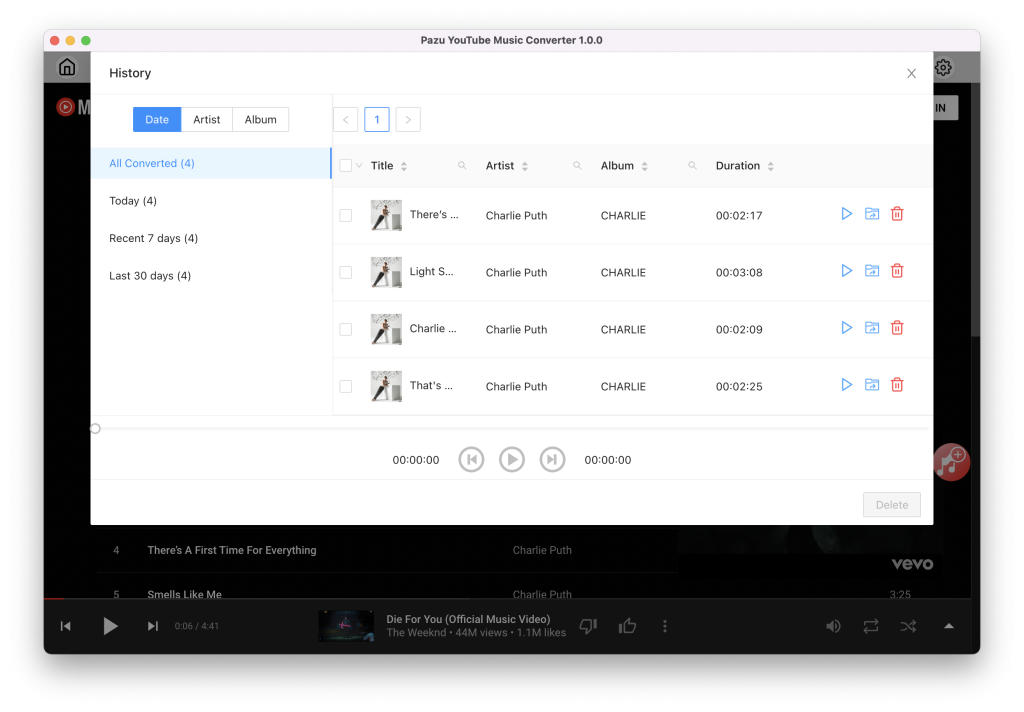

Download and convert YouTube Music to MP3, M4A, etc