

By subscribing to Apple Music, you have access to any song from its vast catalog online. Additionally, you can download music for offline listening on iPhone, iPad, Android, Apple Watch, Mac and PC. This means you can enjoy your favorite tunes even without an internet connection.
Please note that you need an active Apple Music subscription to download songs. Also, make sure you have sufficient storage space available on your device for the downloaded music.
Related: How to download all songs on Apple Music?
1. Open the Apple Music app.
2. Open an album and playlist, tap the + icon on the top right corner to add it to the Library. Then the + icon turns to an arrow icon, tap it again to download the playlist.

3. Or tap the three-dots icon on the top right corner and choose Add to a Playlist. You can select an existing playlist or create a new playlist. Then go to Library > Playlists, find the playlist and tap the download icon on the top right corner to download all songs.

4. For songs, tap the three-dots icon to the right of the song and select Add to Library or Add to a Playlist. Then tap the three-dots icon again and tap Download.
When you add a playlist to the Library, songs in the playlist won’t appear in Library – Songs. However, when you add an album to Library, songs in the album are also added to Library – Songs, which is annoying. Currently there is no way to add an album without adding all the songs to your library like you can in Spotify.
On your iPhone, go to Settings > Apps > Music, scroll down and turn on Automatic Downloads. After that, music automatically downloads for offline listening when added to your library or purchased in the iTunes Store.

If your iPhone is running low on storage space, you have the option to automatically remove downloaded music that you haven’t played in a while. Simply go to your device’s Settings, navigate to Music, and select Optimize Storage.


Downloaded Apple Music songs are saved to C:\Users\YourUsername\Music\iTunes\iTunes Media\Apple Music.
By default, the songs you downloaded are stored in ~/Music/Music/Media folder.
 next to a song or album.
The downloaded songs from Apple Music’s catalog are DRM-protected and can only be played within the Apple Music app and iTunes. If you want to play downloaded Apple Music songs with other music players, such as VLC, QuickTime Player, Windows Media Player, etc. All you need to do is downloading Apple Music songs, albums and playlists to MP3 with Pazu Apple Music Converter.
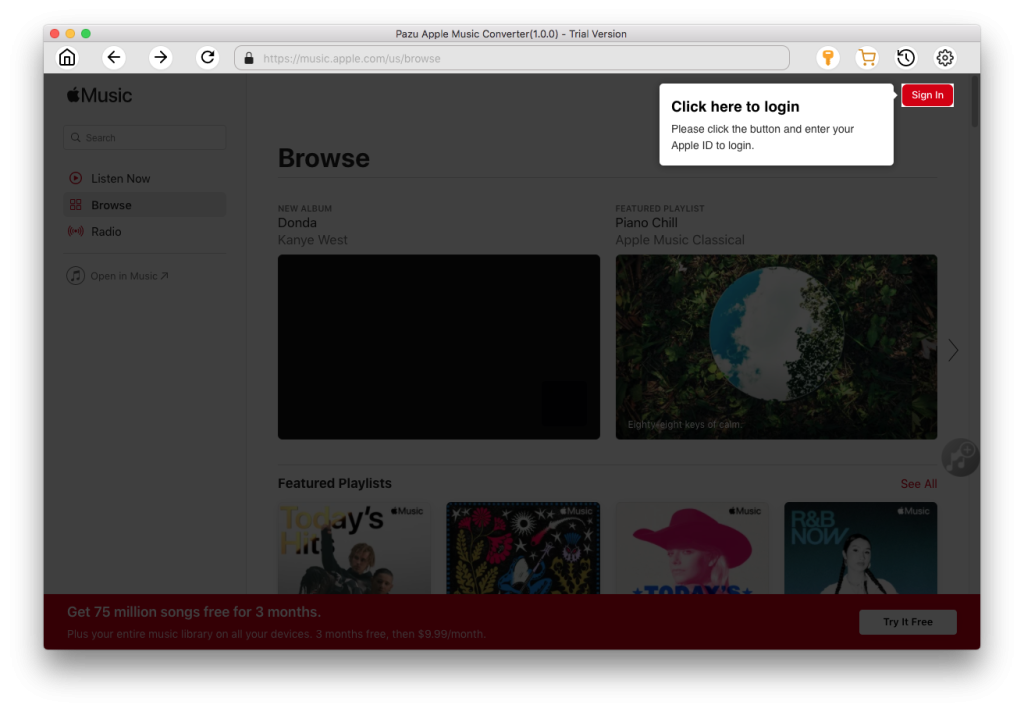
Pazu Apple Music Converter lets you convert any Apple Music and iTunes songs you have in your library to MP3, AAC, WAV, FLAC, M4A, AIFF without any loss in quality. One of the distinguishing features of Pazu Apple Music Converter is that it can download and convert Apple Music at a really fast speed — almost 10 times faster than any other similar software. It is integrated with the Apple Music web player, so you can batch convert any Apple Music playlist or album to the format you choose without the Apple Music or iTunes app. The following tutorial will show you how to download Apple Music to MP3 and get Apple Music for free.
Download, install and run Pazu Apple Music Converter on your Mac or Windows.
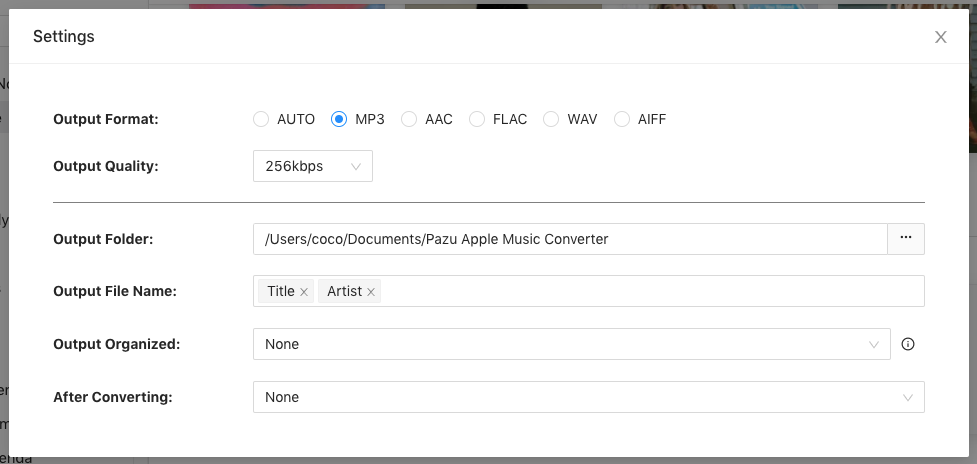
Apple Music Converter supports M4A, MP3, AAC, FLAC, WAV and AIFF. Click the gear icon if you want to change output format or output folder.
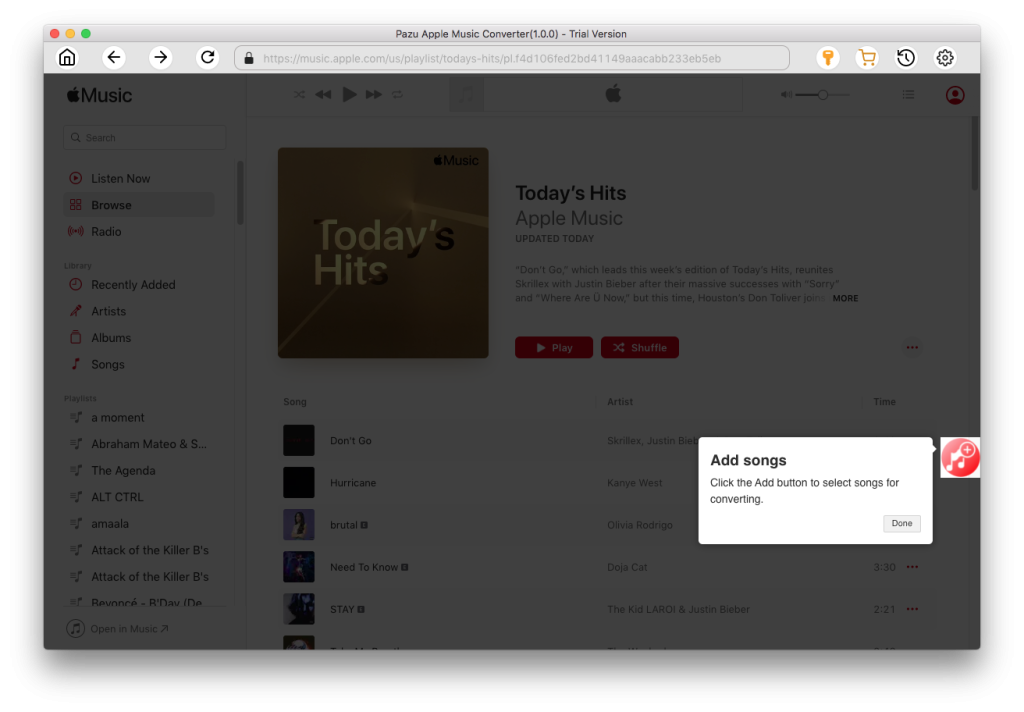
Follow the on-screen instructions to choose a playlist, artist, or album that you want to download.
Click “Convert” button to start downloading Apple Music songs, albums and playlists to MP3, so you can play them anywhere you want, even after cancelling Apple Music subscription. You can also upload Apple Music songs to Amazon Music, Spotify, YouTube Music, etc.
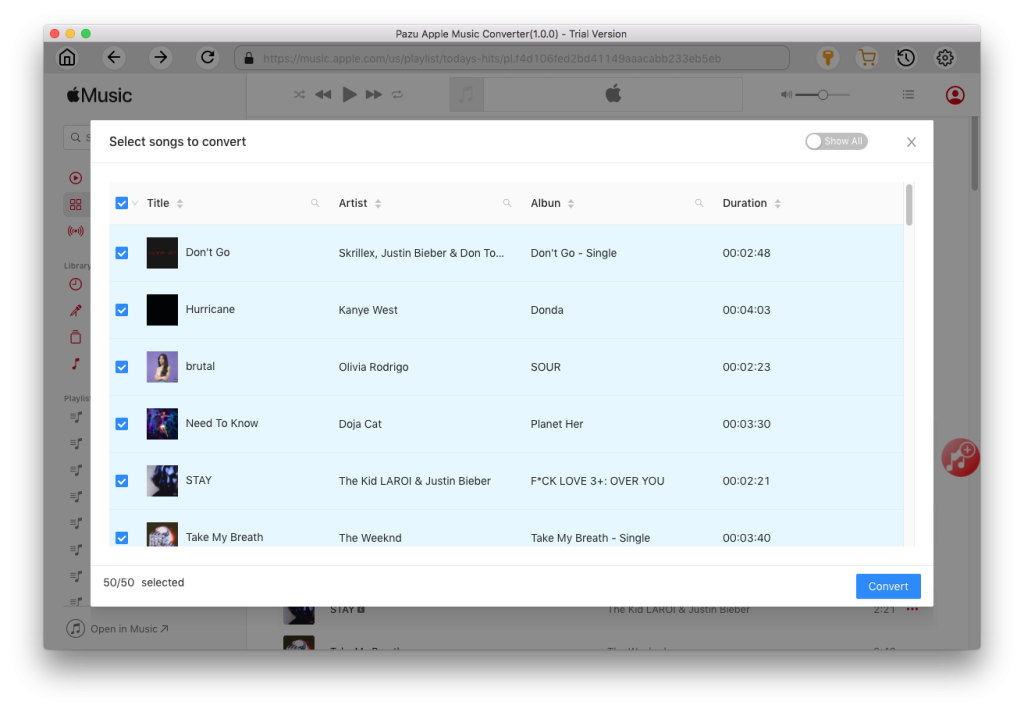

Download Apple Music to MP3, M4A, etc.