

Apple Music and Spotify are the 2 most popular music streaming services in the world. Both offer a wide range of features and benefits, including a vast music library, curated playlists, personalized recommendations, and integration with other devices and services. So which is better? Comparing Apple Music and Spotify is subjective and depends on individual preferences. Both services have their strengths and features that may appeal to different users. Here are several aspects to consider for comparison:
Spotify Premium subscriptions, including Individual, Duo, Family, and Student plans. While Apple Music offers similar Premium options without a Dou plan. Spotify used to position its pricing structure slightly lower than Apple Music. However, in 2026, Spotify generally costs more than Apple Music.
Spotify Student plan in the US includes free access to Hulu (with Ads). While Apple Music Student offers free access to Apple TV in countries and regions where both services are available.
Spotify typically offers a 1-month free trial for new Individual and Student users. Occasionally, they run seasonal “3 Months Free” promos for new subscribers. For Duo and Family tiers, there are usually no free trial options.
Apple Music provides a 1-month free trial to new users across all plans. If you purchase an eligible Apple device (iPhone, AirPods, HomePod), you can often claim 3 to 6 months of Apple Music for free.
Unlike Apple Music, Spotify offers a free tier in addition to its premium subscription. The free tier of Spotify includes access to its music catalog, allowing users to stream music with occasional advertisements. Although the free tier has certain limitations compared to the premium subscription, such as shuffle-only play for albums and playlists on mobile, no offline playback, and lower audio quality, it is indeed one of the best options to enjoy music without spending a penny.
Spotify vs. Apple Music: Price Comparison
| Monthly Price | Free | Individual | Duo | Family (up to 6 members) | Student |
| Spotify | Free | $12.99 | $18.99 | $21.99 | $5.99 |
| Apple Music | N/A | $10.99 | N/A | $16.99 | $6.99 |
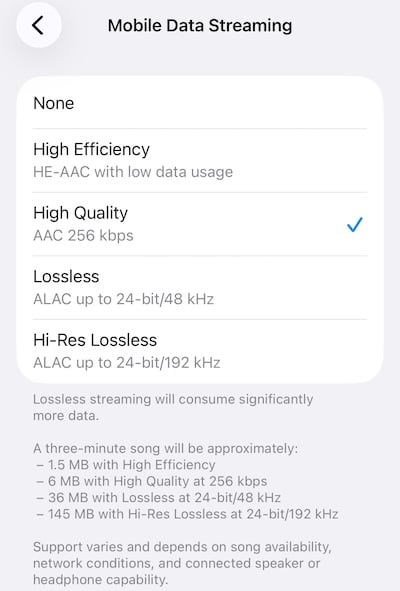
The main benefits Apple Music has going for it are audio quality, with Hi-Res Lossless resolutions up to 24-bit/192 kHz ALAC and Spatial Audio supported on the platform, and live radio. The app also comes with a lengthy free trial when you pick up certain new Apple devices. On HomePod mini and AirPods Pro/Max, each song sounds so much better in Spatial Audio and Dolby Atmos; even non-Dolby Atmos songs sound way better.
Since September 2025, Spotify has been offering Lossless audio up to 24-bit/44.1 kHz FLAC to Premium users in over 50 markets. While the highest quality remains 320 kbps in other areas.
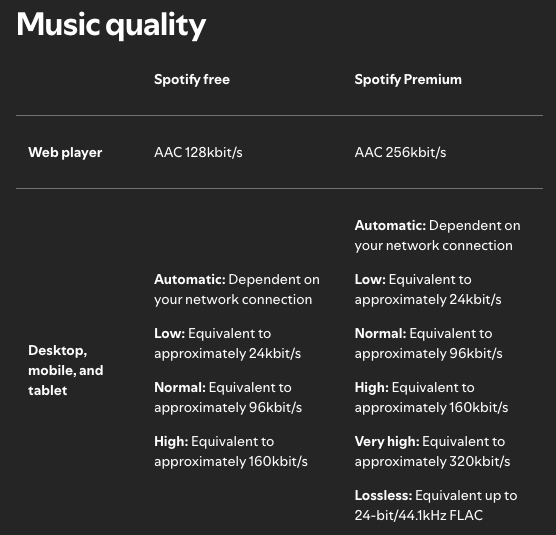
However, if you don’t have a good enough DAC or sound system to take advantage of lossless music, you probably can not hear any difference in bass/low frequencies since Apple’s 256k AAC is pretty similar to Spotify’s 320k OGG Vorbis. On paper, Spotify’s higher bitrate should produce higher fidelity audio, but AAC encoding is better than Spotify’s OGG Vorbis, thereby nullifying any advantage of Spotify’s higher bitrate.
Spotify vs. Apple Music: Music Quality
| Audio Quality | Low | High Efficiency / Normal | High | Lossless / Very High | Hi-Res Lossless / Lossless |
| Apple Music | N/A | 64 Kbps HE-AAC | 256 kbps AAC | Up to 24-bit/48 kHz ALAC | Up to 24-bit/192 kHz ALAC |
| Spotify | 24 kbps | 96 kbps | 160 kbps OGG Vorbis | 320 kbps OGG Vorbis | Up to 24-bit/44.1 kHz FLAC |
One of the key advantages of Spotify is its integration of music, podcasts, and audiobooks within a single platform. Users can access a vast library of music and a wide range of podcasts, all in one app. As of early 2026, Spotify has over 7 million podcast titles and 500,000 audiobook titles. This makes it convenient for users who enjoy various forms of content, as they don’t need to switch between different apps. In addition, Spotify holds the rights to many of the world’s biggest “Spotify Original & Exclusive” shows that you cannot find elsewhere.
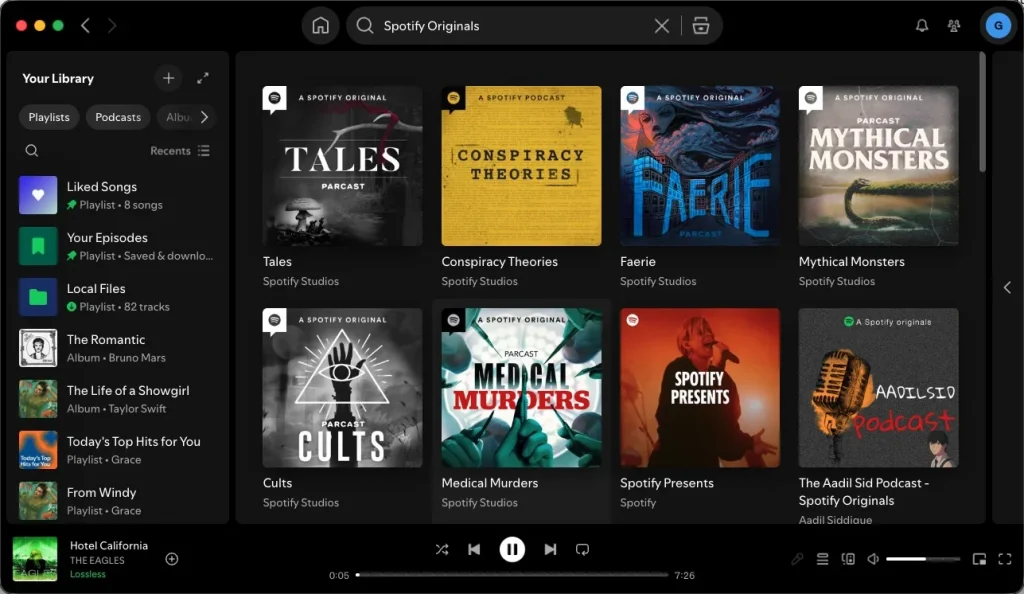
On the other hand, Apple Music focuses primarily on music streaming and does not offer built-in features for podcasts or audiobooks. If you want to listen to podcasts on Apple devices, you would need to download a separate Podcasts app. It’s worth noting that the Podcasts app is not available on Android, limiting podcast access for Android users who rely solely on Apple Music.
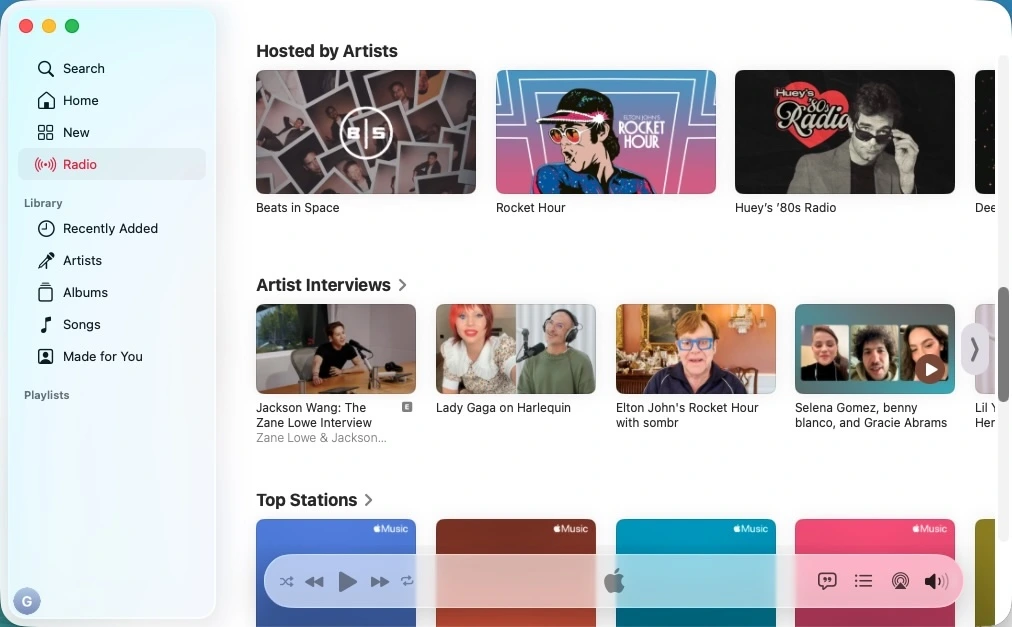
However, Apple Music stands out with its live radio feature. The platform offers a selection of 24/7 radio stations featuring new music, popular hits, country music, and more. Artists such as Lady Gaga or Elton John host their own radio shows on Apple Music. In addition, it offers a range of international and local stations as well.
Both Apple Music and Spotify offer a download feature for Premium users to listen offline. You can use it on desktop and mobile apps.
For Spotify, you can download as many as 10,000 tracks on each of up to 5 different devices. However, you can only download playlists and albums. To download individual songs, you need to add them to a playlist and download the entire playlist.
For Apple Music, you can associate up to 10 devices (including up to 5 computers) with your Apple Account to download and play Apple Music content, up to 100,000 (one hundred thousand) songs downloaded at any one time if storage allows. You can download individual songs, playlists, and albums for offline listening.
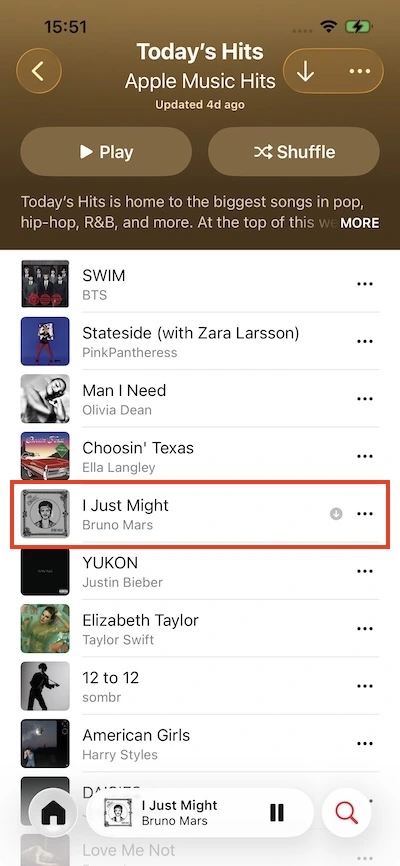
Apple Music Sing is a built-in karaoke mode that lets you adjust vocal levels and sing along. It turns millions of tracks into karaoke songs immediately. You can use this feature on iPhone, iPad, and Apple TV. For duets and group performance songs, Apple Music Sing offers a Duet view that displays each singer’s lyrics side by side for easy following.

Apple Music offers both light mode and dark mode options for users to customize their app’s appearance based on their preference or the ambient lighting conditions. Light mode features a brighter and more vibrant interface with white backgrounds and black text, while dark mode provides a darker color scheme with black backgrounds and white or light-colored text.
Enabling dark mode can be beneficial in low-light environments as it reduces screen glare and may be easier on the eyes. It can also help conserve battery life on devices with OLED or AMOLED displays, as the black pixels require less power.
Spotify Connect allows you to seamlessly stream music across different devices. With Spotify Connect, you can control the playback of music on one device from another device that is connected to the same Wi-Fi network. When you play Spotify on a MacBook or Amazon Echo, you can use the Spotify app on an iPhone, iPad, or Apple Watch to choose songs, skip, adjust volume, and everything.
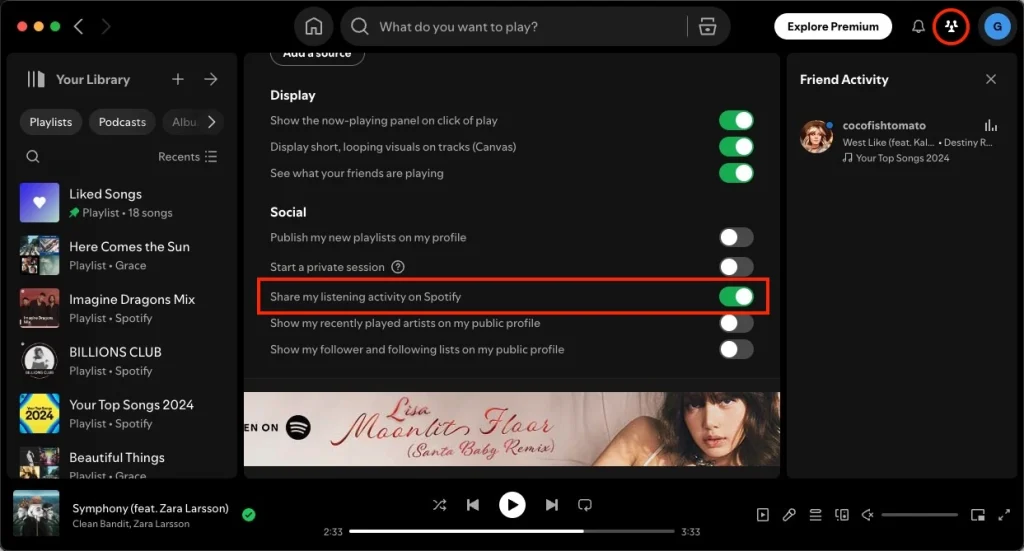
It’s nice to see what your friends are listening to, so you can listen along when you’re not sure what to play. Spotify offers a social feature that allows you to see what your friends are listening to in real-time. This feature, called Friend Activity, enables you to discover new music and listen along with your friends’ choices when you’re not sure what to play.
With Friend Activity, you can view a feed that shows the recent listening activity of your friends who have enabled this feature. It displays the songs, albums, playlists, and artists they are currently playing or have recently listened to.
Note: Friend activity is available on desktop only.
Spotify has a built-in sleep timer feature, which will automatically turn off your music after a set amount of time. When it comes to Apple Music, only the Android app features a sleep timer, although there are alternatives to get a sleep timer on Mac/Windows/iOS.
Spotify is renowned for its advanced algorithm and recommendation system, making it a popular choice for music discovery. The platform’s algorithm takes into account various factors such as your listening history, liked songs, playlists, and even external data like popular trends and user behavior to deliver personalized recommendations. This results in curated playlists like “Discover Weekly” and “Release Radar,” which are updated regularly with new songs tailored to your musical tastes. Spotify’s algorithm-driven recommendations have received widespread acclaim for their accuracy and ability to introduce users to new artists and songs they might enjoy. Apple Music is geared towards album-oriented, while Spotify is track-playlist oriented.
Spotify and Apple Music offer many similar features, such as crossfade, Liked Songs/Favorite Songs, and Collaborative playlists.
Spotify remains the industry leader for social interaction and automated discovery. Its AI algorithms (like Discover Weekly and Daylist) are widely considered the most accurate for finding new music you’ll actually like. If you prefer not to pay a monthly fee and don’t mind ad breaks, Spotify Free is an excellent choice.
Apple Music is designed for those who value high-fidelity sound and deep integration with the Apple ecosystem. The Sing feature is a standout for karaoke fans, and its lossless music reaches more global markets than Spotify’s current high-resolution offerings.
Ultimately, the “better” choice between Apple Music and Spotify is subjective and depends on your personal preferences, device ecosystem, and desired features. Since both services offer free trials, it can be helpful to try them to see which one aligns better with your needs and musical tastes.
There are third-party playlist transfer tools available that can make the process of switching between Apple Music and Spotify more convenient. These tools allow you to transfer your playlists, including songs and metadata, from one music streaming service to another with just a few clicks.
These playlist transfer tools typically work by connecting to your Apple Music and Spotify accounts and then analyzing the songs in your playlists. They match the songs between the two platforms and recreate the playlists on the destination service.
By using these tools, you can avoid the manual effort of recreating playlists song by song and preserve your curated collections when switching between Apple Music and Spotify. It can save you time and make the transition smoother, especially if you have a large number of playlists or if you want to keep your music library intact.
It’s worth noting that the availability and functionality of these third-party playlist transfer tools can vary, so it’s recommended to research and choose a reputable and reliable tool that suits your specific needs and requirements.
TuneMyMusic is an online tool that allows you to convert your music library and playlists from Spotify to Apple Music or vice versa in a few easy steps. Here we will show you how to transfer Spotify playlists to Apple Music as an example.
However, there are some drawbacks.

Soundiiz is a popular third-party service that specializes in playlist transfer and synchronization between different music streaming platforms, including Apple Music and Spotify. It offers a user-friendly interface and a range of features to make the process of transferring playlists between these platforms effortless.
With Soundiiz, you can easily import your playlists from Spotify to Apple Music or vice versa.

Compared to TuneMyMusic, Soundiiz transfers Spotify playlists to Apple Music in the same order. However, some songs are still missing or with wrong artwork.
Unlike the two tools mentioned above, Pazu Spotify doesn’t transfer Spotify playlists to Apple Music directly. Instead, it helps you download Spotify playlists to MP3, M4A, etc., and then you need to manually import the songs to Apple Music. In this case, there won’t be songs lost.
The advantage of using Pazu Spotify is that it allows you to convert Spotify songs to MP3, which is a widely supported audio format. This means you can play these downloaded songs offline with any media player or device that supports MP3 playback. It provides flexibility in terms of enjoying your favorite Spotify tracks outside of the Spotify app or web player.
With the help of Pazu Spotify Converter, you can download Spotify songs, albums and playlists to MP3, WAV, M4A, FLAC, and other audio formats with Spotify Free or Premium. Then you can add these songs to Music or iTunes even without Apple Music subscription. It will convert Spotify music at high conversion speed for playing in background. The easy step-by-step guide for using Pazu Spotify Music Converter is as follows:
Download, install and run Pazu Spotify Converter on your Mac or Windows. Log in your Spotify account with the built-in web player. The steps are the same whether you have the Mac or Windows version of Pazu Spotify Converter. Here we will take Mac version as example.

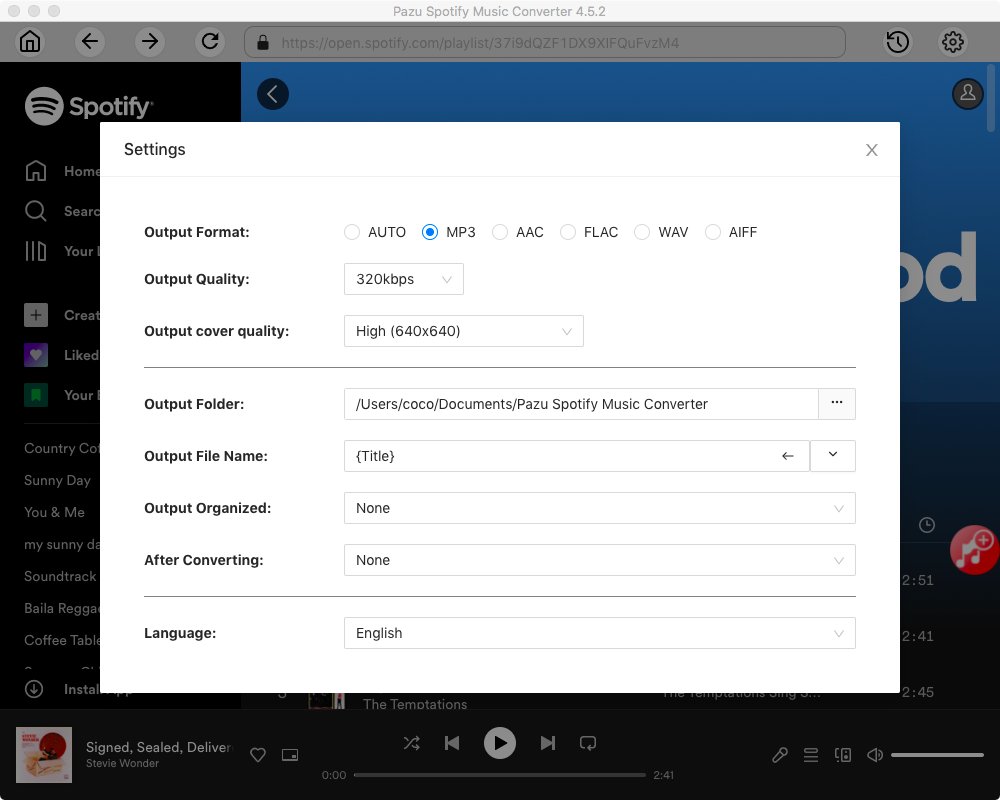
Click the gear icon in the top right corner. Here you can select output format (AUTO(M4A)/MP3/AAC/FLAC/WAV/AIFF), choose output audio quality, customize the output path, organize the output files in various ways, rename output files and more.
Use the integrated Spotify web player to search for the songs, albums, playlists, or podcasts you want to download. Click the Add to list button to load all songs in the album or playlist, and uncheck the songs you don’t want to download if there are any.
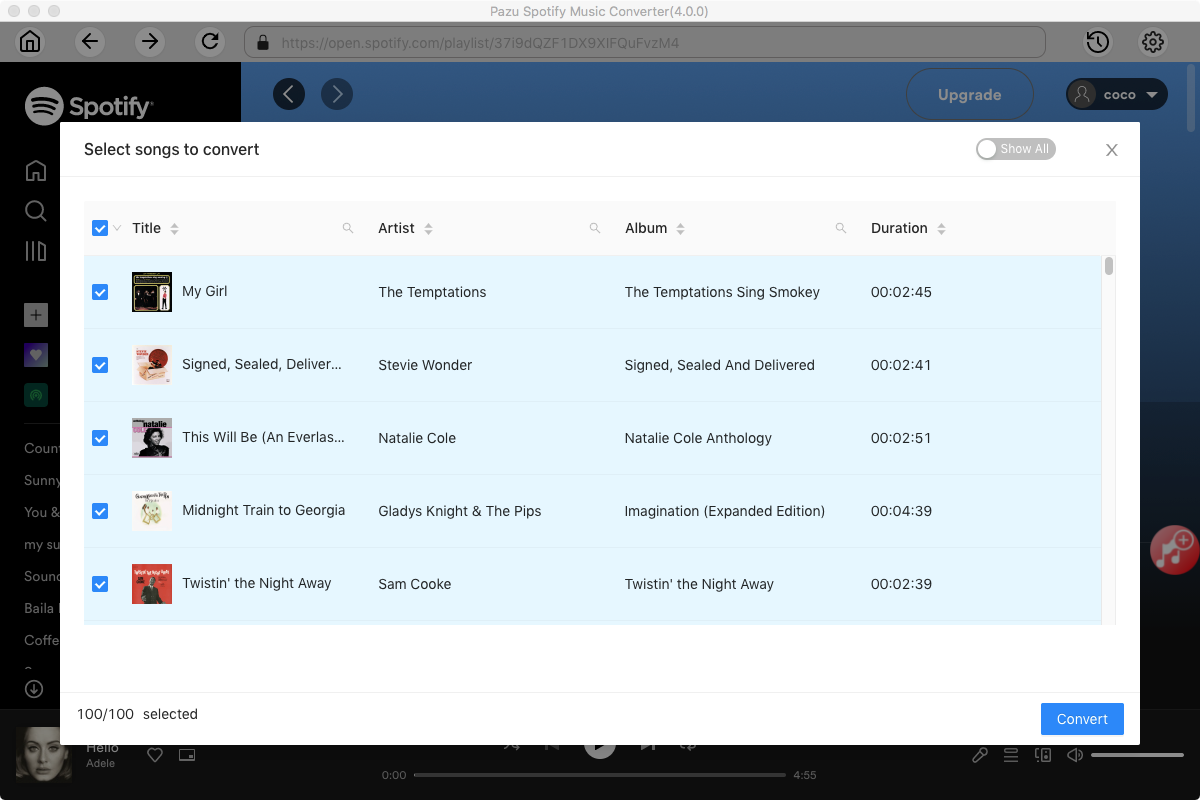
Click the Convert button to start downloading the Spotify songs to your local computer.
Once the conversion is done, you can find your Spotify songs downloaded as local files by clicking the folder button below or directly going to the output folder you customized in the previous step.

Transfer the downloaded Spotify playlists to the Apple Music or iTunes app on your Mac or Windows.
On Mac
You can also drag a file or folder from the Finder to the Music window to import it.
On Windows
Note: The free trial version of Pazu Spotify Converter enables you to convert the first three minutes of each song. You can remove the trial limitation by purchasing the full version.
Related Articles:

Download Apple Music to MP3, M4A, etc.