
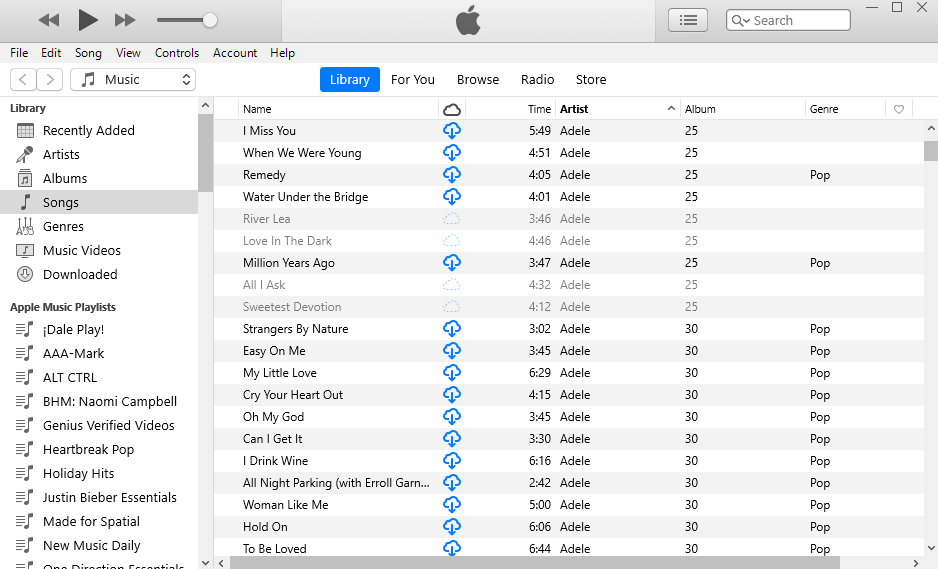
"I plugged the earphones in order to listen to music on iTunes and I was surprised! Most of the song I want to listen to was greyed out on iTunes and ended up listening to songs that I don’t usually listen to."
Does this situation sound familiar? You go to iTunes to play your favorite songs or playlists but find that many of the tracks are greyed out, you can not play them. It is very inconvenient and super frustrating because there is no explanation as to why. If you're experiencing the same problem, you've come to the right place. In this article, you will find that what probable reasons for songs greyed out are. And we will list a few solutions to help you resolve the issue of your iTunes songs greyed out.
Sync Library might be turned off or unable to connect to the internet on one of your devices.
Some songs or albums might be greyed out because they're not currently available in Apple Music.
If most of your music was imported from sources other than Apple Music, or you have a large music library, it might take more time for your music library to upload.
Apple Music might not be able to upload the song because the song wasn't purchased from the iTunes Store, was purchased using a different Apple ID, or is too large of a file.
The song file is corrupt or there was an error uploading the song.
Various reasons may cause the problem of songs greyed out. Here are all the possible solutions that can help you get out of the trouble.
If you subscribe to Apple Music or iTunes Match, you can turn on Sync Library on each of your devices to access your music library. If most of your music is greyed out, Sync Library might be turned off. Check the following:
On your iPhone, iPad, or iPod touch
On your Mac
On your PC with iTunes for Windows
In iTunes for Windows, iCloud Music Library isn't turned on by default. To turn on iCloud Music Library:
If a song is grayed out but you can still play it. Open the Apple Music app on your Mac or iTunes on your PC. Under Library, click Songs and make sure that there's a check next to the song.
If you don't see checkboxes next to your songs:
Under Library, click Songs and make sure that there's a check next to every song. If there isn't, select the box next to a song to see a check.
You can also try to refresh the authorization. Here’s how to reauthorize your computer:
Mac:
1. In the Music app on your Mac, choose Account > Authorizations > Deauthorize This Computer.
2. If requested, enter your Apple ID password.
3. In the Music app on your Mac, choose Account > Authorizations > Authorize This Computer.
4. If requested, enter your Apple ID password to confirm.
PC:
1. Open iTunes for Windows.
2. From the menu bar at the top of your computer screen, choose Account > Authorizations > Deauthorize This Computer.
3. Choose Deauthorize.
4. In the menu bar, choose Account > Authorizations > Authorize This Computer.
The iTunes music will be hidden and disappear from your devices if you turn on the Check Selection setting. To fix it, you need to uncheck this option.
1. Open iTunes library on your device, right-click on that song which is greyed out.
2. Choose the “Check Selection” option and after doing this, you are probably able to play the song.
If you subscribed to Apple Music, search the songs from Apple Music catalog and then add it to Library.
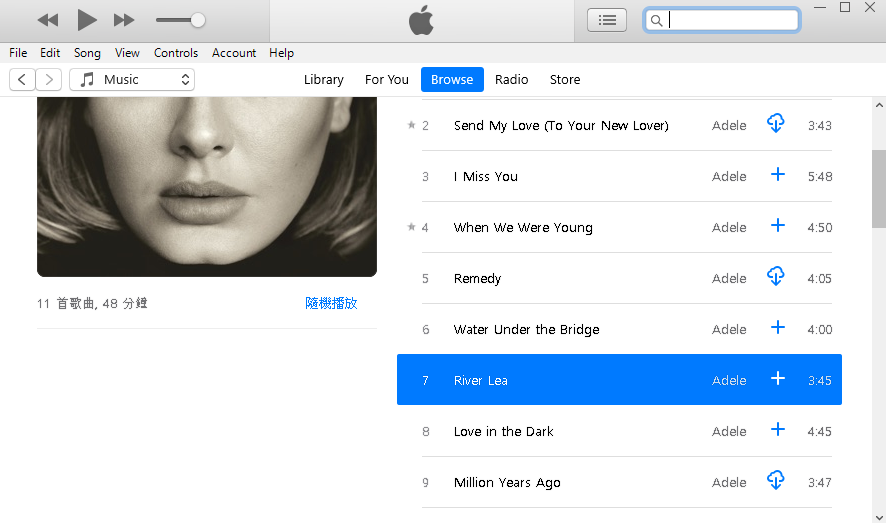
Some songs or albums might be grayed out because they're not currently available in Apple Music. Here are some reasons why:
You May Like:
If Apple Music songs greyed out issue can not be fixed through the solutions mentioned above, you can get the help of Pazu Apple Music Converter . It is a professional Apple Music Downloader that allows you to save Apple Music songs/albums/playlists to M4A, MP3, AAC, FLAC, WAV, AIFF so you can play them anytime you want. The downloaded songs will keep 100% original quality and contain all ID3 tags.
After that, you can sync your Apple Music tracks to any device for playback. The advantage of this solution is that you can keep Apple Music on your computer forever, even if your Apple Music subscription expires or the songs are not available in Apple Music. Following the detailed steps of Pazu Apple Music Converter, you can fix the Apple Music songs greyed out the problem easily.
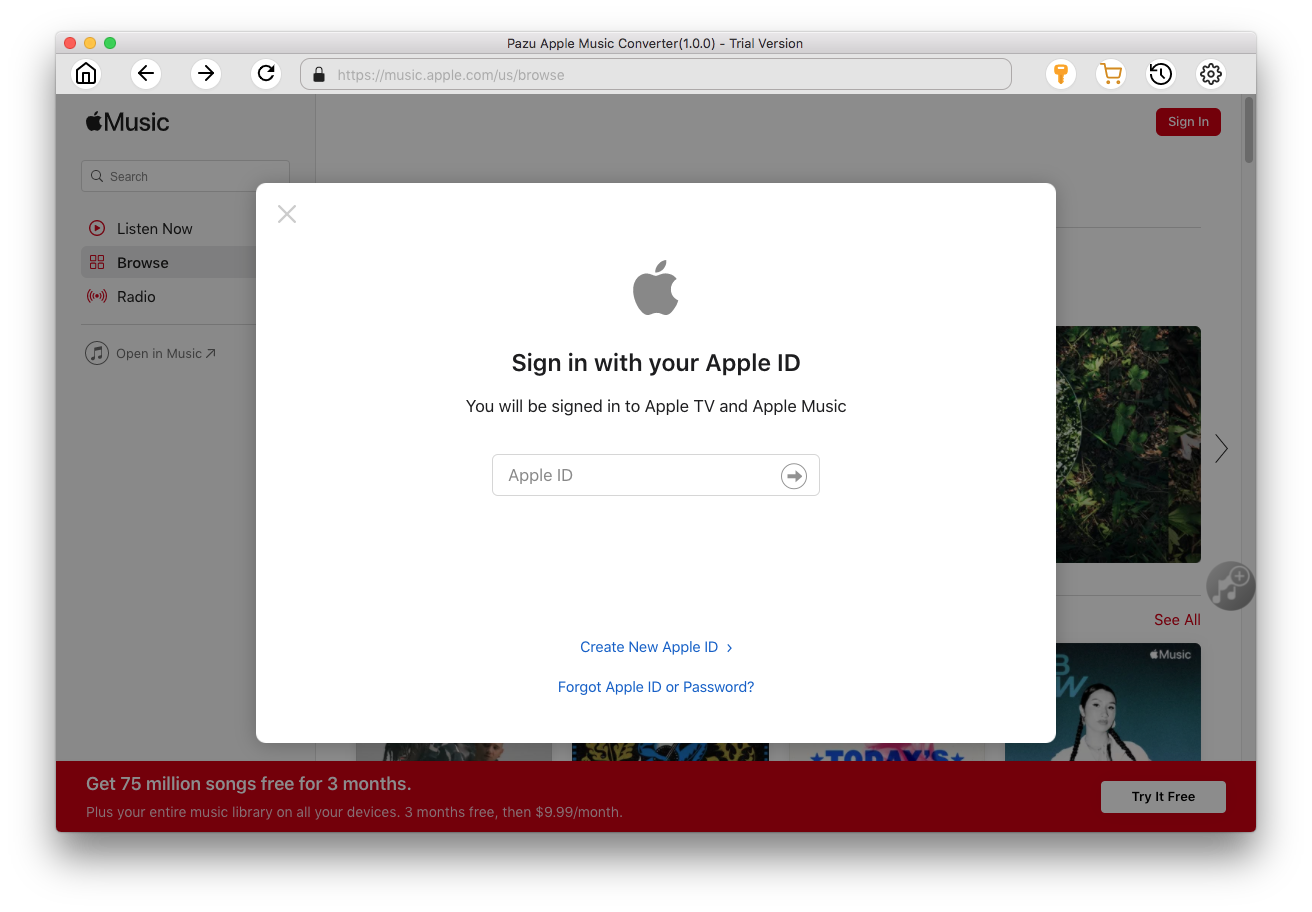
Run Pazu Apple Music Converter, click the Sign In button on the top right corner of the program.
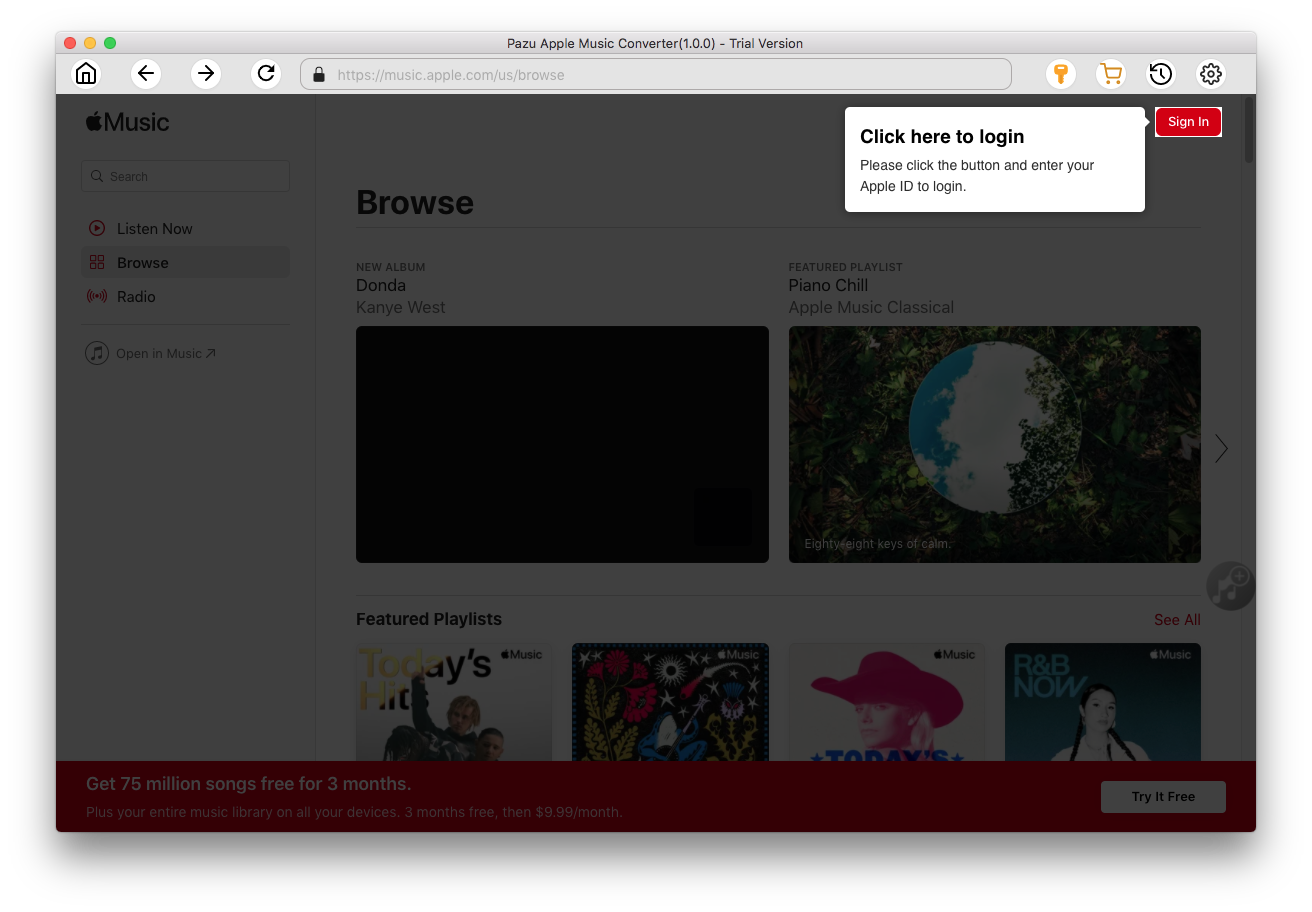
Enter your Apple ID to sign in, then the converter will access your Apple Music library automatically.
Click
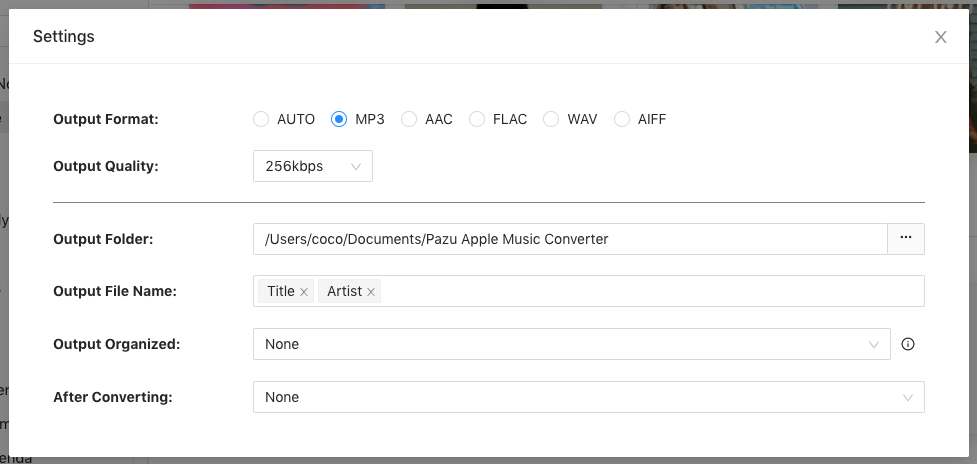
 icon on the top right corner. The settings window will pop up. You can set the output format as MP3 or AAC, and change the audio quality, the output name, the output folder.
Choose a bit rate from the Output Quality drop-down list. In most cases, the default selection works well.
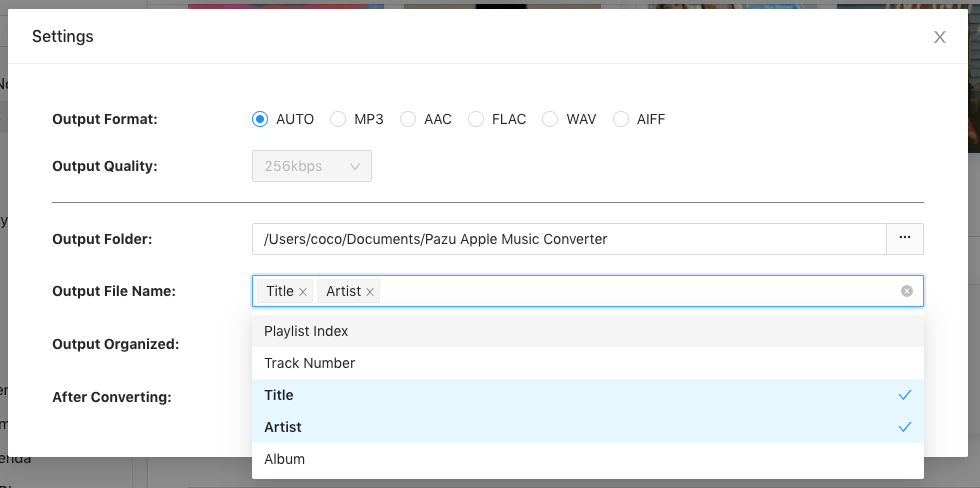
What’s more, you can also organize the output files by Artist, Album, Artist/Album, or Album/Artist.
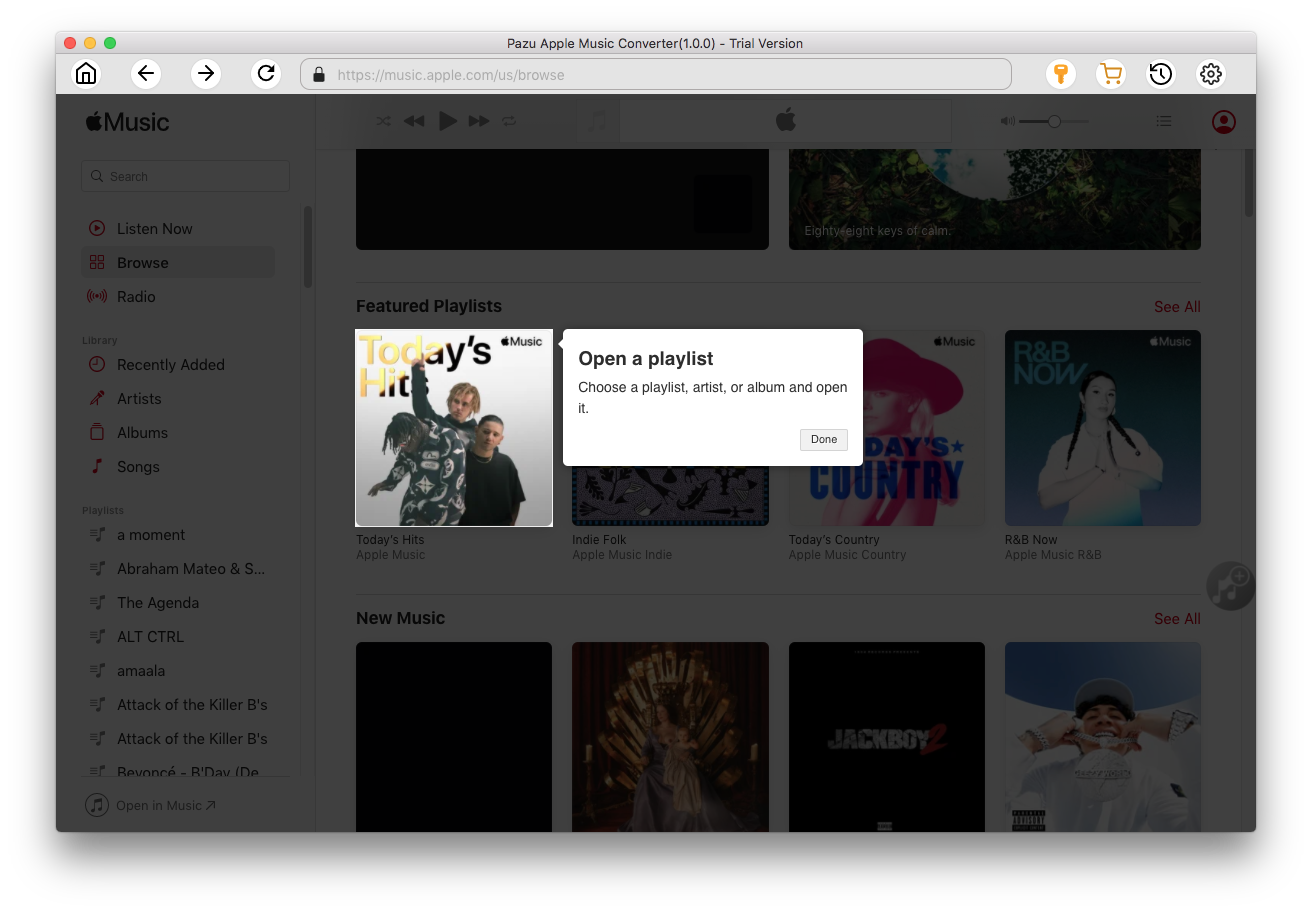
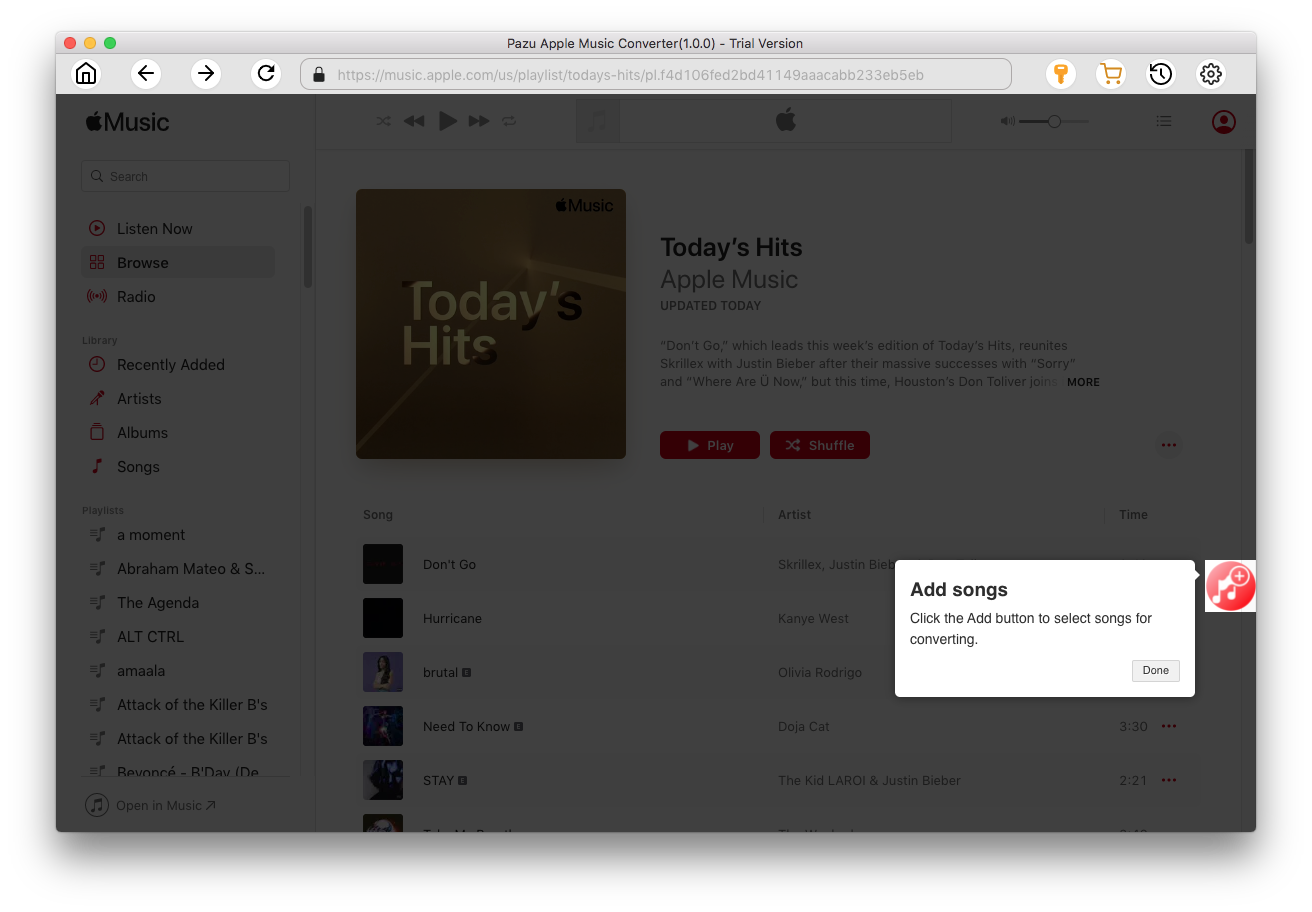
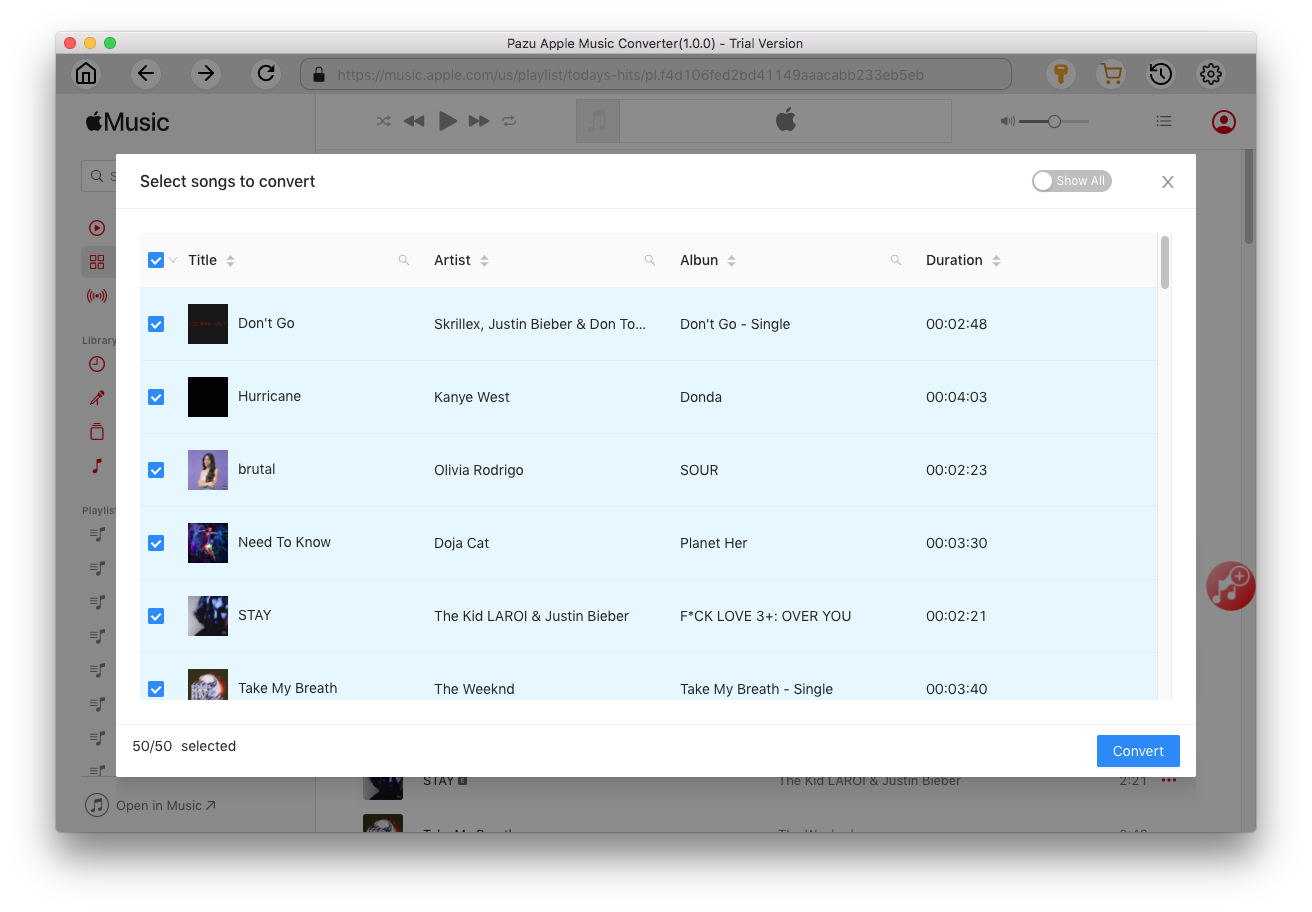
Click the playlist/artist/album, and click the red Add button on the right side of the program. From the pop-up converting window, select the songs that you want to convert.
After choosing songs, click the Convert button to start downloading Apple Music songs in MP3 format.
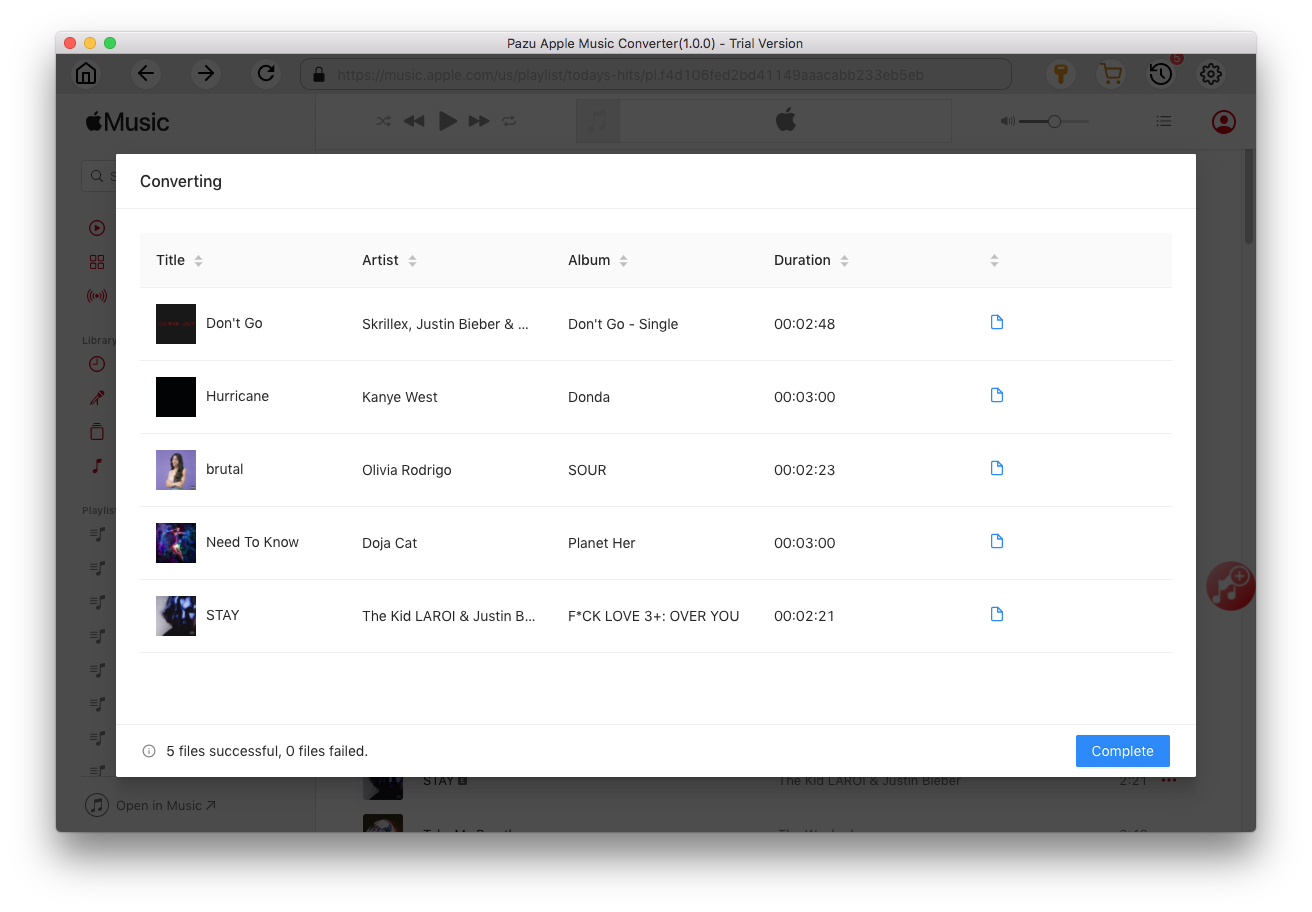
Once the conversion is done, click
 , then you can find all downloaded songs. Since they are downloaded in DRM-free format, you can still play them after free trial.

Download Apple Music to MP3, M4A, etc.