
Apple Music is one of the most popular music streaming services in the world. iCloud Music Library is available in both iTunes Match and Apple Music, which lets you sync your music to all your devices, including iOS devices, Apple Watch, Mac and Apple TV. iCloud Music Library is a very convenient way to keep all your music. But sometimes you are going to run into problems with the iCloud Music Library. The main problem is iCloud Music not syncing. The songs you have uploaded to your iCloud Music Library on computer don’t show up on your iPhone. If you are encountering this issue, don’t worry. We will show you a few workarounds to fix the iCloud Music Library not showing up issue.
Any issues with the network may lead to iCloud Music Library not syncing problem. Simply open your browser or any other app and try to load something. If you can not do that, it means that the problem stems from your Internet connection. Then you can try a different network.
Updating the system version will fix most of the problems. We recommend updating your iPhone or iPod touch to the latest version of iOS, iPad to the latest version of iPadOS, or Mac to the latest version of macOS. On a PC, make sure that you have the latest version of iTunes for Windows.
Update your iPhone, iPad or iPod touch, you can also follow these steps:
1. Plug your device into power and connect to the internet with Wi-Fi.
2. Go to Settings > General, then tap Software Update.
3. If you see two software update options available, choose the one that you want to install.
4. Tap Install Now. If you see Download and Install instead, tap it to download the update, enter your passcode, then tap Install Now.
Update Mac to the latest version of macOS:
1. If you're using macOS Mojave or later, you can get macOS Monterey via Software Update: Choose Apple menu > System Preferences, then click Software Update.
2. After downloading, the installer opens automatically. Click Continue and follow the onscreen instructions.
If you are still experiencing the Apple Music library not loading issue, then it might be because your Apple Music app is outdated or buggy. To fix this, update your application to the latest version.
On your Mac
1. Open the App Store on your Mac.
2. Click Updates at the top of the App Store window.
3. If any iTunes updates are available, click Install.
On your PC
Depending on the version of iTunes you have, here are a few ways to update.
If you downloaded iTunes from the Microsoft Store:
1. Versions of iTunes from the Microsoft Store are updated automatically when new versions are released.
2. You can also check for updates through the Microsoft Store.
If you downloaded iTunes from Apple’s website:
1. Open iTunes.
2. From the menu bar at the top of the iTunes window, choose Help > Check for Updates.
3. Follow the prompts to install the latest version.
If Apple ID fails to communicate with the Apple Music server, you can’t access and load your music library. A quick re-login process can help you fix the issue.
On your iPhone, iPad, or iPod touch
1. Go to Settings > [your name].
2. Scroll down to the bottom.
3. At the bottom of an iPhone screen there's a Sign Out button with red text.
4. Tap Sign Out.
5. Enter your Apple ID password and tap Turn Off. Forgot your Apple ID password?
6. Turn on the data that you want to keep a copy of on your device.
7. Tap Sign Out.
8. Tap Sign Out again to confirm that you want to sign out of iCloud.
9. Open the Settings app. Tap Sign in to your [device].
10. Enter your Apple ID and password.
11. If prompted, enter the six-digit verification code sent to your trusted device or phone number and complete sign in.
On Mac
1. Choose Apple menu > System Preferences.
2. Click Apple ID, then click Overview. If you use macOS High Sierra or earlier, click iCloud.
3. Click Sign Out.
4. Choose Apple menu > System Preferences.
5. Click Sign In.
6. Enter your Apple ID and password.
7. If prompted, enter the six-digit verification code sent to your trusted device or phone number and complete sign in.
Restarting iCloud Music Library settings can help fix the Apple Music loading issue. With the latest version of iOS, iPadOS, and macOS, Sync Library is turned on by default. If you turned off Sync Library, you can turn it back on. Just follow the steps below for your device.
On your iPhone, iPad, or iPod touch
1. Go to Settings > Music.
2. Turn on Sync Library. If you don't subscribe to Apple Music or iTunes Match, you won’t see an option to turn on Sync Library.
On your Mac
1. Open the Apple Music app.
2. From the menu bar at the top of your screen, choose Music > Preferences.
3. Go to the General tab and select Sync Library to turn it on. If you don't subscribe to Apple Music or iTunes Match, you won’t see an option to turn on Sync Library.
4. Click OK.
On your PC with iTunes for Windows
In iTunes for Windows, iCloud Music Library isn't turned on by default. To turn on iCloud Music Library:
1. Open iTunes.
2. From the menu bar at the top of your screen, choose Edit > Preferences.
3. Go to the General tab and select iCloud Music Library to turn it on. If you don't subscribe to Apple Music or iTunes Match, you won’t see an option to turn on iCloud Music Library.
4. Click OK.
If you have a large music library, it might take some time to upload and sync your music library across all of your devices.
You May Like:
Get tired of tedious iTunes to sync music and want to download music without using iTunes? For this purpose, Pazu Apple Music Converter is recommended for you to download Apple Music without iTunes. It’s capable of downloading Apple Music songs to M4A, MP3, AAC, FLAC, WAV, AIFF. The downloading process has never been faster and easier with a 10x batch converting speed. After you save the Apple Music offline, then we can copy and transfer the songs freely without iCloud. Follow the steps below to download and transfer Apple Music songs without iTunes.
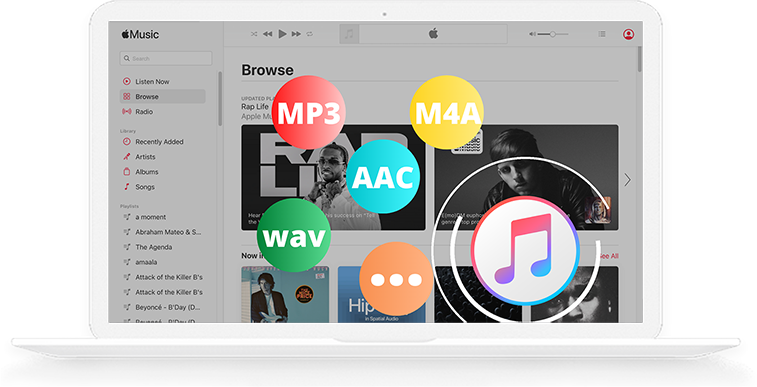
Step By Step Process to use Pazu Apple Music Converter
Download, install and run Ondesoft Apple Music Converter on your Mac or Windows. Click the key icon to activate the full version if you have purchased a license, otherwise you can only use the trial version.
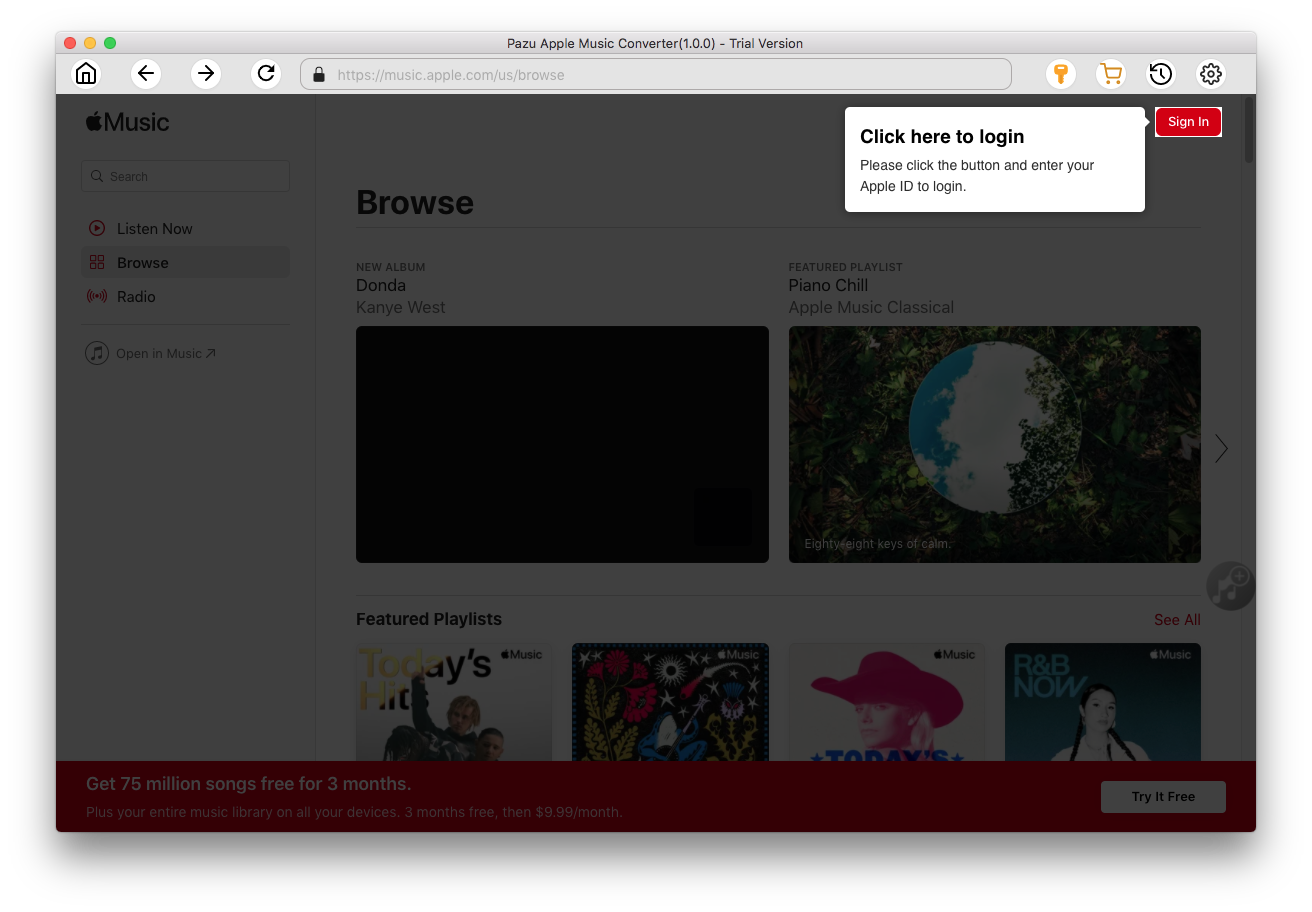
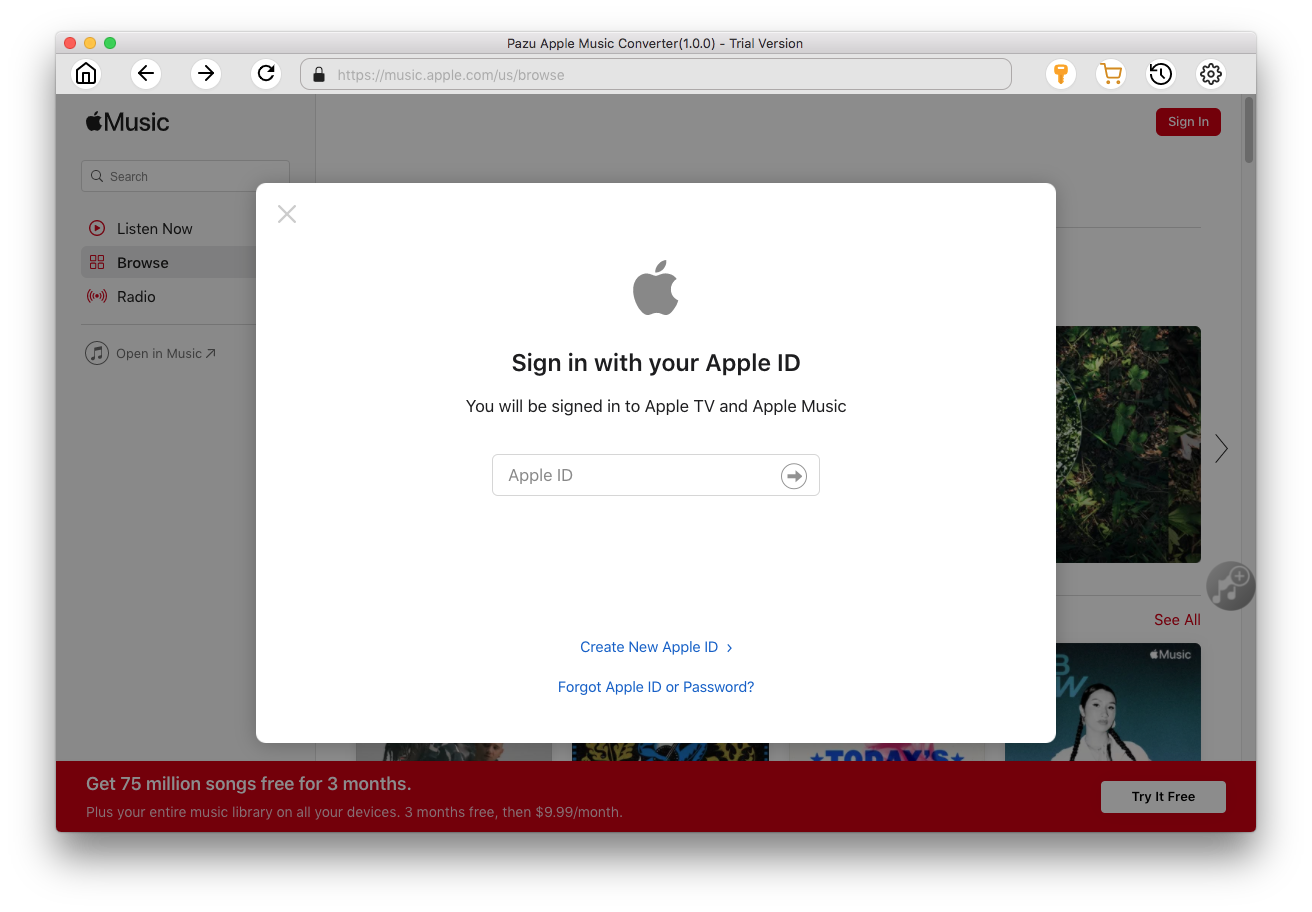
Follow the on-screen instructions to sign in with your Apple ID.
The default format is M4A in 256kbps. Apple Music Converter also supports MP3, AAC, FLAC, WAV and AIFF. Click the Settings icon if you want to change output format or output folder.
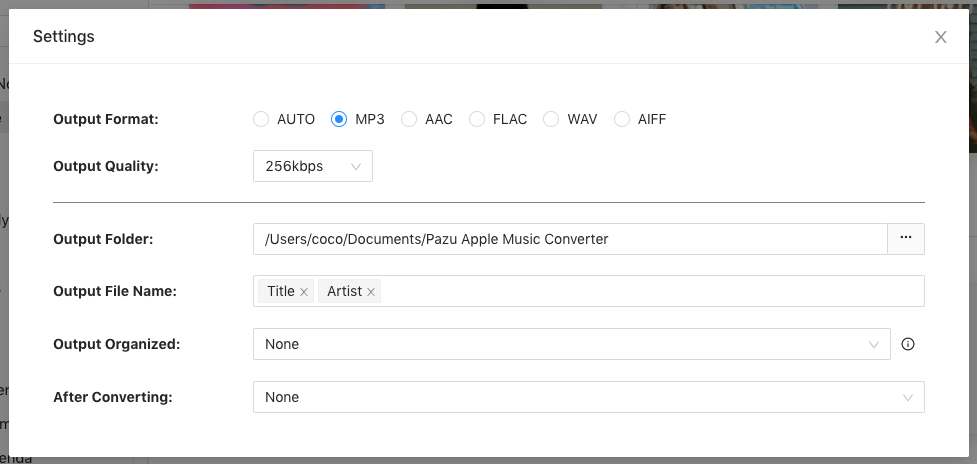
Here you can also customize song name format with any combination of Playlist Index, Track Number, Title, Artist and Album.
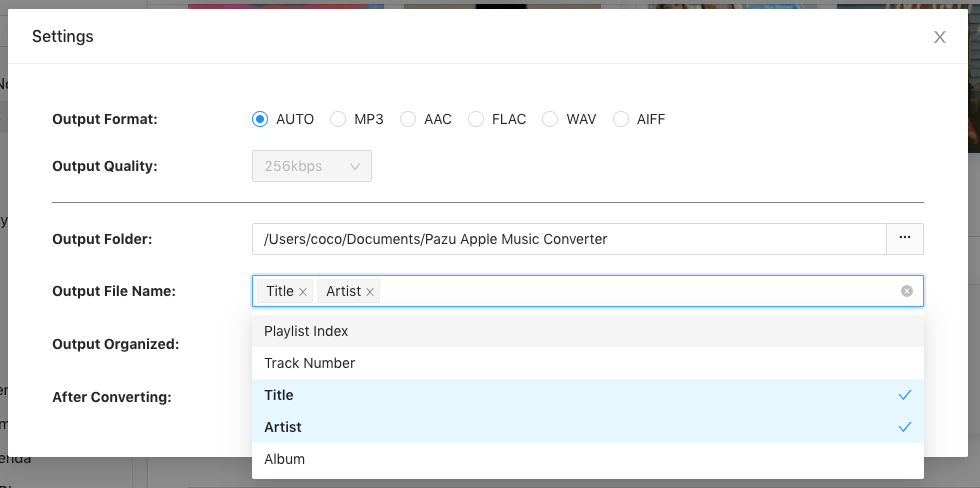
Or set Ondesoft Apple Music Converter to archive output song with Artist, Album, Artist/Album or Album/Artist.
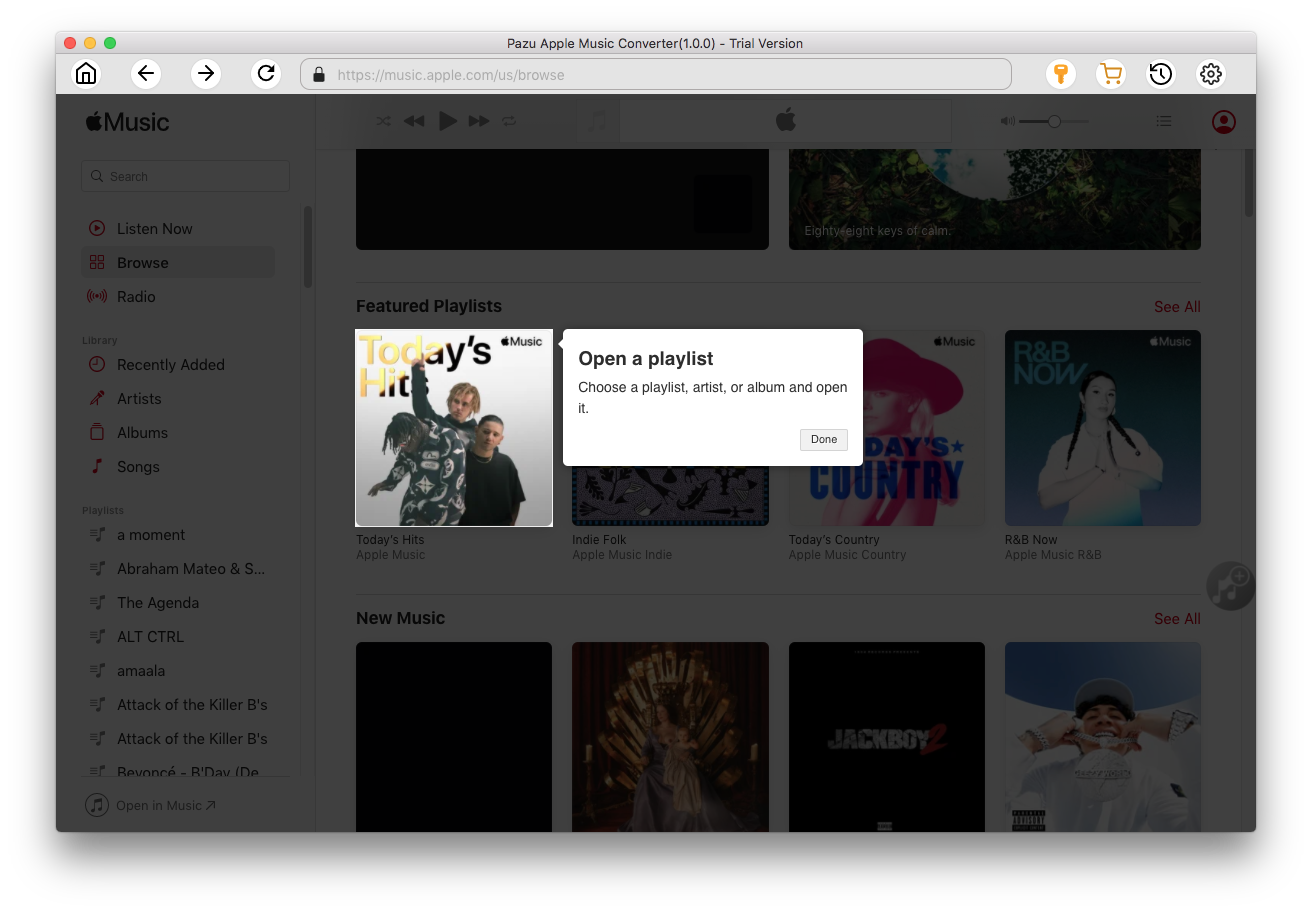
Follow the instructions to choose a playlist, artist, or album that you want to download.
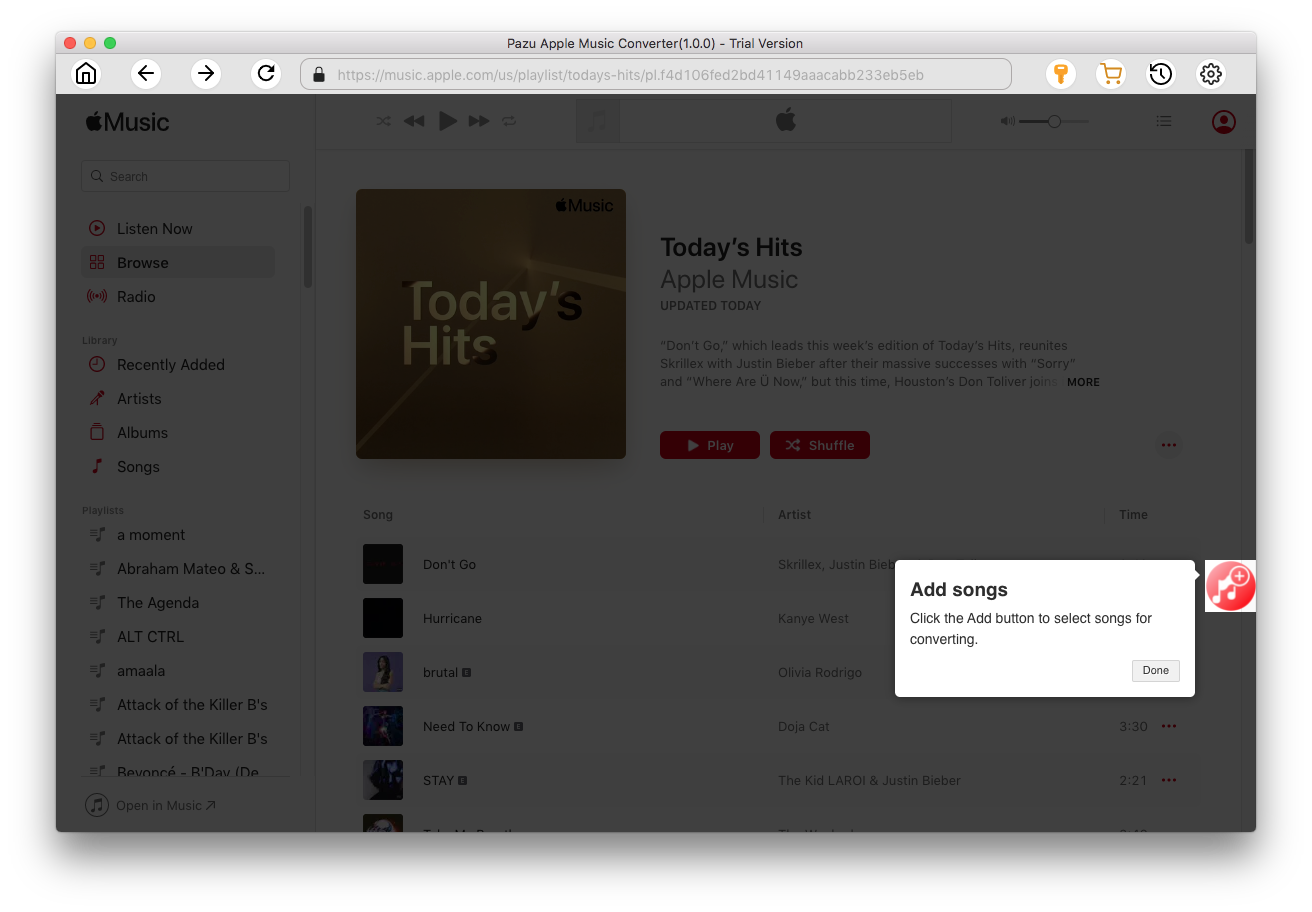
Click the Add button to select songs for converting.
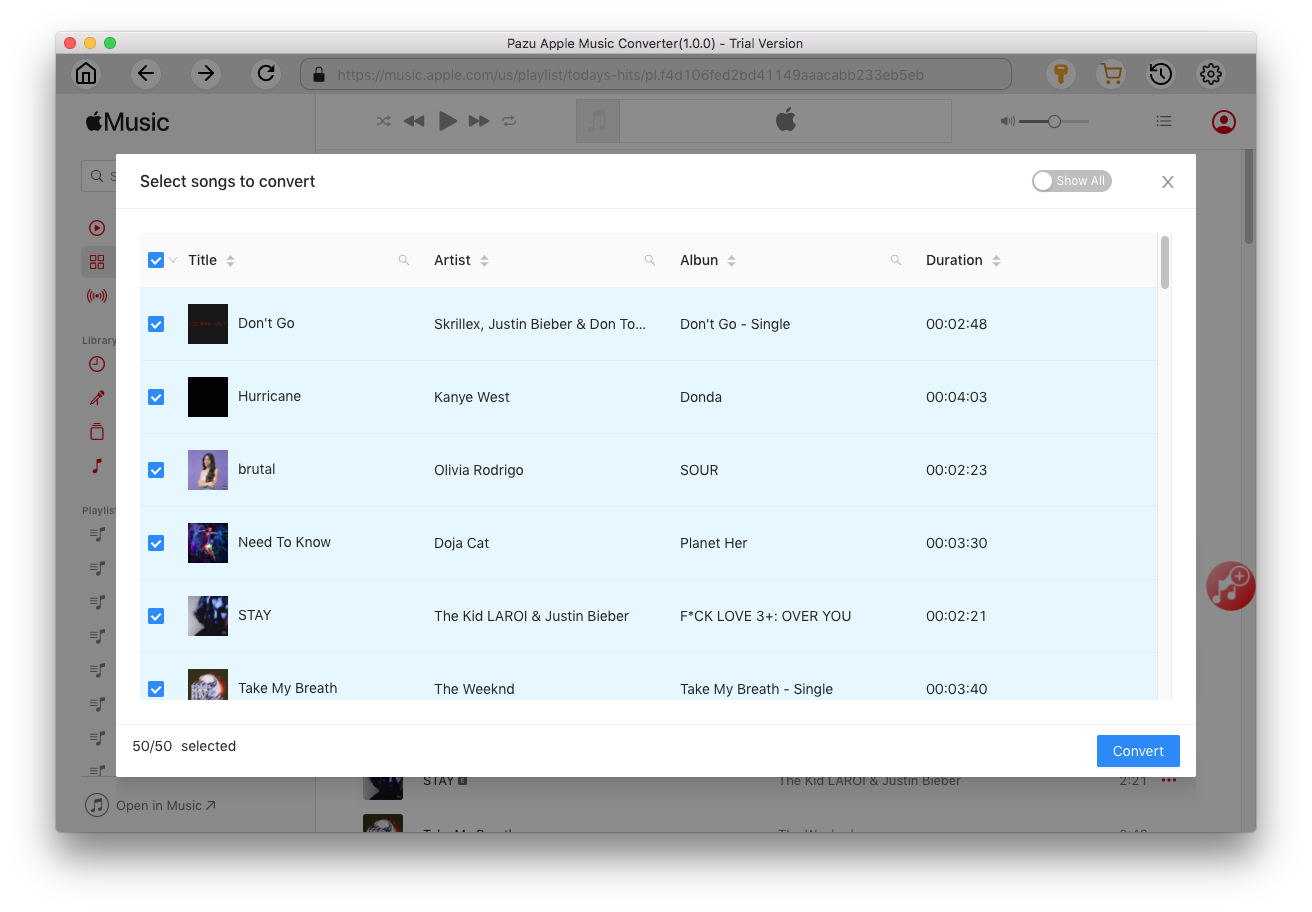
All songs in the playlist or album are selected by default. Uncheck the songs you don't want to download if there are any, then click Convert button.
If you are using the trial version, you will get below pop-up window indicating trial version limitations, just click Try if you haven't purchased a license.
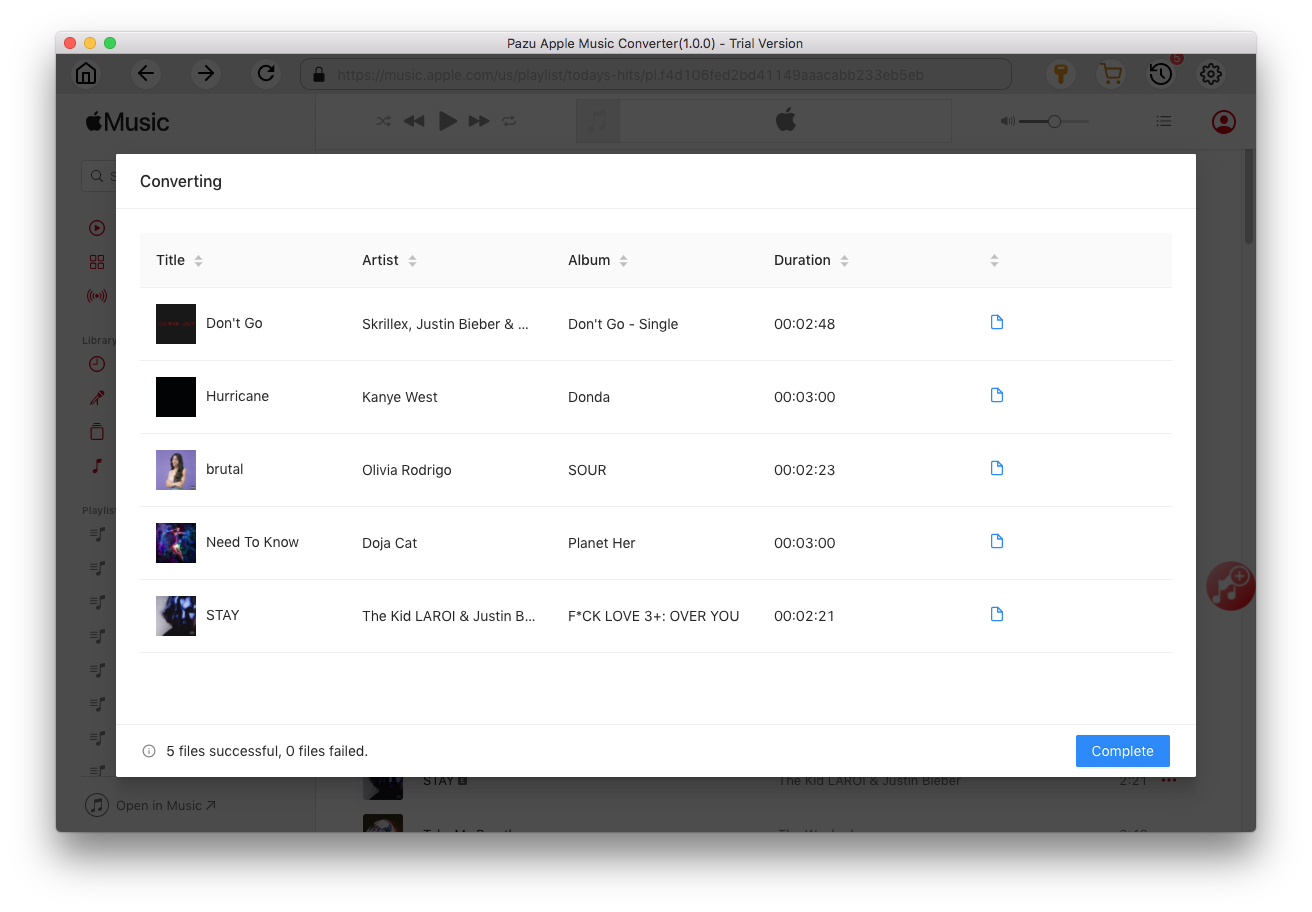
The songs you selected will be downloaded to the format you want.
After conversion, click the folder icon to quickly locate the DRM-free Apple Music songs.
Click the History icon to view all downloaded songs. You can check them by converted date, artist or album.

Download Apple Music to MP3, M4A, etc.