
Apple Music is an amazing streaming service that enables users to download and save music as well as videos to their devices. However, a glitch in the settings can wipe out your entire music library, leaving you desperate to know how to restore it.
Recently, many Apple users complained that they signed out of their Apple IDs and when they tried to sign back in, they were surprised to see that the songs they downloaded from Apple Music somehow disappeared from their library.
Well, if you're going through the same situation, then you probably know how frustrating it is to see your favorite Apple Music playlist disappear. Isn't it? In this article, we look at the possible causes and the solutions that can restore your Apple Music library.
Why is Apple Music/iTunes playlist disappeared? Here is the answer. It's best to know what makes you experience this annoying situation. Then you can choose a specific method to deal with it.
In most cases, when you find that your Apple Music playlists are missing, it's probably a problem with your iCloud Music Library. iCloud Music Library is an Apple service that stores your music library online by "matching" your tracks to songs listed in the iTunes Store (or uploading tracks directly if no matches are available). You can then stream and download them to up to 10 other registered devices you own. In this case, a common way to recover a vanished Apple Music playlist on iOS devices is to re-enable your iCloud Music Library, which can re-sync the lost songs from Apple Music with iTunes on Mac or PC.
Another case is that your Apple Music subscription has expired. If your subscription has expired, all playlists on Apple Music will disappear. You can check your subscription.
Sometimes, if your Apple Music playlist disappears from your iPhone after the iOS 14/15 update, it may be because your iTunes account is syncing across devices or your Show Apple Music option is automatically turned off. To get them back, you can try updating your iCloud Music Library via iTunes or just turn on the Show Apple Music feature.
So you might be wondering how to recover Apple Music playlists. After you understand all the possible reasons, you can use the 5 methods mentioned in the next section to solve the Apple Music deleted playlists problem and get them back easily.
Here's how to view subscriptions on your iPhone so you can see whether the Apple Music subscription is out of date.
Step 1. Open the Settings app on your iPhone or iPad.
Step 2. Tap your name at the top of the list.
Step 3. On the resulting page, tap Subscriptions.
If you pause Apple Music subscription for a long time, the playlists may also disappear. If you’re worried about losing your playlists, consider generating backups with Pazu Apple Music Converter .
On your iOS device, go to Settings - Apple ID - Media and Purchases. Tap sign out, restart your phone and sign back in.
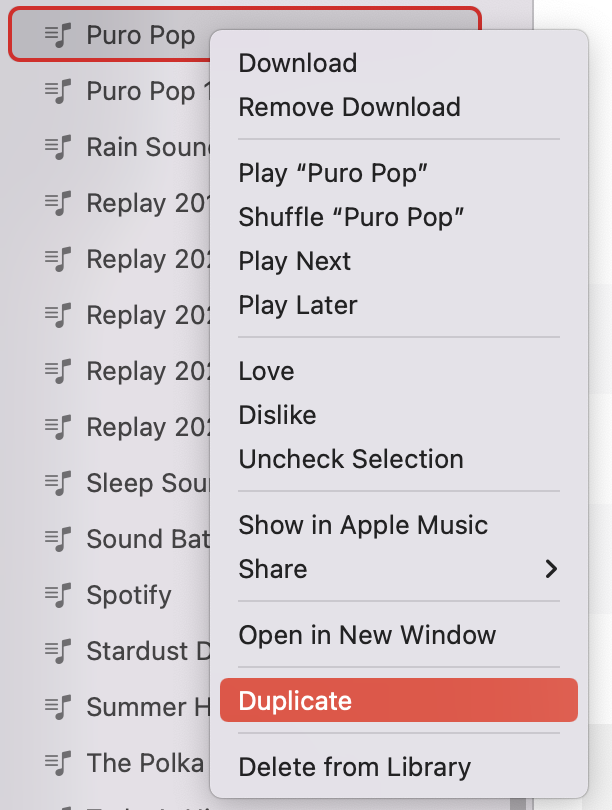
If the playlist disappeared on your phone but still existed on computer, rightclick on the playlist on Apple Music desktop app and you can duplicate it. Then it will be synced to phone.
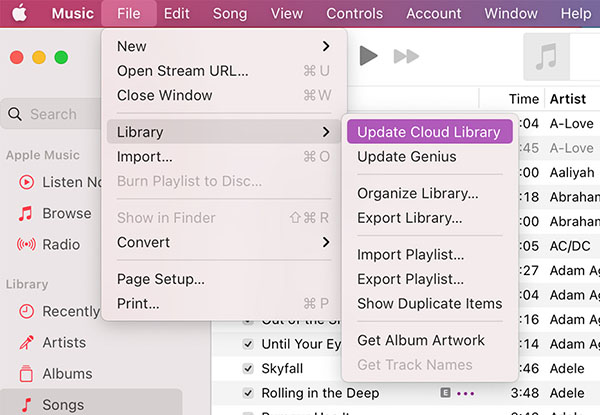
You can force iTunes to update your music library by turning iCloud Music Library on or manually updating it. Here's how.
Step 1. On your Mac, open Music. On Windows, open iTunes. Click File.
Step 2. Hover your cursor over Library. On Mac, click Update Cloud Library. On Windows, click Update iCloud Music Library. All “Waiting’’ tracks should shortly be matched to the iTunes catalog or uploaded to the iCloud Music Library.
On your iPhone, iPad, or iPod touch
On your Mac
On your PC with iTunes for Windows
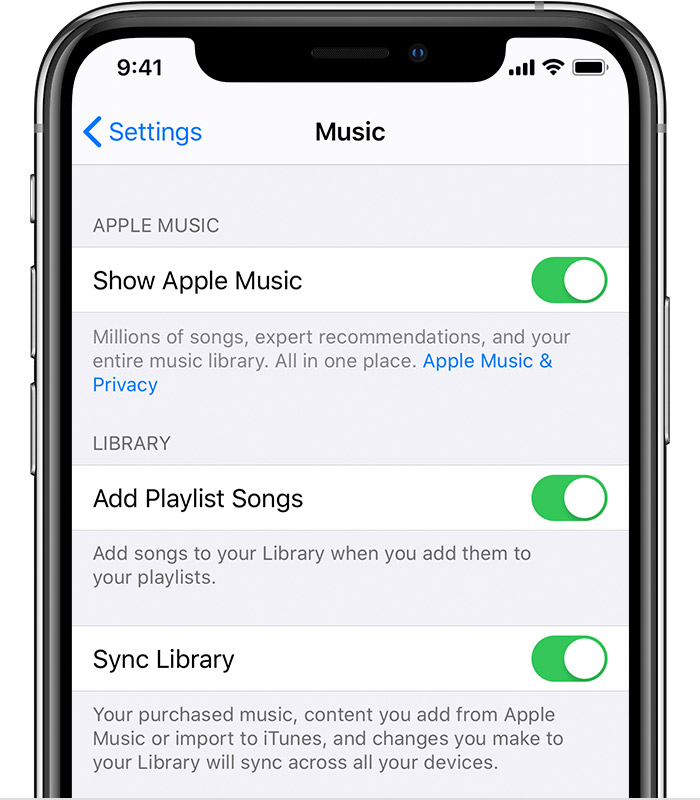
When you update to iOS 15, the "Show Apple Music" option may be turned off automatically. In order to make the Apple Music playlist visible in your library, you can check and turn it on. Just follow the steps below for your device.
Step 1. On your iPhone, iPad, or iPod touch. Go to Settings > Music.
Step 2. Turn on Show Apple Music. If it's already on, you can tap it off and then toggle it back on. Now you can go to Apple Music to check whether your playlists are visible.
You May Like:
If you have tried all the above methods, and you still can't solve the Apple Music playlist disappearing problem. Or the reason your playlist disappeared from your library is that your Apple Music subscription has expired. What if you don't want to renew your subscription? There is a reliable way to help you keep all Apple Music playlists in your library permanently without them being deleted again. And you can back them up in a safe place, such as your computer, CD, or USB drive. All you need to do is to use an Apple Music conversion tool like Pazu Apple Music Converter
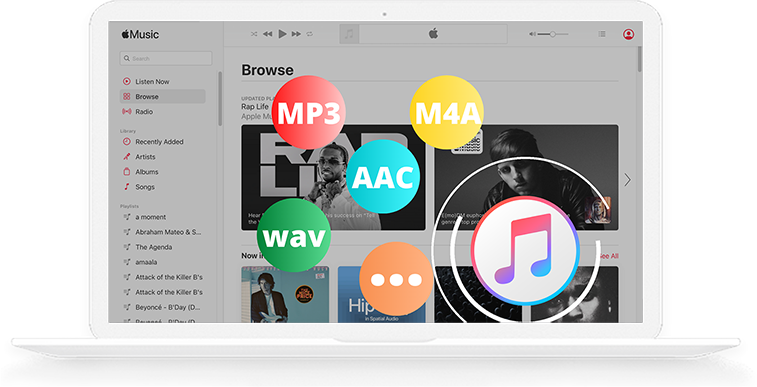
Pazu Apple Music Converter can encode all protected Apple Music files to MP3, AAC, FLAC, M4A, WAV, and FLAC without Music or iTunes app. In addition, you can convert Apple Music files to M4A at 30X faster speed. After conversion, you can keep all the songs and playlists in your Apple Music library forever, even if you later unsubscribe from the service. It's worth mentioning that the output quality created by this tool is as excellent as CD quality. And all original ID3 tags can be preserved to convert M4P to MP3 files.
Step By Step Process to use Pazu Apple Music Converter
Download, install and run Ondesoft Apple Music Converter on your Mac or Windows. Click the key icon to activate the full version if you have purchased a license, otherwise you can only use the trial version.
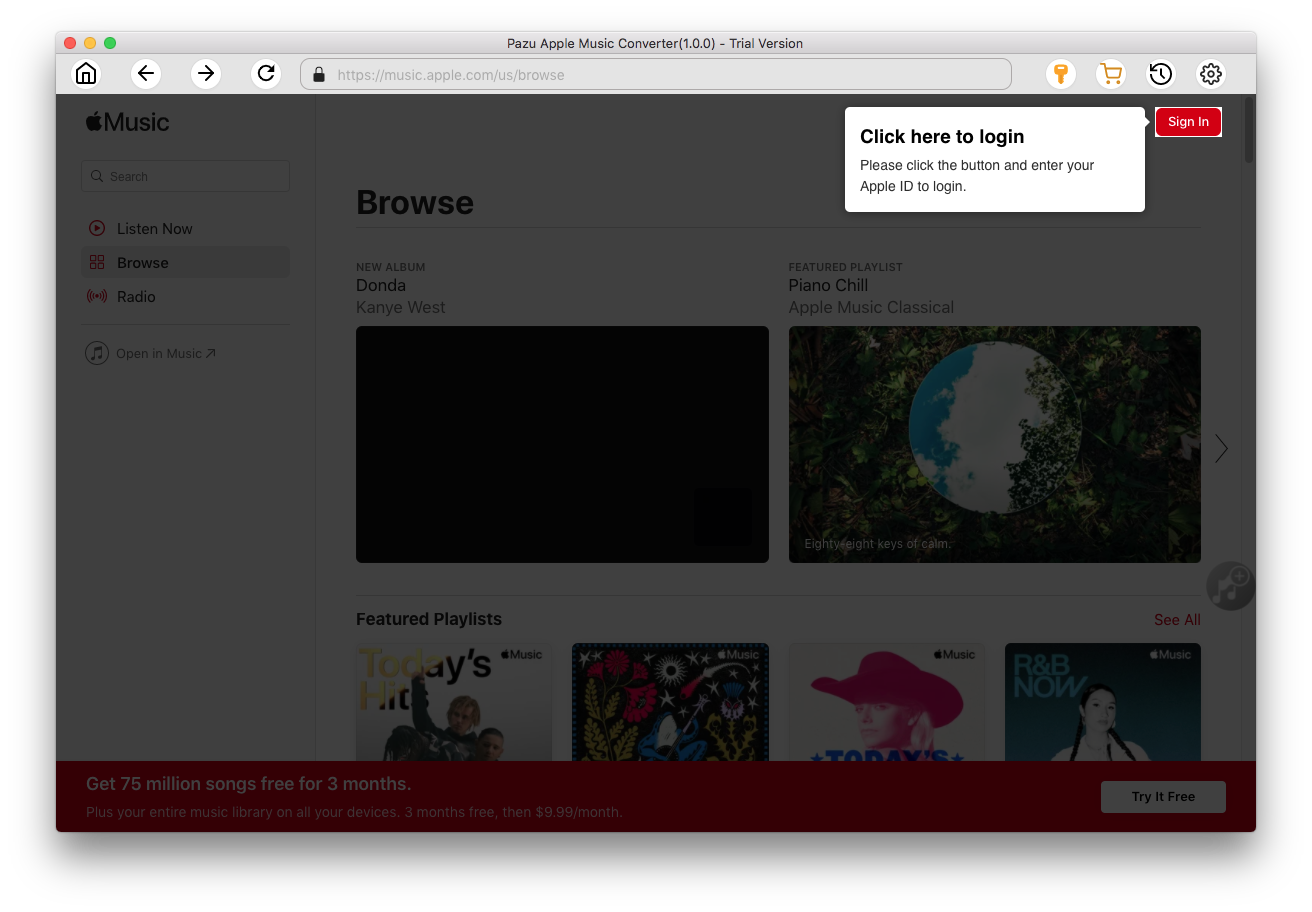
Follow the on-screen instructions to sign in with your Apple ID.
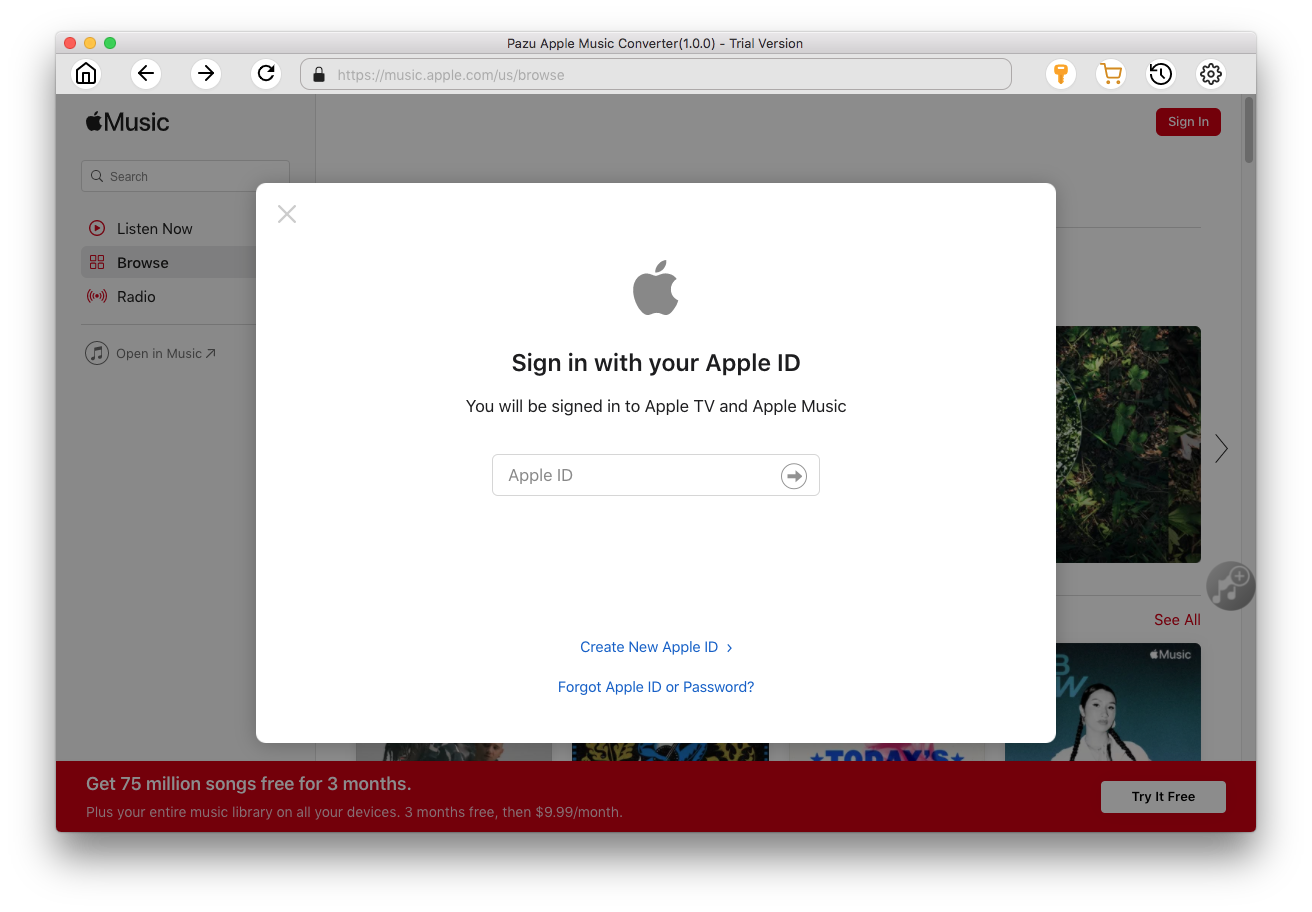
The default format is M4A in 256kbps. Apple Music Converter also supports MP3, AAC, FLAC, WAV and AIFF. Click the Settings icon if you want to change output format or output folder.
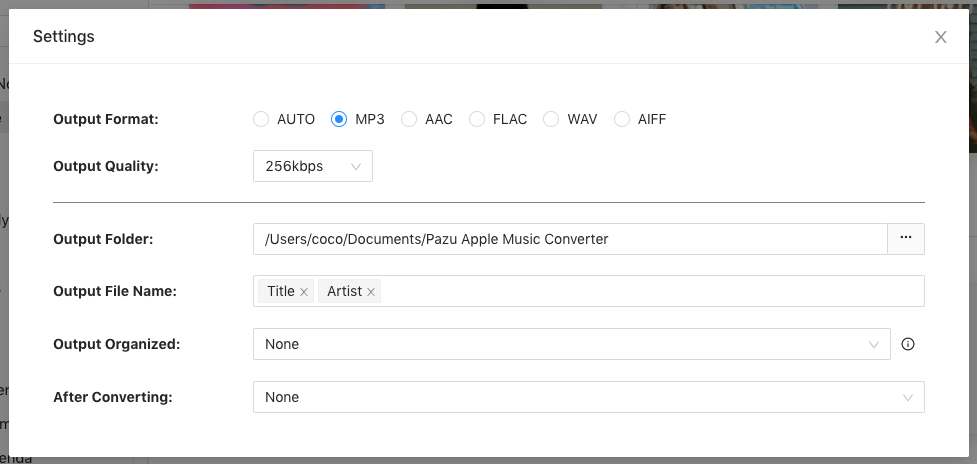
Here you can also customize song name format with any combination of Playlist Index, Track Number, Title, Artist and Album.
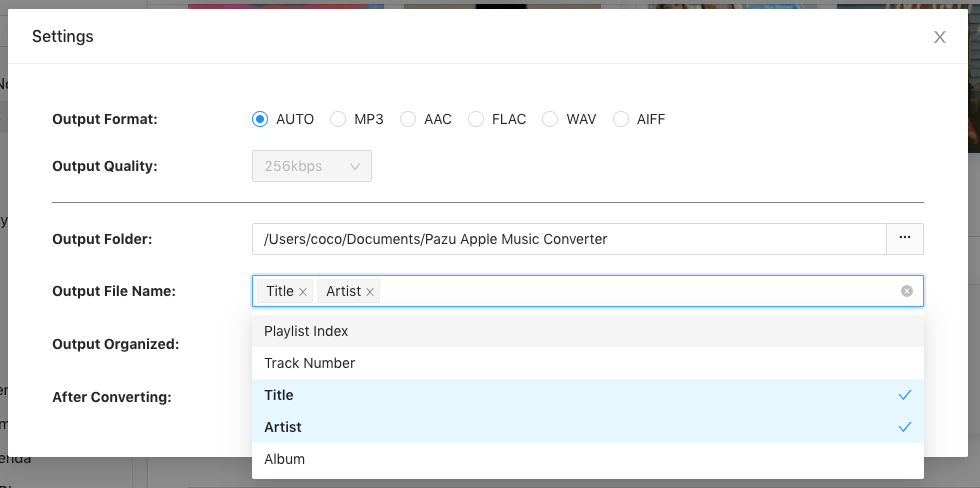
Or set Ondesoft Apple Music Converter to archive output song with Artist, Album, Artist/Album or Album/Artist.
Follow the instructions to choose a playlist, artist, or album that you want to download.
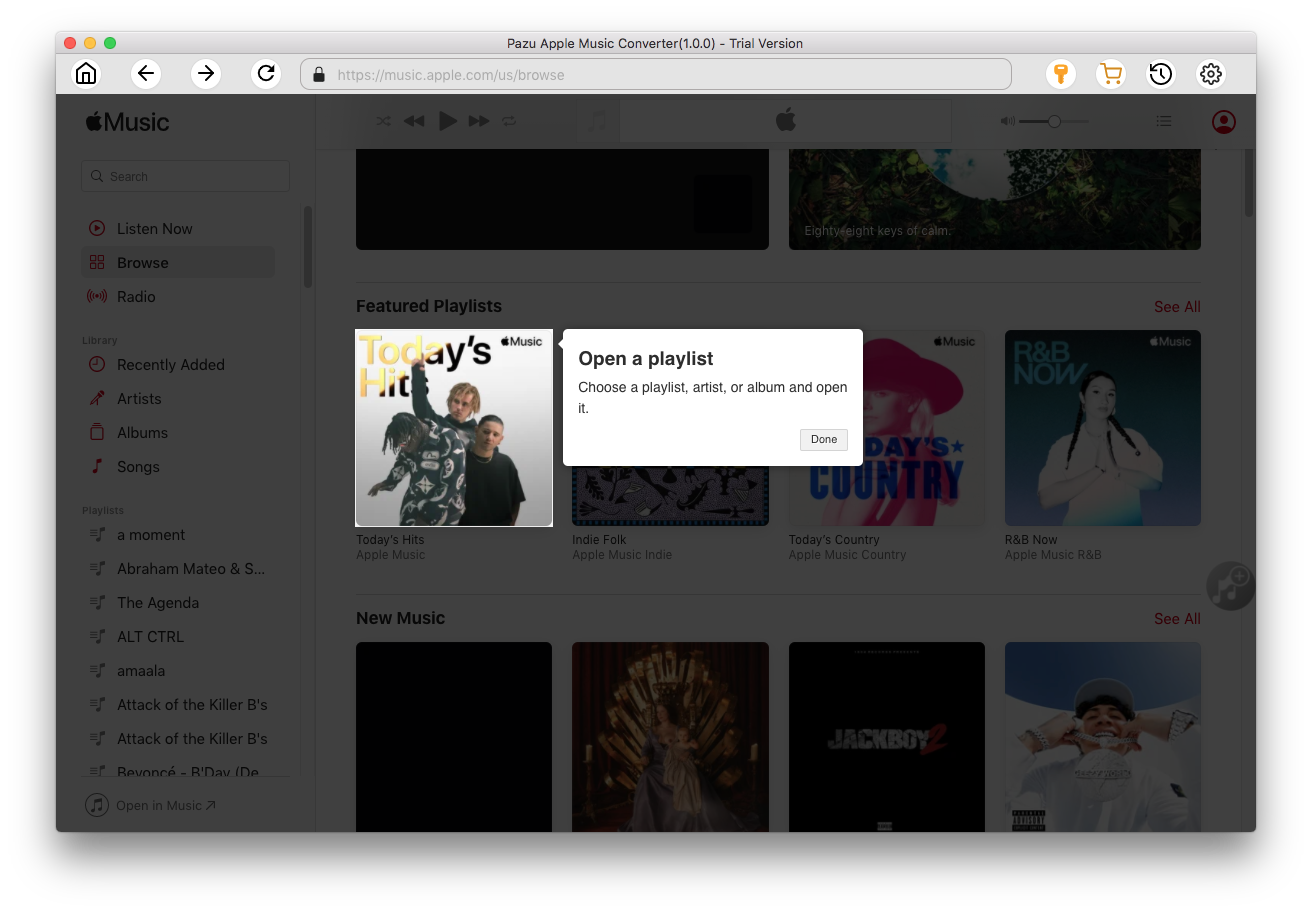
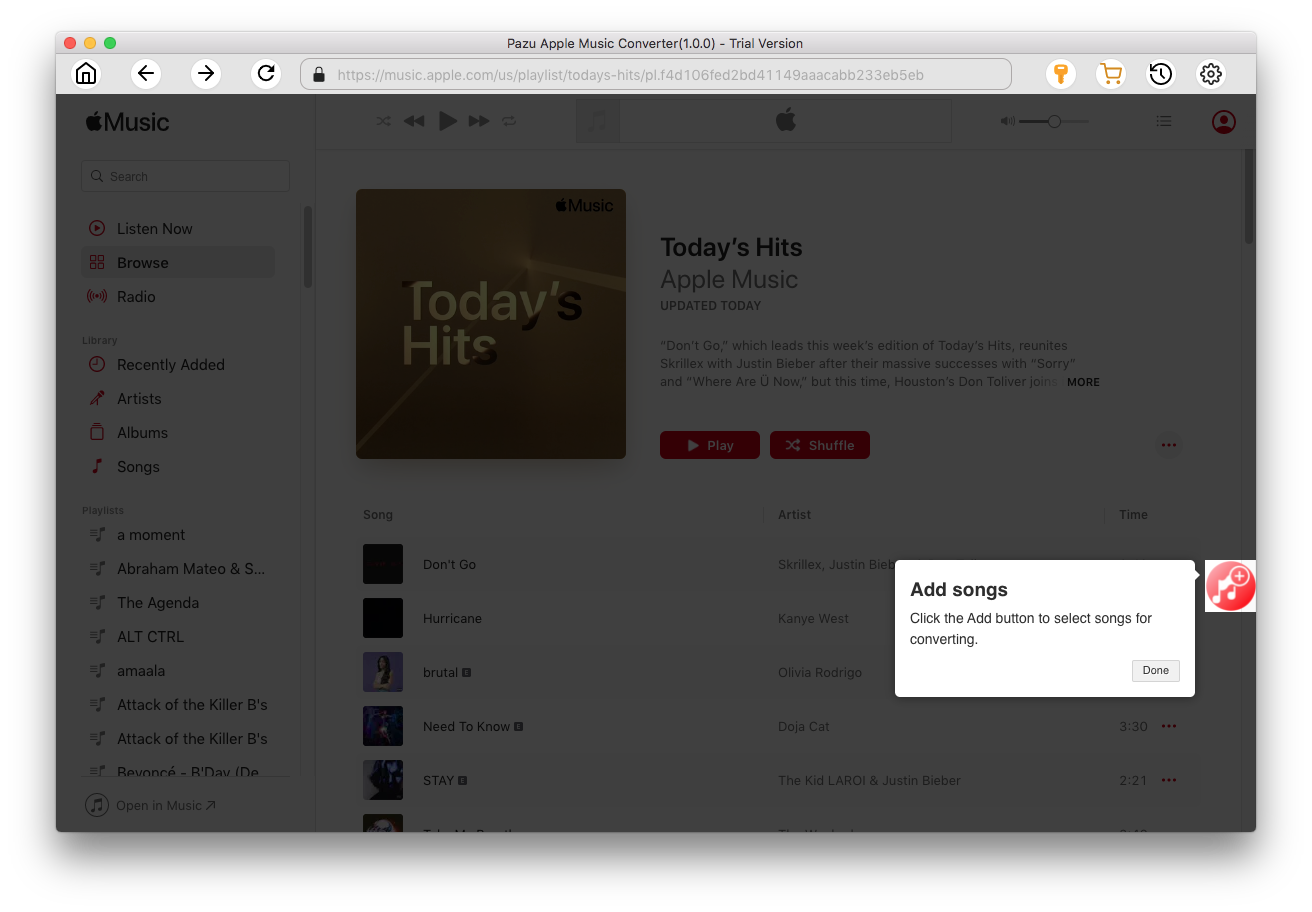
Click the Add button to select songs for converting.
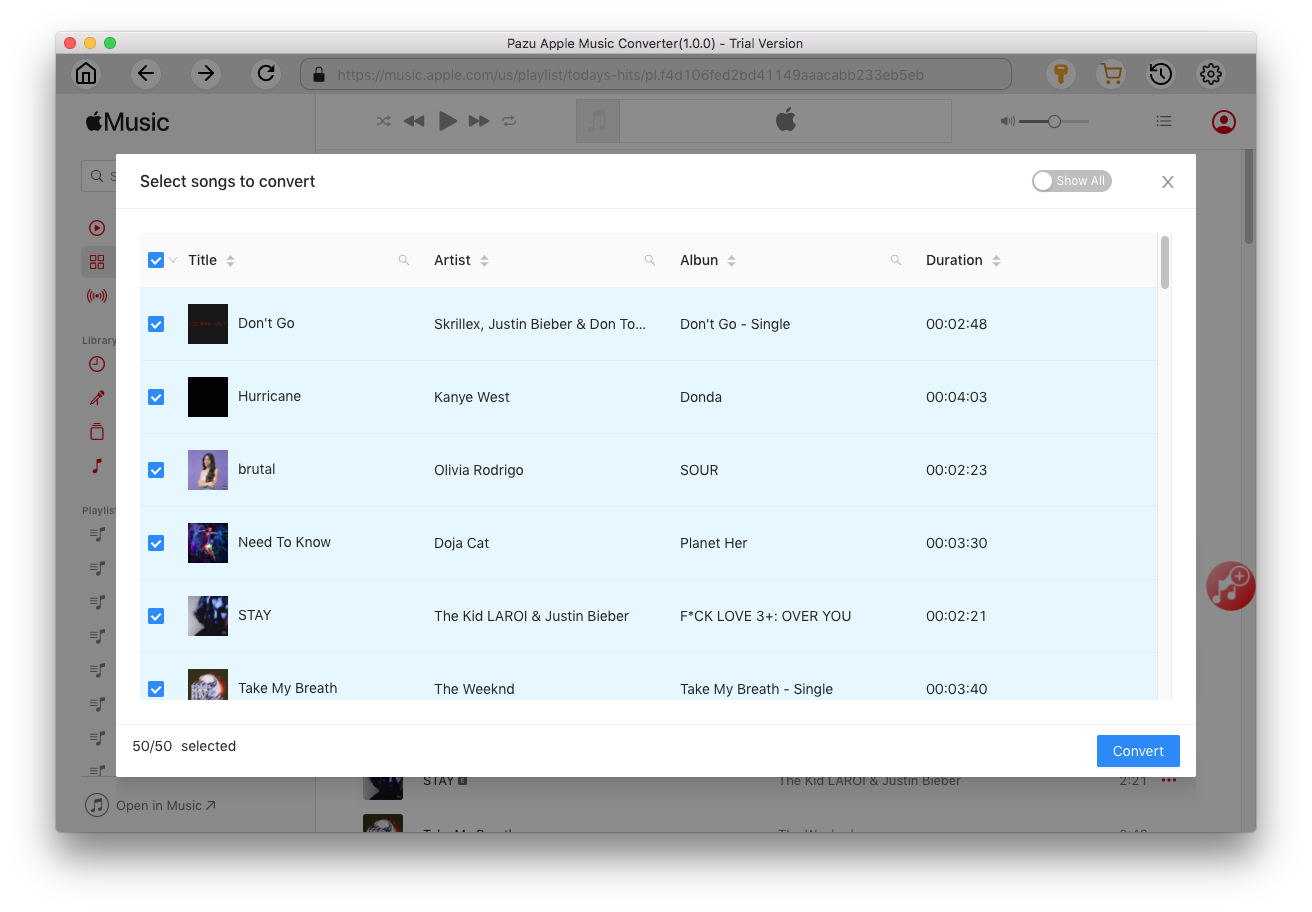
All songs in the playlist or album are selected by default. Uncheck the songs you don't want to download if there are any, then click Convert button.
If you are using the trial version, you will get below pop-up window indicating trial version limitations, just click Try if you haven't purchased a license.
The songs you selected will be downloaded to the format you want.
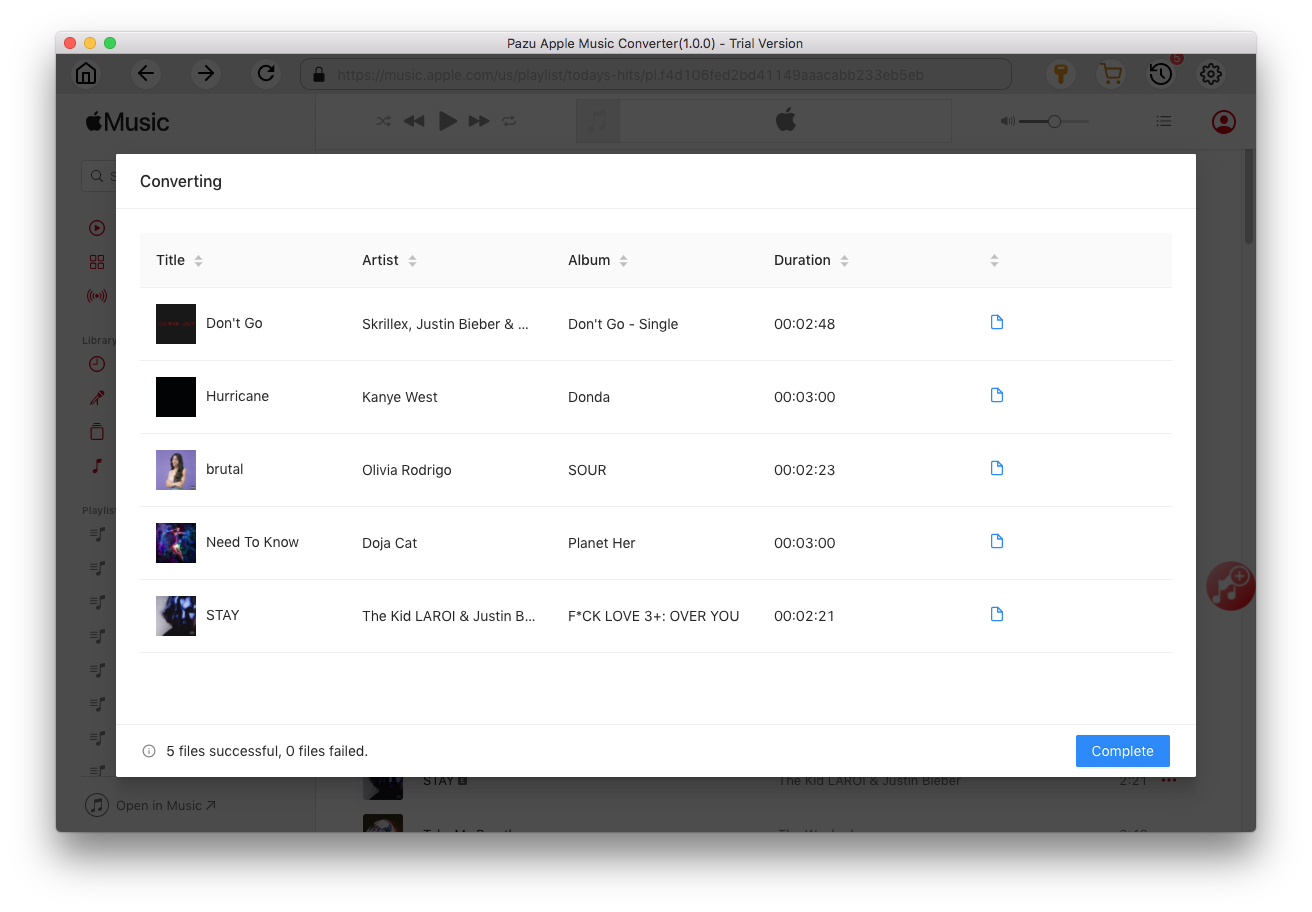
After conversion, click the folder icon to quickly locate the DRM-free Apple Music songs.
Click the History icon to view all downloaded songs. You can check them by converted date, artist or album.

Download Apple Music to MP3, M4A, etc.