
Playlists have become a hugely important part of the music streaming world. Spotify has curated collections of songs to suit specific genres and moods, you can also make as many of your playlists as you like and even share them with others. Copying a Spotify playlist is handy when you want to make a backup or customize a playlist to send to someone else. If you know how to duplicate Spotify playlists, you can save your friend having to add each song individually into a new playlist.
Below, we will share some tips to help you duplicate your Spotify playlists. With the help of these handy tips, you will know how to get much more out of your Spotify playlists.
This method requires you to have access to Spotify on desktop.
Step 1. Open Spotify app. Click Create Playlist on the left sidebar to create an empty playlist. Give it a name.
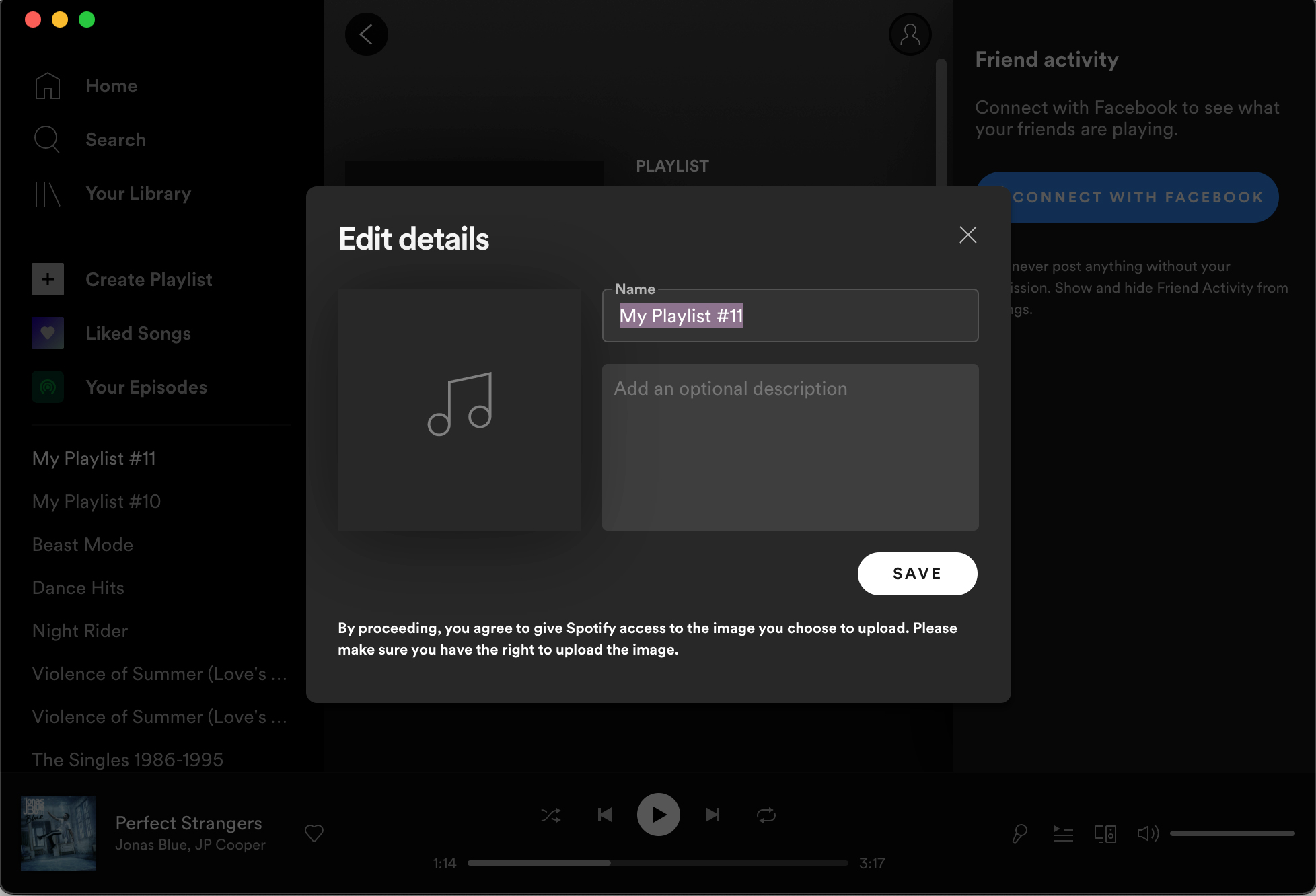
Step 2. Go to the original playlist which you want duplicated. Click the first song title once to select (but not play) the track.
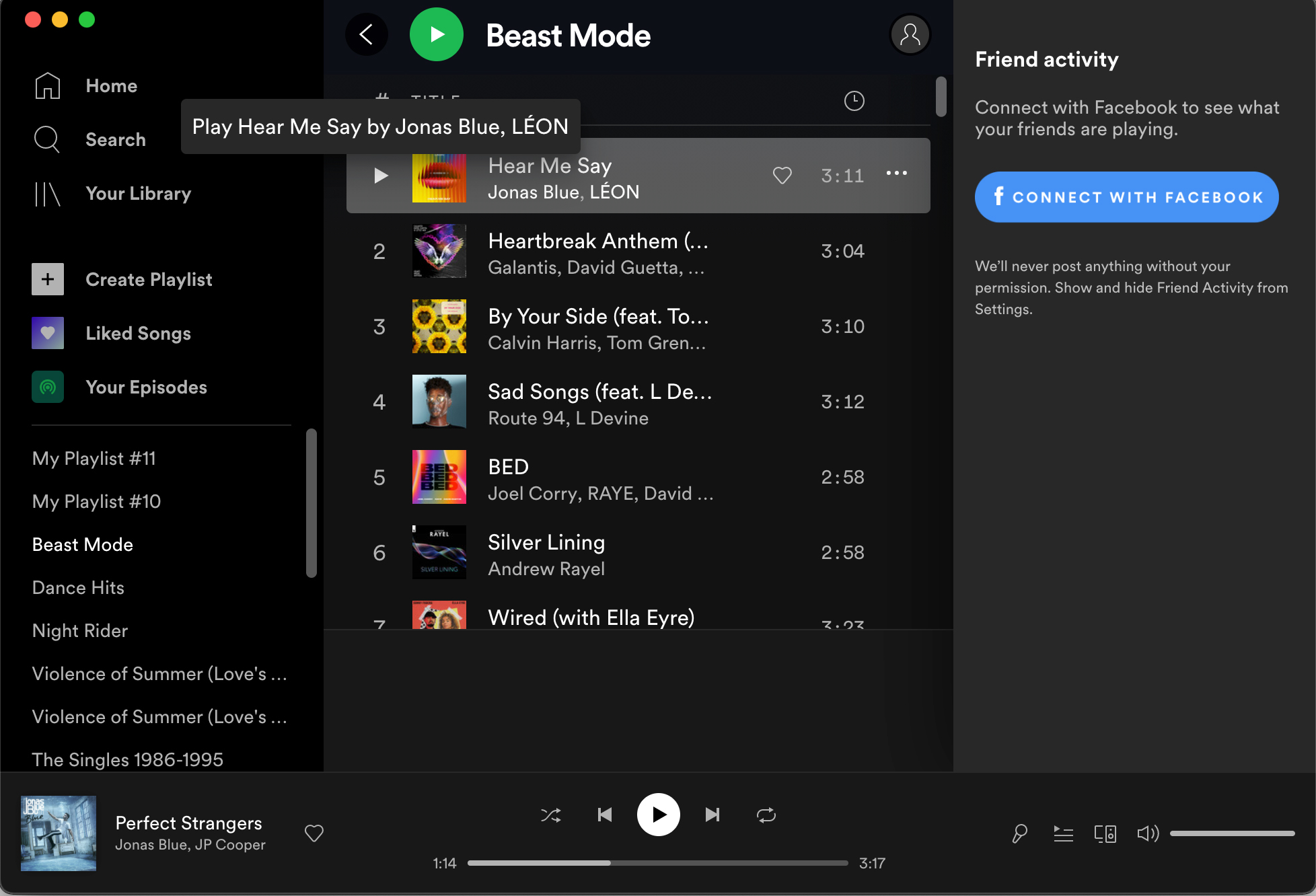
Step 3. Press Ctrl + A or Cmd + A on Mac, this will select all the songs in your current playlist.
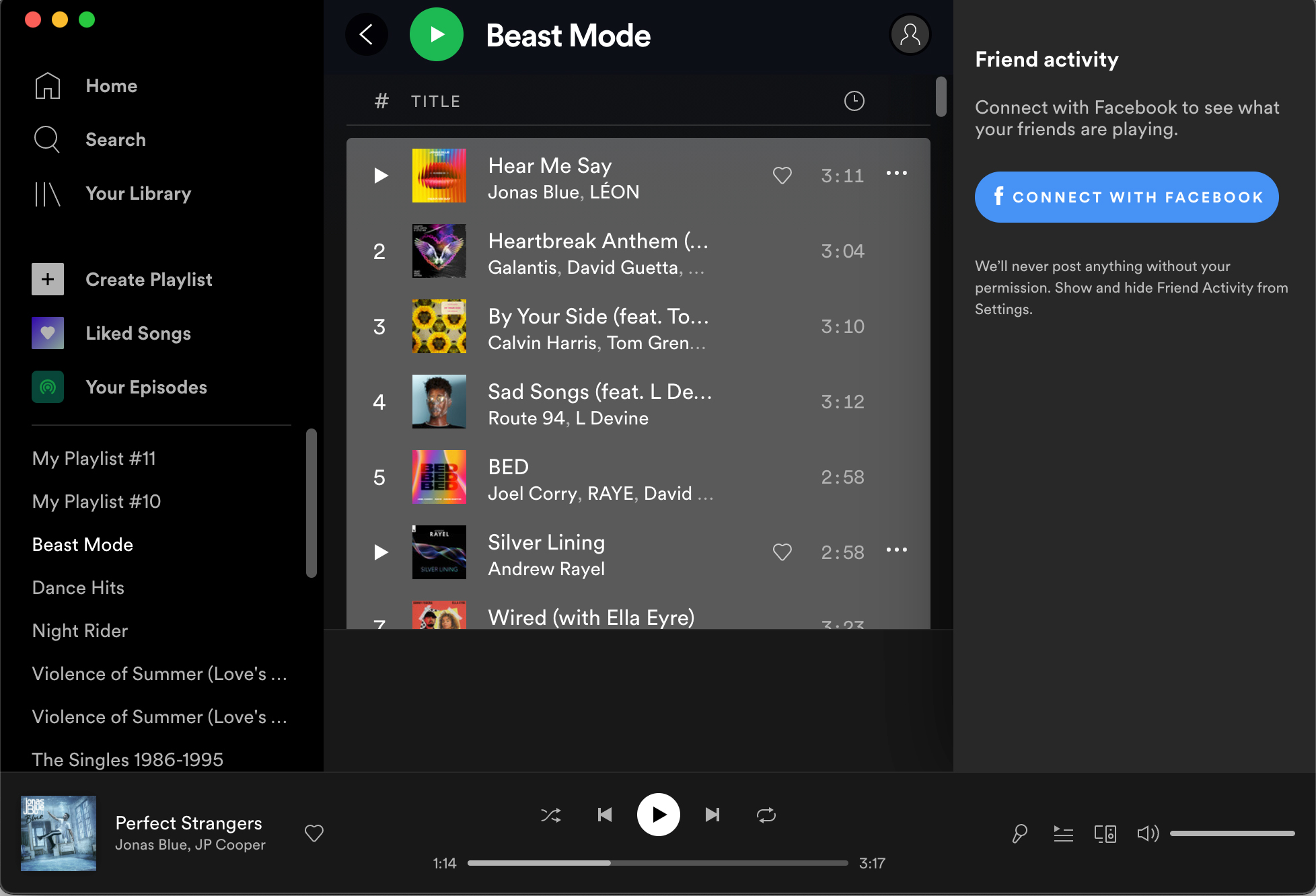
Step 4. Drag or copy and paste the highlighted songs to the new playlist in the left pane.
Note that you can right-click on any playlist and select Create Similar Playlist option to generate a new playlist with similar tracks. However, this doesn't duplicate a Spotify playlist; instead, it creates one that has music similar to your current playlist. It's a great way to discover more music you'll love on Spotify, but it doesn't duplicate the exact contents of a playlist.
Spotify makes it easy for you to organize and manage the playlists in your music library. But sometimes you might mess up the duplicated playlist with the original one. To avoid mixing them up and get a better listening experience, you can try to download Spotify playlists as local files and manage them on your file manager.
And although Spotify Premium user can play Spotify songs offline, it doesn’t mean that the paid users can save and manage them as local files. If you want to download Spotify songs without Premium, it is suggested to use a third-party tool — Pazu Spotify Converter.
Pazu Spotify Converter is specially developed to download songs and playlists from Spotify to your local computer. By Pazu Spotify Converter, you can save Spotify songs as MP3/M4A/AAC/FLAC/WAV/AIFF files. It keeps the original audio quality and ID3 tag. After conversion, you can manage Spotify playlists on your file manager and share them with your friends. The following is a detailed tutorial about how to download Spotify playlist with Pazu Spotify Converter.

Download, install and run Pazu Spotify Converter on your Mac or Windows. Log in your Spotify account with the built-in Spotify web player. The steps are the same whether you have the Mac or Windows version of Pazu Spotify Converter.

Use the integrated Spotify web player to search the songs, album, playlist or podcast you want to download. Click the Add to list button to load all songs in the album or playlist, uncheck the songs you don’t want to download if there are any.
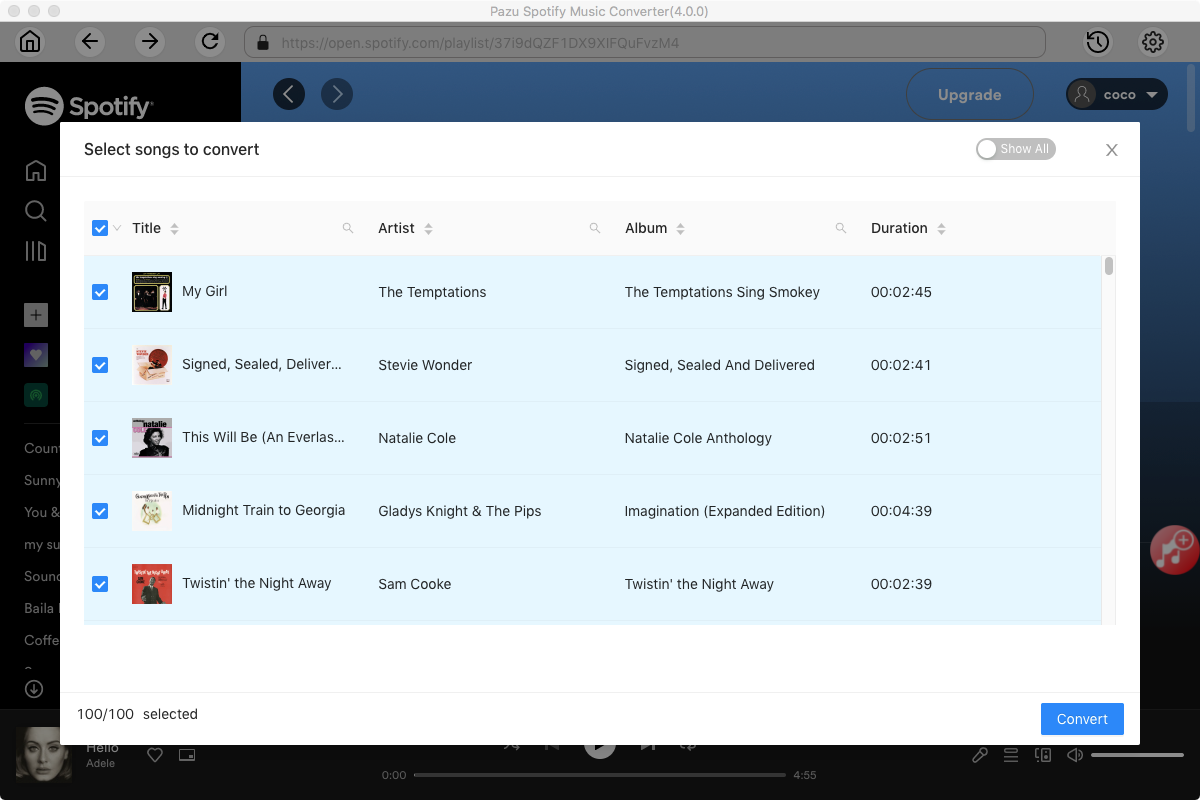
Click the gear icon on the top right corner to open Settings. Here you can select output format (MP3/M4A/AAC/FLAC/WAV/AIFF), choose output audio quality, cover quality, change the output path, organize the output files in various ways, rename output files and more.

Click Convert button to start downloading the Spotify songs to your local computer.

Once the conversion is done, you can find your Spotify songs downloaded as local files by clicking below folder button or directly going to the output folder you customized in the previous step. You can transfer them to your file manager or manage them anywhere you want.

Note: The free trial version of Pazu Spotify Converter enables you to convert the first three minutes of each song. You can remove the trial limitation by purchasing the full version.
Buy Now Buy Now
Download and convert any Spotify songs, albums, playlists to MP3/M4A etc.