
With the integration of Google TV (formerly Android TV), Google has finally embraced Chromecast as a standalone streamer. While the functionality of Chromecast is still there and working well, the ability to not have to rely on a phone, tablet or computer for control is a huge step forward.
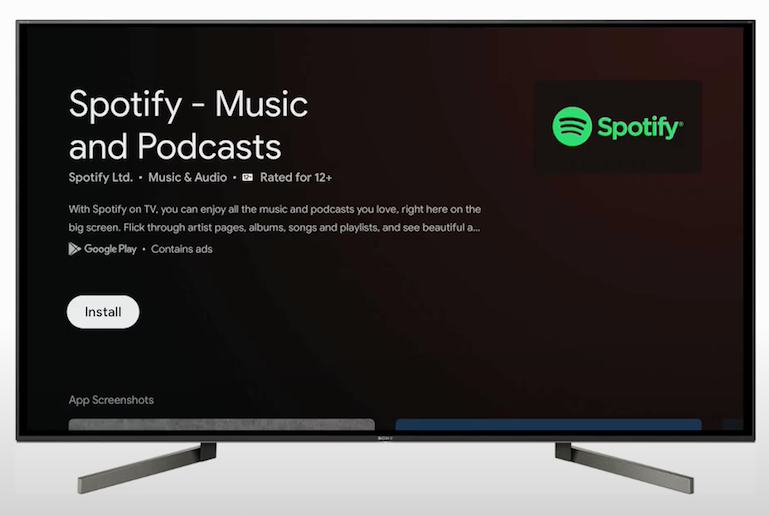
It is easy to set up the Chromecast with the Google Home app on iOS or Android. The Chromecast with Google TV has over 6,500 Android TV apps and nearly all the major streaming services, including Spotify, Peacock, HBO Max and Apple TV Plus, so you're not just relying on Chromecast support.
Also, there's a full remote for controlling your stream, so you can put down your phone and pay attention to what's on your TV.
How to install Spotify on Chromecast with Google TV?
1: Turn on your Google TV and click on the Apps section.
2: Select Search for apps menu.
3: Use the on-screen keyboard to type Spotify and then search for it. You can also use the voice command to search for it.
4: Choose the Spotify app from the suggestion list and click the Install button.
5: The app will take few minutes to install. Once installed, click the Open button to launch it.
6: Click Sign in and enter your Spotify user account details.
7: After signing in, you can enjoy listening to your favorite audio tracks.
Besides using the Spotify app, you can also stream Spotify on your Chromecast with Google TV by casting it from your mobile devices. Make sure your mobile device and Google TV are connected to the same WiFi network.
1: Open the Spotify app on your mobile device.
2: Launch the app.
3: Click the Cast icon on the top right corner of the screen.
4: Choose your Chromecast from the list.
5: Now, play your favorite audio track on the Spotify app and hear it via your Chromecast connected TV.
Although Chromecast works with Spotify free, but the ads are extremely annoying. Besides, you are limited to shuffle play and 6 skips per hour.
Is there any workaround available? Definitely! You can use Pazu Spotify Converter to download music from Spotify to your computer and then stream them to Chromecast as local music. Chromecast doesn’t advertise itself for playing local content, but it can. On Windows, you can cast from Windows Media Player. On Mac and iOS device, use the default Music app.
Pazu Spotify Converter is powerful Spotify music downloader that allows you to download Spotify songs as MP3/M4A/WAV/FLAC/OGG/AIFF. After that, you will get Spotify premium for free : offline on-demand playback, no ads, high quality and unlimited skips. Then, you are able to listen to music on Chromecast, MP3 players, smartwatches, car stereo, and more without Premium. Below are the detailed steps for you.

Download, install and run Pazu Spotify Converter on your Mac or Windows. Log in your Spotify account with the built-in Spotify web player.

Pazu Spoitfy Converter features built-in Spotify web player for you to browse or search Spotify songs, albums and playlists you want to download directly on the interface. You don’t need to install Spotify app. Click the album or playlist you want to download and then click the red icon to load all songs.
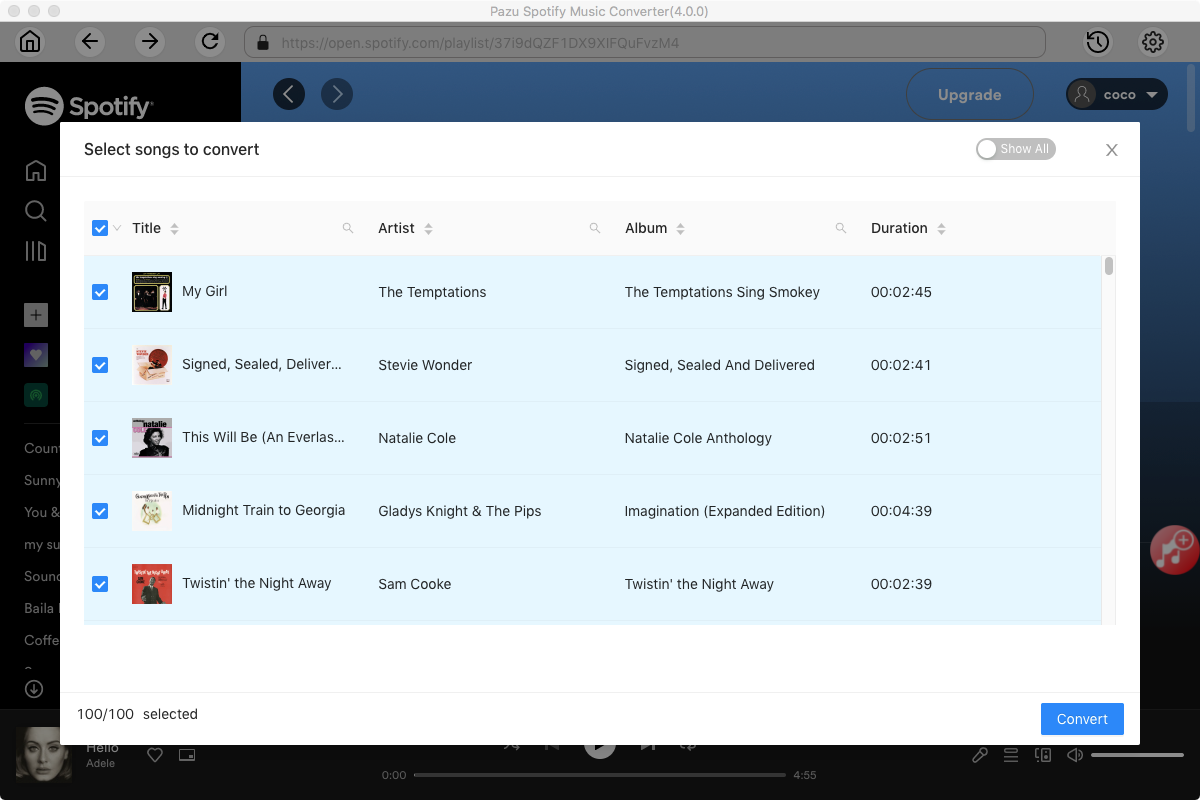
The default output format is M4A. Pazu Spotify Converter also supports MP3, AAC, FLAC, WAV, and AIFF. Click the gear icon on the top right corner to change output format or output quality. You can also change output folder and following:

Click Convert button to start recording Spotify music to the format you choose. After conversion, click the History icon to quickly locate the DRM-free Spotify song. You can then move and play it anywhere.

Once the conversion is done, click the folder icon to find the converted Spotify songs.

1. Windows Media Player
By default, every Windows devices carry the Windows Media Player as the default media player.Windows Media Player doesn’t support Google Chromecast directly. You need to use the latest version of Chrome Browser to cast Windows Media Player contents with the Chromecast device.
Step 1: Plug in your Google Chromecast device with HDMI port on your TV.
Step 2: Connect your Chromecast and computer to the same WiFi network.
Step 3: Open the Chrome Browser on your computer.
Step 4: Click the Menu icon on the top right corner.
Step 5: Click on Cast option.
Step 6: It will search for the available Chromecast connected devices.
Step 7:Click on the Source drop-down button.
Step 8: Select the Cast Desktop option.
Step 9: Select your Chromecast connected device from the list.
Step 10: The pop-up window appears with casting the entire screen .
Step 11: Click on the screen and choose share option.
Step 12: Now open the Windows Media player and play the downloaded Spotify songs .
Step 13: The songs will stream on your Chromecast connected TV.
2. Use Plex
Plex is a media center with lots of Android and iOS controller apps. Basically, you create a media server on your PC/Mac and add your whole music folder to Plex.

Step 1: Choose Music from the Add Library menu.
Step 2: After choosing the Add Folder option, navigate to the root of your Music collection folder and select Add.
The media will now be scanned and cataloged. You can then play anything from the Media Server interface to Chromecast.
Note: The free trial version of Pazu Spotify Converter enables you to convert the first three minutes of each song. You can remove the trial limitation by purchasing the full version.
Buy Now Buy Now
Download and convert any Spotify songs, albums, playlists to MP3/M4A etc.