
Google Home/Google Nest is much more than just a device that streams music. It is an intelligent home assistant that can help you manage your day-to-day activities, control your smart home devices, and even answer your questions. However, its music streaming capabilities are truly outstanding. With Google Home/Google Nest, you have access to a massive library of songs, playlists, and podcasts, all accessible with just a few voice commands. You can seamlessly stream music from your phone, tablet, laptop, or any other device, all without having to lift a finger. What's more, with Google Assistant integration, you can control your music playback using voice commands, making it easier than ever to enjoy your favorite tunes while you go about your day. Whether you're hosting a party or just relaxing at home, Google Home/Google Nest is the perfect addition to any household, delivering top-notch entertainment and convenience in one sleek package.
Contents
Google Nest, previously named Google Home, is a line of smart speakers developed by Google under the Google Nest brand. The devices enable users to speak voice commands to interact with services through Google Assistant, the company's virtual assistant.
The original Google Home speaker was first released in the United States in November 2016. In October 2017, Google announced two additions to the product lineup, the miniature puck-shaped Google Home Mini and a larger Google Home Max. In October 2018, the company released the Google Home Hub, a smart speaker with a 7-inch touchscreen. In May 2019, Google announced that Google Home devices would be rebranded under the Google Nest banner, and it unveiled the Nest Hub Max, a larger smart display. Google Home now refers to the mobile app that allows you to manage all your smart home devices.
The two devices offer the same main features. They both offer Google Assistant built-in, allowing you play music, control smart home devices and ask Google pretty much any question.
You can link your music services and pick a music service as your default on your Google Nest or Home speaker or display, as long as the music service is available on the Google Assistant . Popular music streaming services like YouTube Music, Spotify, Apple Music, Pandora , Deezer, etc. are all available on the Google Assistant.
Link Spotify to your Google Home/Nest
1. Make sure your mobile device or tablet is connected to the same Wi-Fi network or linked to the same account as your speaker or display.
2. Open the Google Home app.
3. At the top right, tap your account. Check the Google Account shown is the one linked to your Google Home or Google Nest device. To switch accounts, tap another account or Add another account.
4. Go back to the home screen, and at the top left, tap + > Music.
5. Tap Spotify > Link account > sign in or sign up for the service and follow the in-app steps.
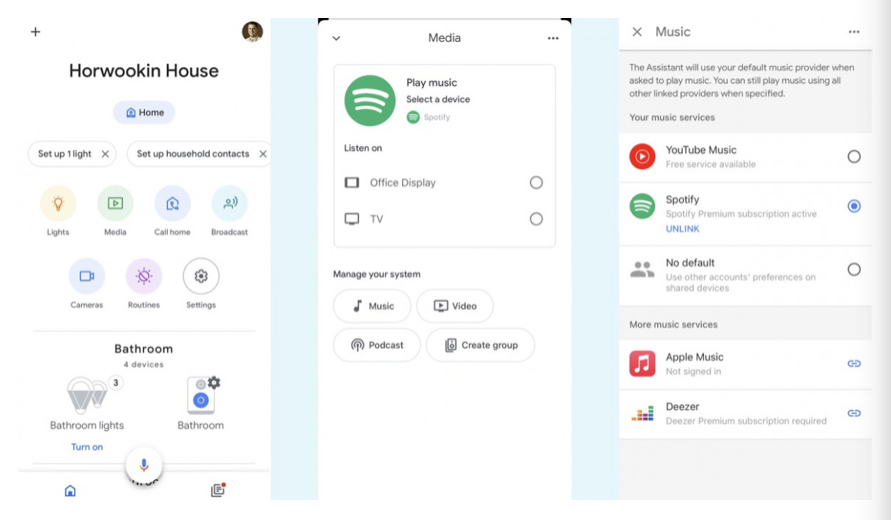
Now you can listen to Spotify on your Google Home or Nest and control the playback with voice commands.
With Spotify Free, you'll get a station of songs inspired by the song, album, artist or personal playlists you asked for. You can't get specific songs, albums, artists or personal playlists on demand, but you can ask for music based on genre, mood or activity, or for Spotify-curated playlists.
With Spotify Premium, you can play content on demand. You can get specificsongs, albums or artists along with music based on genre, mood or activity, Spotify’s curated playlists, and your personal playlists.
1. Launch Spotify app on your iPhone, Android, tablet, Mac, or PC.
2. Select a song or podcast and tap "Play."
3. Tap on the "Now Playing" bar at the bottom of your screen. Tap the Speaker icon.
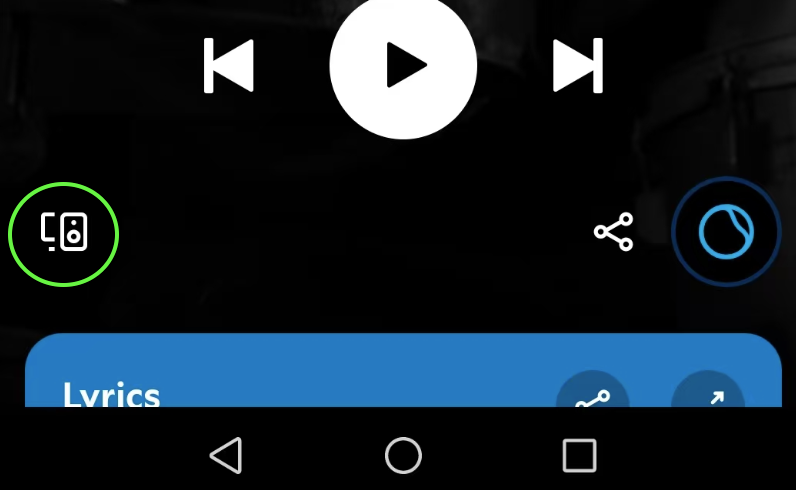
4. In the "Devices Available" menu, find the Nest or Home speaker and tap it.
5. Now Spotify will be played on your Nest or Home speaker and you can control it from your phone, tablet, or computer.
1. Launch Spotify app on your iPhone, Android, tablet, Mac, or PC.
2. Select a song or podcast and tap "Play."
3. Tap on the "Now Playing" bar at the bottom of your screen. Tap the "Devices Available" icon.
4. Tap AirPlay or Bluetooth and choose your Nest or Home speaker and tap it.
5. Now Spotify will be played on your Nest or Home speaker via Bluetooth.
Although Google Assistant works with Spotify free, but the limitations are extremely annoying. Is there any workaround available? Definitely! You can use Pazu Spotify Converter to download music from Spotify to your computer and then stream them to Google Home/Nest as local music.
Pazu Spotify Converter is powerful Spotify music downloader that allows you to download Spotify songs as MP3/M4A/AAC/FLAC/WAV/AIFF. Then, you are able to stream Spotify songs to Google Home/Nest on demand with even Spotify free. After that, you will get Spotify premium for free : offline on-demand playback, no ads, high quality and unlimited skips. Below are the detailed steps for you.

Download, install and run Pazu Spotify Converter on your Mac or Windows. Log in your Spotify account with the built-in Spotify web player.

Pazu Spoitfy Converter features built-in Spotify web player for you to browse or search Spotify songs, albums and playlists you want to download directly on the interface. You don’t need to install Spotify app. Click the album or playlist you want to download and then click the red icon to load all songs.
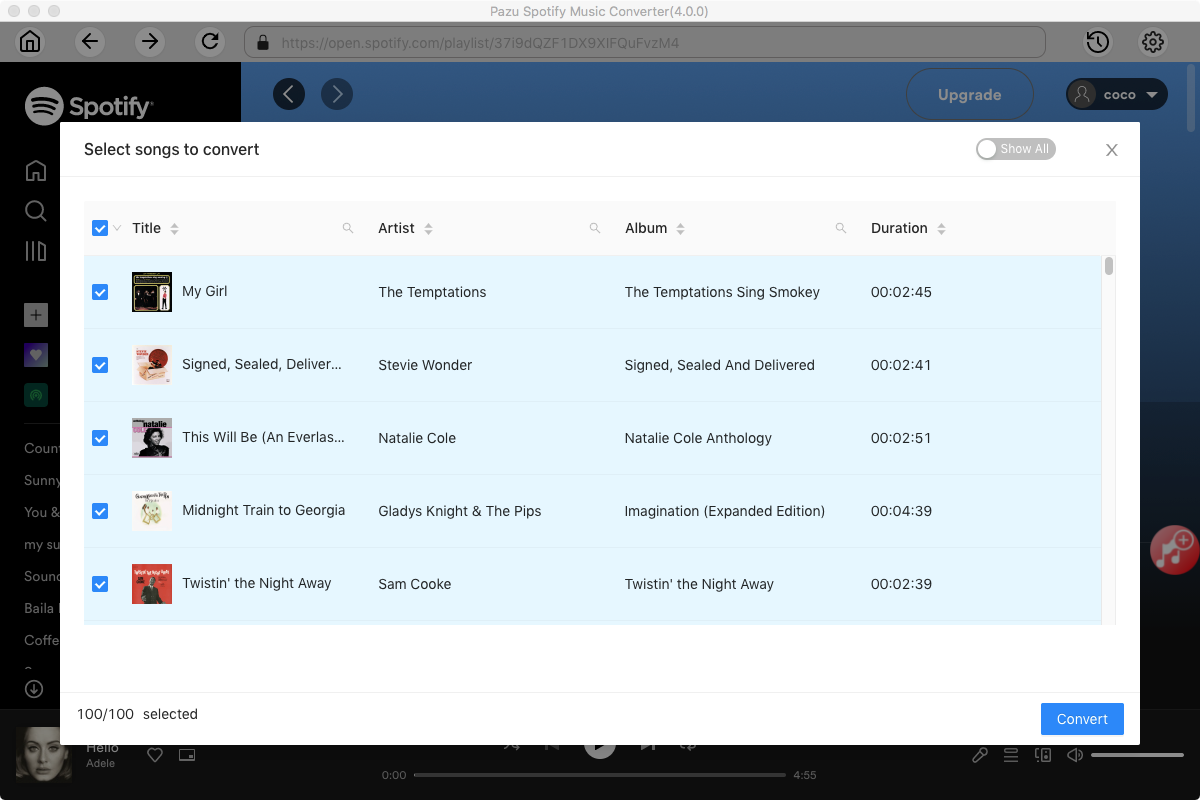
The default output format is M4A. Pazu Spotify Converter also supports MP3, AAC, FLAC, WAV, and AIFF. Click the gear icon on the top right corner to change output format or output quality. You can also change output folder and following:

Click Convert button to start recording Spotify music to the format you choose. After conversion, click the History icon to quickly locate the DRM-free Spotify song. You can then move and play it anywhere.

Once the conversion is done, click the folder icon to find the converted Spotify songs.

1. Spotify desktop app
Add the downloaded Spotify songs to your Spotify as Local Files. Stream songs to your Google Home/Nest from the desktop app by clicking the Devices Available button on the bottom-right corner of the interface, where Google Cast as well as Spotify Connect-enabled speakers will now appear alongside any Bluetooth or AirPlay devices.
1. Click your account on the top right corner, then click Settings.
2. Scroll down to find Local Files and turn it on. Click ADD A SOURCE to choose the folder where Spotify songs are downloaded.
3. Now you can find the download Spotify songs in Your Library - Local Files.
4. Click Devices Available button on the bottom-right corner of the interface and choose your Google Home/Nest device.
5. Play the downloaded Spotify songs on demand without ads and they will be streamed to your selected Google Home/Nest device.
2. Windows Media Player
By default, every Windows devices carry the Windows Media Player as the default media player. Windows Media Player doesn’t support Google Chromecast directly. You need to use the latest version of Chrome Browser to cast Windows Media Player contents to Google Home/Nest.
Step 1: Set up your Google Home/Nest.
Step 2: Connect your Google Home/Nest and computer to the same WiFi network.
Step 3: Open the Chrome Browser on your computer.
Step 4: Click the three dots icon on the top right corner.
Step 5: Click on Cast option.
Step 6: It will search for the available Chromecast connected devices.
Step 7:Click on the Sources drop-down button.
Step 8: Select the Cast desktop option.
Step 9: Select your Google Home/Nest device from the list.
Step 10: The pop-up window appears with casting the entire screen .
Step 11: Click on the screen and choose share option.
Step 12: Now open the Windows Media player and play the downloaded Spotify songs .
Step 13: The songs will stream on your Google Home/Nest device.
3. Use Plex
Plex is a media center with lots of Android and iOS controller apps. Basically, you create a media server on your PC/Mac and add your whole music folder to Plex.

Step 1: Choose Music from the Add Library menu.
Step 2: After choosing the Add Folder option, navigate to the root of your Music collection folder and select Add.
The media will now be scanned and cataloged. You can then play anything from the Media Server interface to Google Home/Nest device.
Note: The free trial version of Pazu Spotify Converter enables you to convert the first three minutes of each song. You can remove the trial limitation by purchasing the full version.
Buy Now Buy Now
Download and convert any Spotify songs, albums, playlists to MP3/M4A etc.