
You might listen to music when you are working or playing a game on your computer. The mini player is small and moveable, it can give you what you need to control your tunes. You do not need to stop what you are doing to open the music app to forward to the next songs, modify the volume or explore for lyrics.
Many Spotify users may long for playing and controlling Spotify songs in a mini player while doing other things on the computer. But there is no official mini player on its desktop app. Don’t worry, there are many third-party programs that do the job. We will show you different ways to make your own Spotify mini player and get the best Spotify listening experience.
1. Mini Player for Spotify — Free for Windows and Mac
With this extension, you can get a mini player that works and looks great. To setup and use Mini Player for Spotify follow the steps below.
Step 1. Navigate to open.spotify.com and log in to your account.
Step 2. Install the Chrome Spotify App by pressing the "+" found in the address bar.
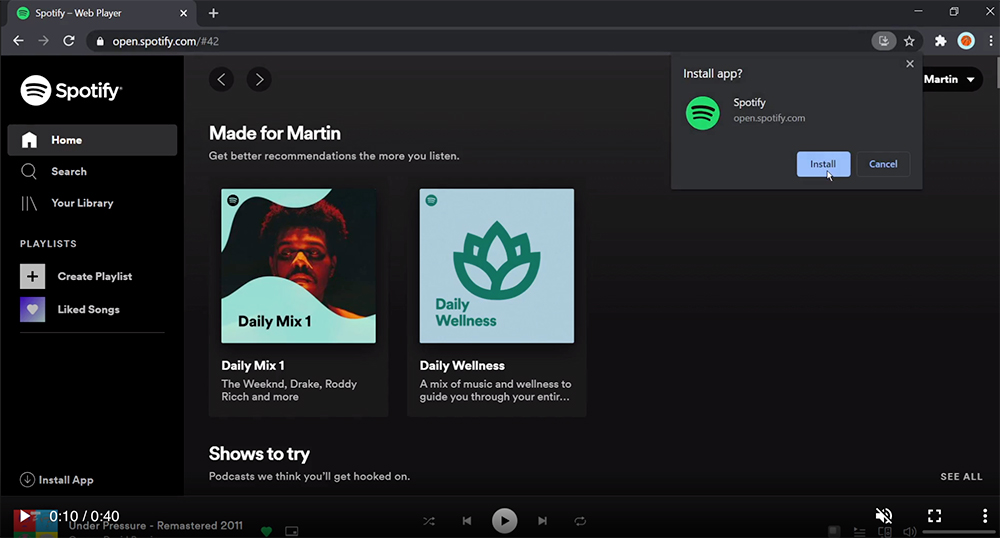
Step 3. Use Miniplayer Button to switch to Mini Player or resize the window.
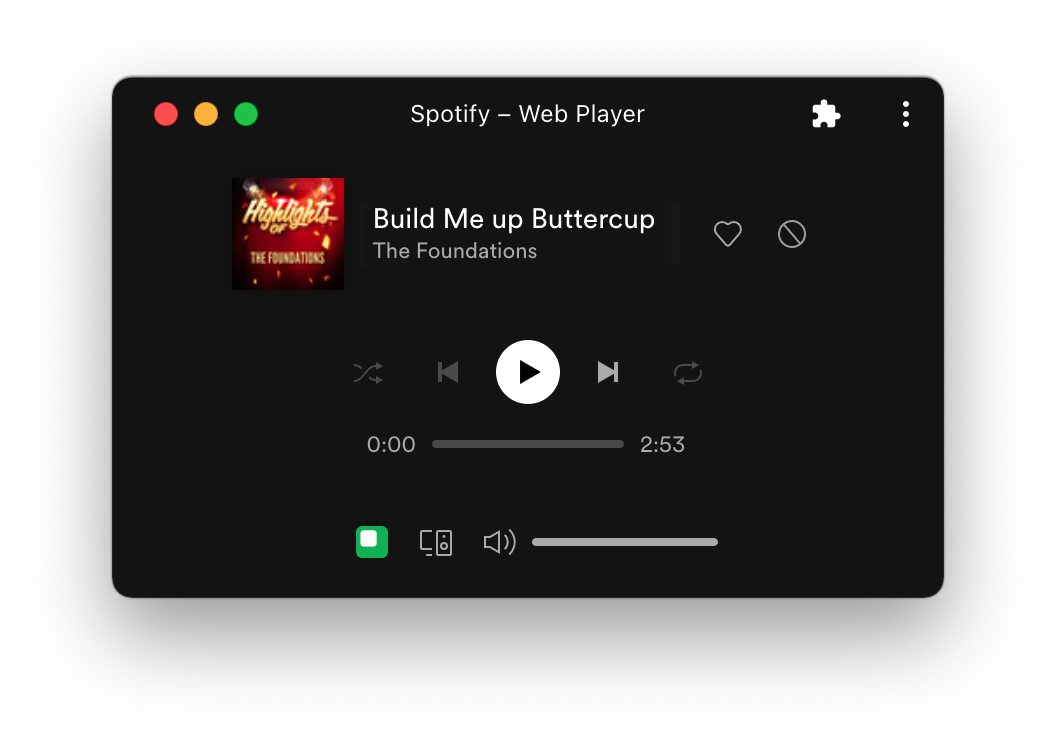
Optional: Right Click and Pin Spotify to the taskbar.
Note: Miniplayer is not available when the window is fully maximized.
2. Lofi Spotify Mini Player — Free for Windows and Mac
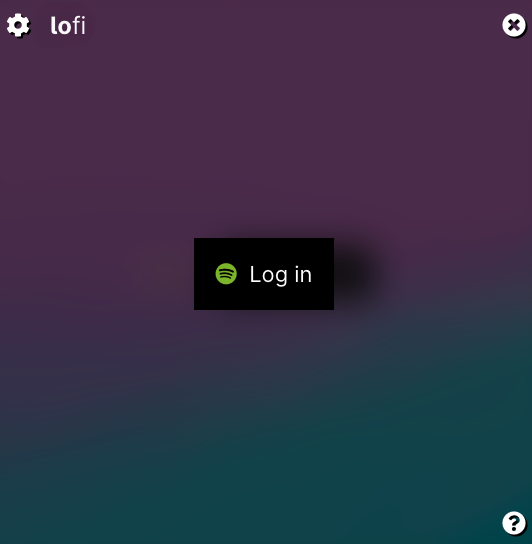
Lofi is compact, taking up only 150² pixels of screen real-estate and it's resizable. Lofi also has visualizations. When doing creative visualization, listening to music really gets you to amp up the positive emotions.
Step 1. Download (https://www.lofi.rocks/) and install Lofi.
Step 2. Double-click to run it, and click Spotify Log in button to log in with your Spotify account.
Step 3. It will ask the Spotify authorization, click the Agree button to allow Lofi to access your Spotify account.
Step 4. Play songs in Spotify, then you can view the song in Lofi.
3. SpotMenu Mini Player — Free for Mac
SpotMenu allows you to have Spotify in your menu bar. SpotMenu is a Spotify style menu bar app that displays the artist/album in the menu bar. The app comes in handy when you hear a song and wonder “Who is the artist/album?” Then you can click the Menu Bar icon to interact with what’s playing.
Step 1. Download the zip file version 1.9 (https://github.com/kmikiy/SpotMenu/releases/download/v1.9/SpotMenu190.zip). Unarchive it. Run SpotMenu app.
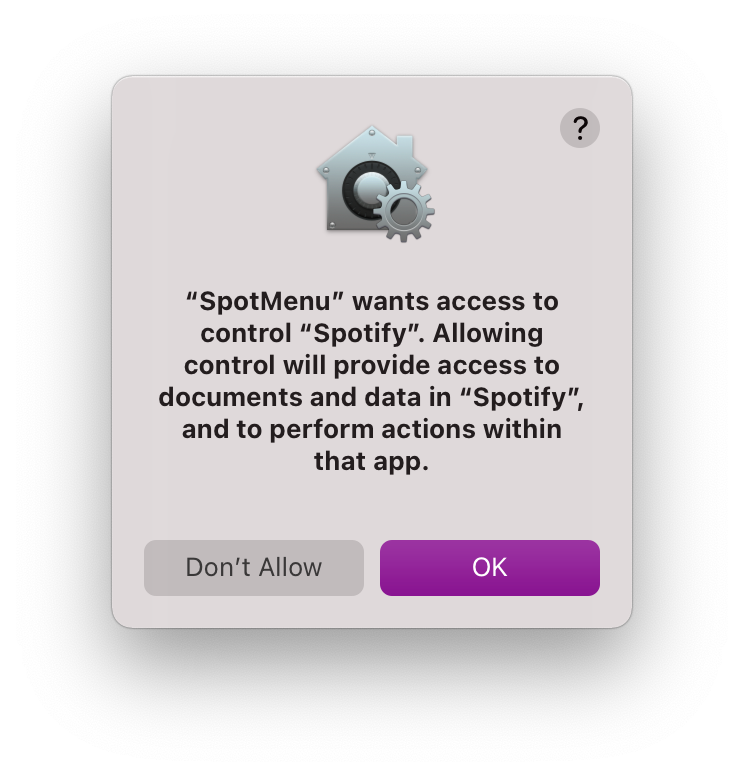
Step 2. SpotMenu wants access to control Spotify, click OK to allow it.
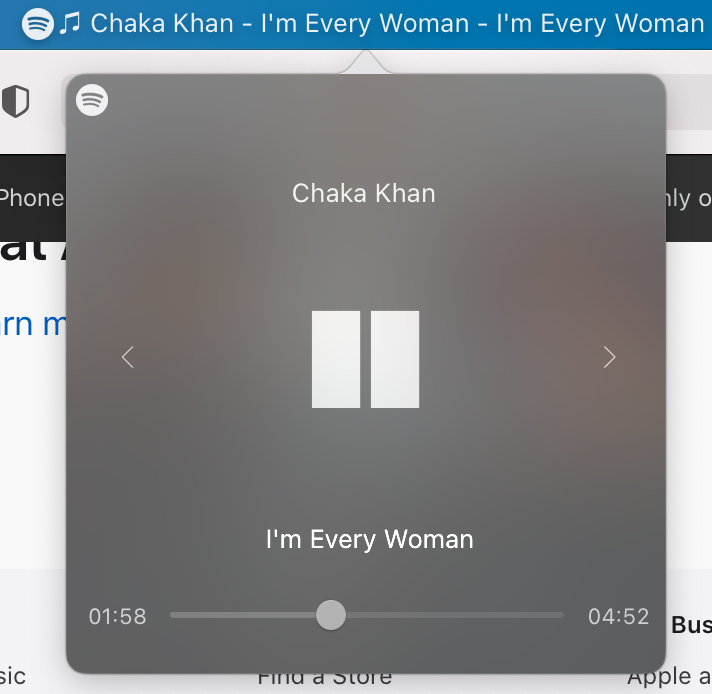
Step 3. Play Spotify music. The artist and track title will show in the menu bar. Click the menu bar, a Spotify mini player with album cover will show up and you can pause music and play the previous/next track.
Generally, Spotify music is DRM-protected OGG files, even Premium user can download them for offline listening, you still can not play them on any mini player. To improve your listening experience, we will introduce a better solution for you to use any mini player to play Spotify music.
Pazu Spotify Converter is one of the most professional Spotify downloaders. It downloads music from Spotify without Premium at 5x faster speed. It can also convert Spotify music to MP3/M4A/WAV/FLAC/OGG/AIFF without losing the original audio quality or ID3 tags. Now, you can follow the steps to download Spotify music and play them on more mini players with ease.

Download, install and run Pazu Spotify Converter on your Mac or Windows. Log in your Spotify account with the built-in Spotify web player. The steps are the same whether you have the Mac or Windows version of Pazu Spotify Converter.

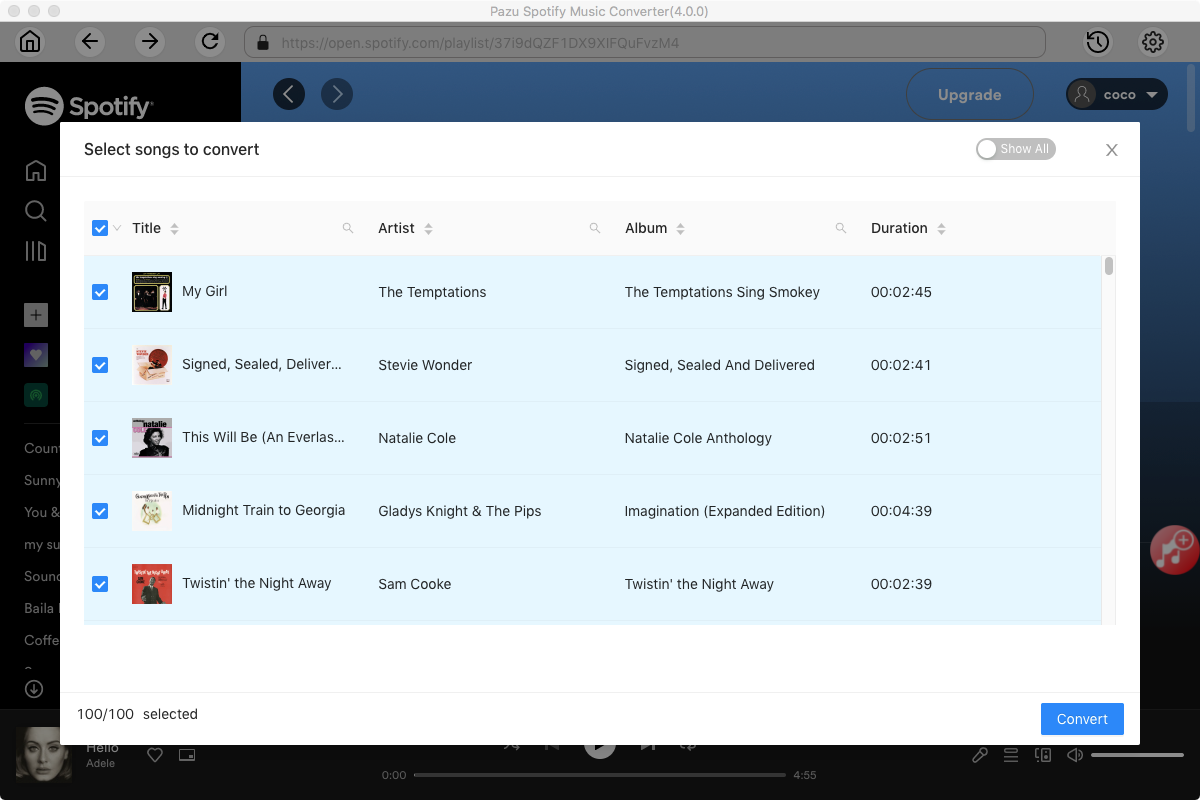
Use the integrated Spotify web player to search the songs, album, playlist or podcast you want to download. Click the Add to list button to load all songs in the album or playlist, uncheck the songs you don’t want to download if there are any.
Click the gear icon on the top right corner to open Settings. Here you can select output format (MP3/M4A/AAC/FLAC/WAV/AIFF), choose output audio quality, cover quality, change the output path, organize the output files in various ways, rename output files and more.

Click Convert button to start downloading the Spotify songs to your local computer.

Once the conversion is done, you can find your Spotify songs downloaded as local files by clicking below folder button or directly going to the output folder you customized in the previous step.

Note: The free trial version of Pazu Spotify Converter enables you to convert the first three minutes of each song. You can remove the trial limitation by purchasing the full version.
Buy Now Buy Now
Download and convert any Spotify songs, albums, playlists to MP3/M4A etc.