
Do not want to pay for ringtones? Can’t use Spotify music as Android ringtone? You are in the right place. Here you will learn how to create Spotify music as Android ringtone.
Spotify is the largest and hottest streaming service with millions of members. However, whether you use Spotify free or Spotify Premium, you can’t use Spotify songs as ringtone on Android phone directly, as the songs are DRM protected.
One option is to play the song on Spotify and use online Voice Recorder tool or Voice Recorder app to record the segments you want to use as ringtone. Then, you can rename the file & edit it to the length you want for your ringtone. Note that the built-in Recorder app from your Android phone can't record Spotify songs. Once you start recording, Spotify music stops.
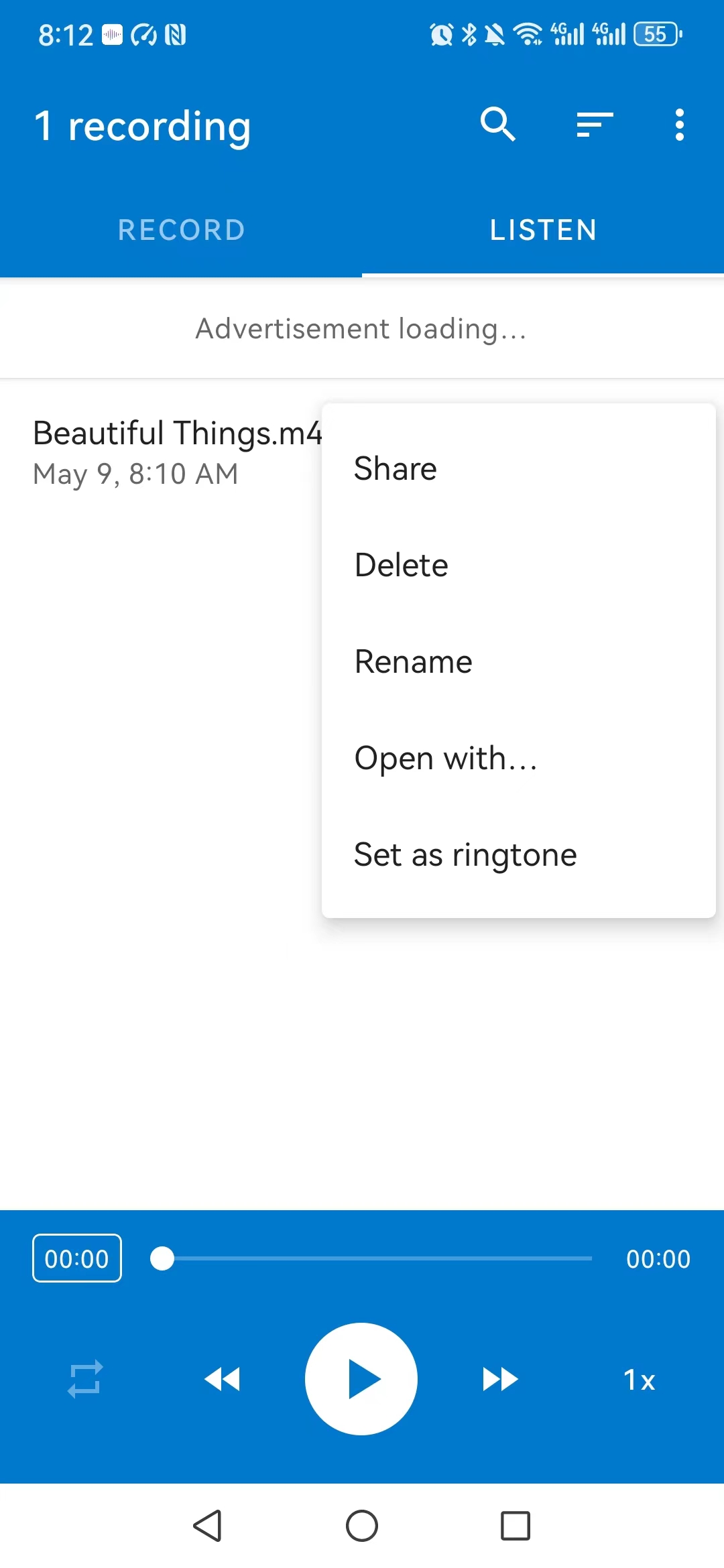
Note that the built-in Recorder app from your Android phone can't record Spotify songs. Once you start recording, Spotify music stops.
To remove DRM from Spotify music and create Spotify music as Android ringtone, Pazu Spotify Converter is the most qualified software. It supports downloading protected Spotify OGG songs to MP3, M4A, WAV, FLAC, OGG and AIFF. With the help of Pazu Spotify Converter , you can not only batch convert Spotify songs at 10x faster speed but also keep the ID3 tag info and metadata. Now, we'll show you how to set Spotify music as ringtone on your Android.

Download, install and run Pazu Spotify Converter on your Mac or Windows. Log in your Spotify account with the built-in Spotify web player.

Pazu Spoitfy Converter features built-in Spotify web player for you to browse or search Spotify songs, albums and playlists you want to download directly on the interface. You don’t need to install Spotify app. Click the album or playlist you want to download and then click the red icon to load all songs.
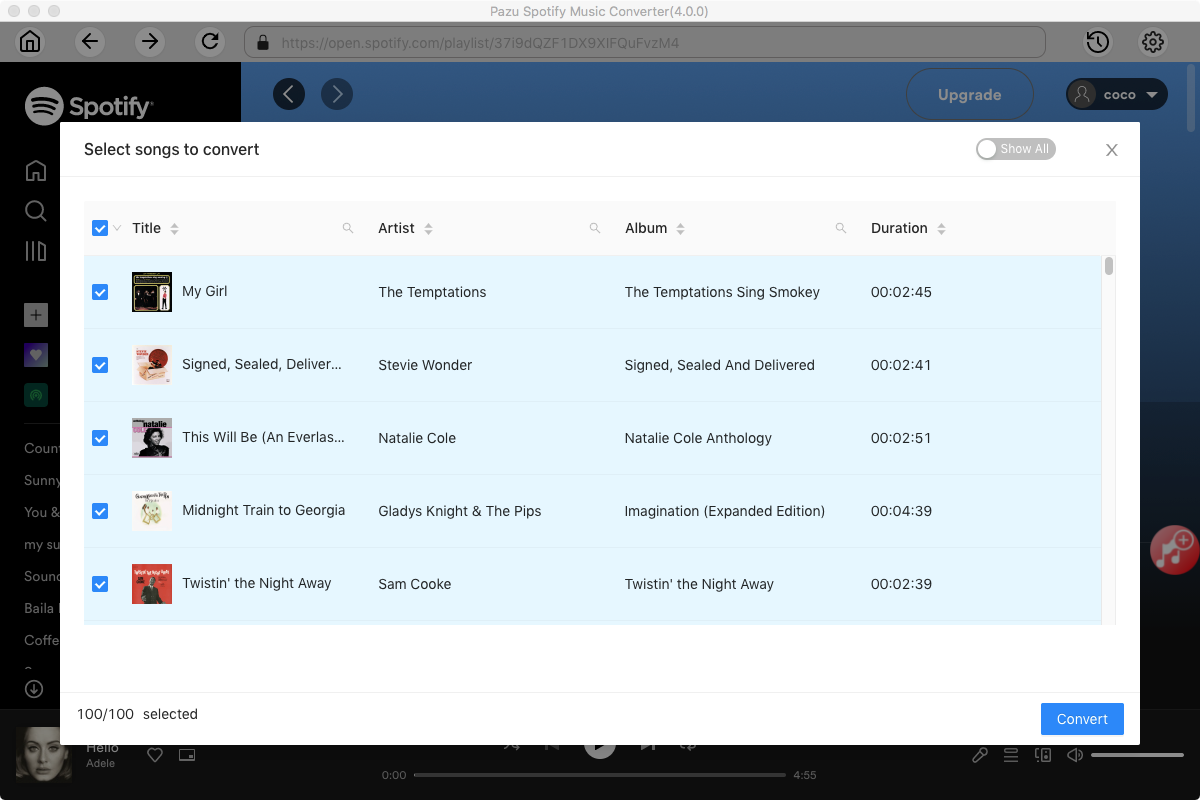
The default output format is M4A. Pazu Spotify Converter also supports MP3, AAC, FLAC, WAV, and AIFF. Click the gear icon on the top right corner to change output format or output quality. You can also change output folder and following:

Click the Convert button to start recording Spotify music to the format you choose. After conversion, click the History icon to quickly locate the DRM-free Spotify song. You can then move and play it anywhere.


Once you have downloaded Spotify songs in the ringtone-supported format, transfer them to your phone. You can do this by connecting your phone to your computer and copying the files over, or by using cloud storage services. If you use cloud storage services, remember to download the songs to your phone, as Android phone only supports using local music files as ringtone.
You don’t need to trim the songs to get the portion of the song you want as your ringtone, as Android phone has trim feature built-in when you select songs as ringtones from your device.
Step 1: Transfer the converted Spotify MP3 files to your phone via a USB cable.
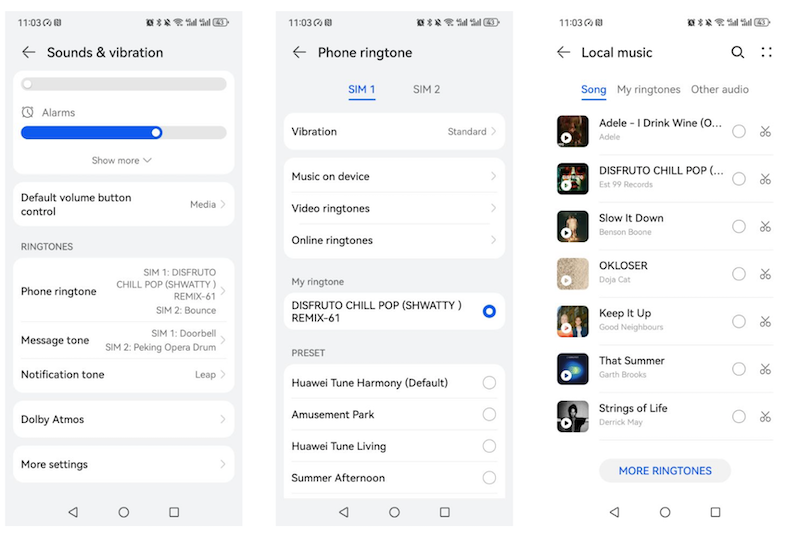
Step 2: Open the Settings app on your Android mobile device. Tap “Sounds and vibration.” Depending on your device, this might be under "Sound," "Notifications," or "Ringtone."
Step 3: Tap on Phone ringtone - Music on device and select a song.
Step 4: Tap the scissors icon to trim the song and get the correct portion of the song you want as your ringtone.
Note: The free trial version of Pazu Spotify Converter enables you to convert the first three minutes of each song. You can remove the trial limitation by purchasing the full version.
Buy Now Buy Now
Download and convert any Spotify songs, albums, playlists to MP3/M4A etc.