
Spotify offers free tier with some limitations. Free users are only allowed to skip six tracks per hour on mobile. Additionally, you can't play individual songs and albums. Outside of a few select playlists, you have to shuffle to listen to music on the service. Besides no offline playback, limited skips and shuffle play on mobile, Spotify free users will have to bear ads on both mobile and desktop streaming.
Of course, the easiest way to get rid of Spotify ads is to subscribe to Spotify premium, but it's also the most expensive way. Spotify Premium is a plan that enables you to play millions of songs ad-free, on-demand and offline. If you want to get rid of Spotify ads without premium, here are some solutions.
Note that you could not block Spotify podcast ads. They're usually recorded right into the podcast, like the sponsored portion of YouTube videos.
Use Brave browser on computer or mobile/tablet to block Spotify ads if you didn't have Spotify Premium. You can also cast to TV with Brave browser.

AdGuard is a popular ad blocking software that helps users block unwanted ads, trackers and other online nuisances. It is available as a browser extension, a standalone application for Windows, macOS, Android and iOS, and even provides DNS-level protection for your device.AdGuard not only blocks ads on websites, but also provides additional privacy features by blocking tracking scripts and malicious websites.

Chrome users can use uBlock Origin Lite or the adblocking extension specifically for Spotify: https://chrome.google.com/webstore/detail/spotify-ad-blocker-blocki/nfmlkliedggdodlbgghmmchhgckjoaml
If you prefer the Spotify app, then Spicetify is a perfect option. Spicetify is a powerful CLI tool that allows you to customize the official Spotify client. After installing Spicetify and Spicetify's Marketplace, you can use it to customize your Spotify client using all the available extensions and themes found in the Marketplace.
How to install Spicetify on Mac/Linux?
curl -fsSL https://raw.githubusercontent.com/spicetify/cli/main/install.sh | sh
Now open Spotify app and you will find a cart icon on Spotify interface. Click it and enter ads in the Search Extensions enter field. Click on the adblockify extension and click Install. Once installed you can stream Spotify songs ad-free even without Premium.

How to install Spicetify on Windows?
iwr -useb https://raw.githubusercontent.com/spicetify/cli/main/install.ps1 | iex
EZBlocker is a Spotify Ad Blocker written in C# for Windows 7/8/10/11 to block Spotify ads. When an advertisement is playing, EZBlocker will mute Spotify until it's over. Although it doesn’t actually remove the ads, honestly that is enough to keep you in the zone while working. To download a pre-compiled binary of the latest version, click here. However, note that it has been not updated since Nov. 7, 2021.
Virtual Private Network (VPN) can significantly reduce the ads quantities when you listen to Spotify free. This method works for all computer & mobile devices. On the other hand, ads in a language that you don't understand are less annoying. However the best ones are not free. And the free ones are not stable.
EeveeSpotify is tweaked Spotify that allows you to get some Spotify premium features for free, such as ad-free, on-demand playback and custom lyrics.
1. Download(https://sideloadly.io) and install Sideloadly on your Mac or Windows.

2. Download EeveeSpotify ipa (the .ipa file).

3. Connect your iPhone to your Mac/Windows with USB cable. Run Sideloadly.

4. Drag and drop EeveeSpotify ipa into Sideloadly. Enter your Apple ID. Press start and wait.

5. Now EeveeSpotify is successfully installed on your iPhone.

6. Go to Settings - General - VPN & Device Management, and trust your Apple ID.
7. Go to Settings- Privacy & Security, and at the bottom, turn on Developer Mode.
8. Restart iPhone.
9. Open Spotify mod app, log in to your account and start ad-free streaming.
To get Spotify modified apk on Android, you can use xManager or Tutuapp, or download mod apk directly from 3rd party websites.
1. First you need to install TutuApp on your Android. Open its official website https://www.tutuapp.vip on your Android browser and tap Download now.

2. After the apk is downloaded, tap INSTALL.

3. Once TutuApp is installed, open it and find Spotify Music MOD, tap the download icon.

4. Install and run Spotify Mod app on your Android, log in your account and start streaming. It still shows you have Spotify free, but you can play most songs on demand and ad-free. However, you can't download songs for offline playback.

However, there is a risk. Accounts that use ad blockers in Spotify face immediate suspension or termination under the new terms of service, which go into effect on March 1, 2019.
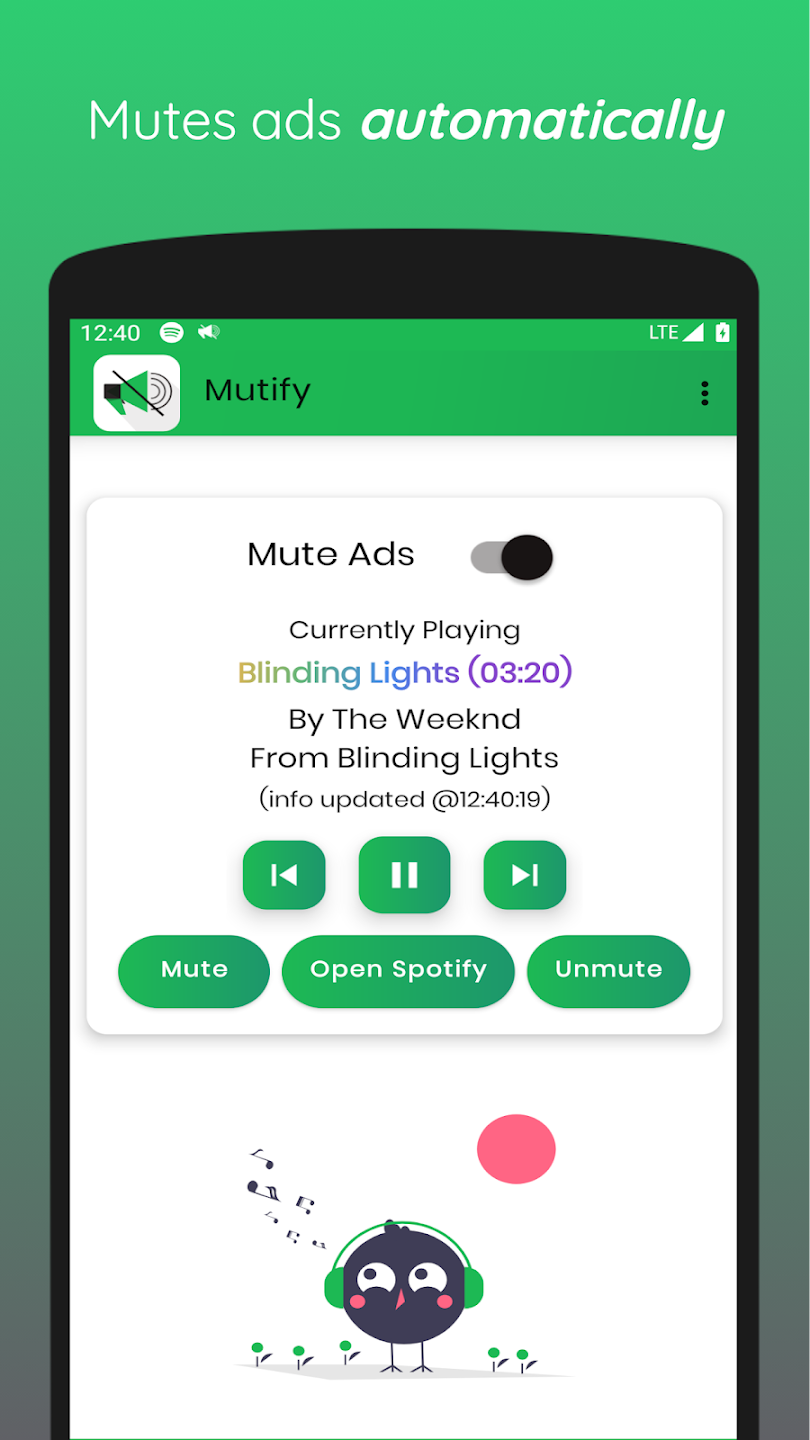
For Android users, you can download the Mutify or SpotMute app to help mute ads on the Spotify app. Whenever Mutify detects an ad is playing on Spotify, it helps you turn down the volume of the ads automatically. As soon as the ad ends, the volume turns back up, so that you can sit back and enjoy listening to your favorite music without worrying about those annoyingly loud ads. You MUST enable 'Device Broadcast Status' in Spotify settings for Mutify to work.
The most convenient and safest way to block Spotify ads is to download Spotify music to MP3 format and play them with other music player . Then you can play Spotify music the same way you play local music, which not only gets rid of ads, but also enables offline playback, shuffle play and unlimited skips on mobile. That means you already get Spotify premium features.
Pazu Spotify Converter is a professional Spotify music converter used to convert Spotify music to MP3, M4A, WAV, FLAC, OGG, AIFF. You can use it to download Spotify songs at 5x speed on PC/Mac regardless of whether you use a free account or a paid account. pazu Another highlight feature of Spotify Converter is its high quality output files. It can keep 100% of the original Spotify files including all ID3 tags. Thanks to Pazu Spotify Converter, you can download Spotify songs for free. In the following tutorial, we will show you how to download Spotify music with a free account.

Download, install and run Pazu Spotify Converter on your Mac or Windows. Log in your Spotify account with the built-in Spotify web player.

Browse songs, albums or playlists you want to download from the built-in Spotify web player.
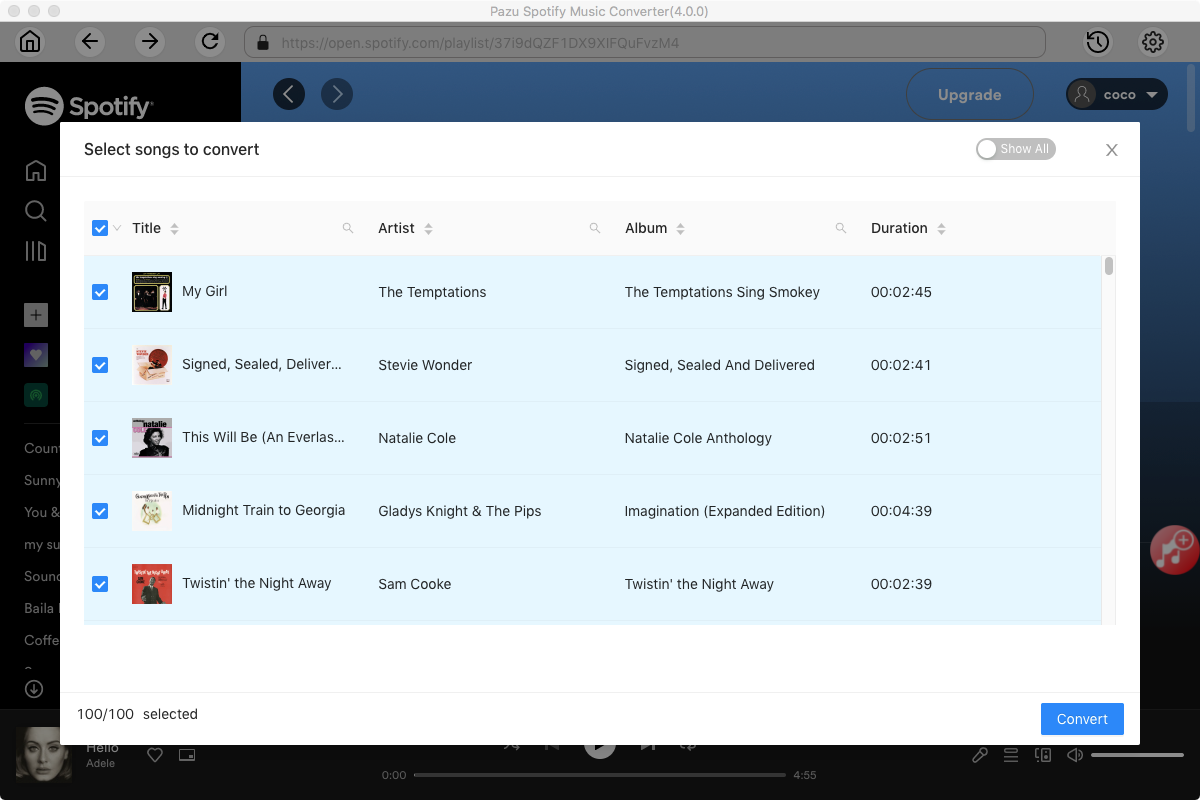
Now, click on the Settings cogwheel from the top-right corner to select the output format. On Auto mode, it will save the file in M4A format. For MP3 and AAC, you can also set the output quality, depending on the song. You may also change the output folder, the title, and the organizing criteria.

Click the Convert button to start downloading Spotify songs in MP3 format.

Once the conversion is done, click the folder icon to find the converted Spotify songs.

Note: The free trial version of Pazu Spotify Converter enables you to convert the first three minutes of each song. You can remove the trial limitation by purchasing the full version.
Buy Now Buy Now
Download and convert any Spotify songs, albums, playlists to MP3/M4A etc.