
Spotify is the largest music streaming service in the world, offering the most extensive music library ever existed. It offers a free tier, but the negative point of listening to Spotify free music is that it is continually interrupted by advertising. The visual ads are not too intrusive, while those 30-second audio ads can break up the listening experience. Is this annoying? If you buy Premium, you won’t have to listen to those audio ads anymore.
Is there a way to block ads on Spotify without Premium? The answer is sure. In this article, we will introduce several methods to enable you get rid of Spotify ads while listening to Spotify content with free account.
The easiest and most effective way to block ads is to subscribe to Spotify Premium. You have to pay $10.99 per month($5.99 per month for students) to get a range of valuable features: downloading songs for listening offline, higher sound quality, no ad interruptions, full library of music and podcasts, multiple devices support. The paid subscription is a great way of removing ads, follow the steps to subscribe to Spotify Premium.
1. Log into spotify.com/account. (http://spotify.com/account)
2. Under Your plan, click Join Premium.
3. Enter or edit your address and select a payment method.
4. Enter payment details and click Start my Spotify Premium.
There are numerous ad blockers, but you could get your Spotify account terminated depending on the blocking approach that the ad blocker uses. Since May 1, 2019, Spotify can ban your account if it finds out you are using an ad blocker. The new rules specifically state that “circumventing or blocking advertisements in the Spotify Service, or creating or distributing tools designed to block advertisements in the Spotify Service” can result in immediate termination or suspension of your account. This way, even if you find a way to block ads in Spotify, it’s a risky venture: one day you can get banned without any warning or preliminary notice from the service.
Spotify has forbidden ad blockers, and if you are not willing to pay for a Spotify Premium, you can try to use Spotify converter to get rid of Spotify ads. Many Spotify music converters are available for Mac and Windows. These utilities allow you to download songs and convert them from Spotify native format to the MP3, M4A, FLAC or other plain formats. You are able to download ad-free Spotify music without a Premium account. Then you can listen to Spotify music without the distraction of ads.
Pazu Spotify Converter is the perfect tool to remove Spotify ads and download Spotify music to your local device. It also assists to convert songs from Spotify to MP3, M4A, OGG, WAV, AIFF, and FLAC with lossless quality. Moreover, Pazu Spotify Converter allows you to preserve the ID3 tags like song, artists, album after conversion. Do you want to know how to block ads on Spotify with Pazu Spotify Converter? Follow the below tutorial to start the process.
You May Like:

Step 1 Run Pazu Spotify Converter
Download, install and run Pazu Spotify Converter on your Mac or Windows. Log in your Spotify account with the built-in Spotify web player. The steps are the same whether you have the Mac or Windows version of Pazu Spotify Converter.

Step 2 Select Spotify music
Use the integrated Spotify web player to search the songs, album, playlist or podcast you want to download. Click the Add to list button to load all songs in the album or playlist, uncheck the songs you don’t want to download if there are any.

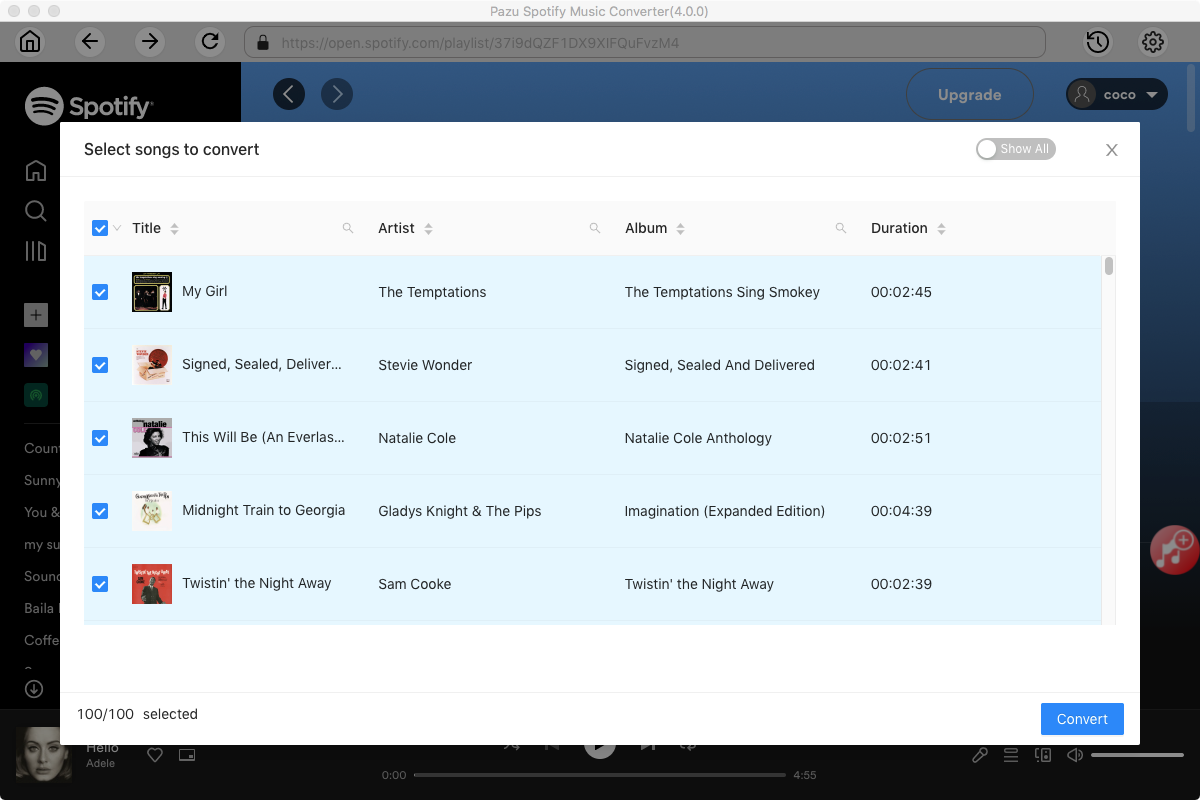
Step 3 Choose output format
Click the gear icon on the top right corner to open Settings. Here you can select output format (MP3/M4A/AAC/FLAC/WAV/AIFF), choose output audio quality, cover quality, change the output path, organize the output files in various ways, rename output files and more.

Step 4 Download and Convert Spotify Songs to Local
Click Convert button to start downloading the Spotify songs to your local computer.

Once the conversion is done, you can find your Spotify songs downloaded as local files by clicking below folder button or directly going to the output folder you customized in the previous step. You can transfer them to your file manager or manage them anywhere you want.
Note: The free trial version of Pazu Spotify Converter enables you to convert the first three minutes of each song. You can remove the trial limitation by purchasing the full version.
Buy Now Buy Now
Download and convert any Spotify songs, albums, playlists to MP3/M4A etc.