
Spotify has a feature of increasing podcast speed so you can speed up the podcast to get through it faster. Just tap the playback speed option, you can ramp up the speed as high as three times faster. Spotify allows you to change the speed, but only when you are listening to podcasts.
Why Spotify doesn't include the option to vary the speed of your music? Because speeding up your music is likely to ruin it. But some songs may sound better after changing the speed, such as electronic music, rock, and dance music. You may want to know how to speed up songs on Spotify and lower them down sometimes. The following article will guide you on how to change the playback speed of both podcasts and songs on Spotify.
Spotify podcast speed controls are available across all devices. You can play Spotify podcasts at speeds of 0.5x, 0.8x, 1x, 1.5x, 2x and 3x. As an avid podcast fan, you are delighted to finally see this feature. Since many podcasts you play are very long (up to 2 hours). Now you are able to alter the speed of the podcast, to play at 1.5x or 2x the default speed.
When you're playing a podcast. the desktop controls can be found in the bottom right corner and the controls on mobile can be found to the right of the play button. Click 1X icon to control the play speed. Just tap on it to select among 0.5x, 0.8x, 1x, 1.2x, 1.5x, 2x, and 3x speed according to your needs.
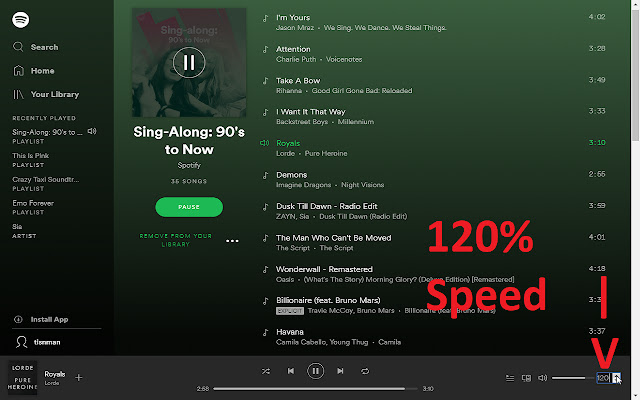
Spotify songs are played at the default speed without the speed controls. If you want to change the playback speed of Spotify songs, you can install the Playback Speed Access Utility. It is a totally free Chrome extension that allows you to adjust the speed of Spotify songs playback, fast or slow depending on your liking.
1) Navigate to the page of Spotify Playback Speed Access (https://chrome.google.com/webstore/detail/spotify-playback-speed-ac/cgbihpjbhpdfbdckcabcniojdhcgblhd)and click Add to Chrome.
2) Then open Spotify web player and log in to your Spotify account.
3) Press the triangle icon to increase or decrease the level to adjust the playback speed.
You are able to change the Spotify podcast playback speed on Spotify or songs playback speed in the Spotify web player by the above 2 methods. However, there is no way to directly change the Spotify songs playback speed on other devices. Just about every player has a variable speed setting built into it these days. To solve the problem, we recommend downloading Spotify songs and playing them on these players.
You will need a professional Spotify downloader named Pazu Spotify Converter . It adopts the most advanced downloading technology so it can download Spotify songs, albums and playlists at a 5X faster speed with zero quality loss. It can keep the 320kbps quality for Spotify free and premium users. It's also an audio converter to convert Spotify songs to MP3, FLAC, WAV, OGG, M4A, and AIFF. Due to this function, you can transfer and play Spotify songs on all devices with a better listening experience. Now, you can learn how to download songs from Spotify by the following detailed guide.
You May Like:

Step 1 Run Pazu Spotify Converter
Download, install and run Pazu Spotify Converter on your Mac or Windows. Log in your Spotify account with the built-in Spotify web player. The steps are the same whether you have the Mac or Windows version of Pazu Spotify Converter.

Step 2 Select Spotify music
Use the integrated Spotify web player to search the songs, album, playlist or podcast you want to download. Click the Add to list button to load all songs in the album or playlist, uncheck the songs you don’t want to download if there are any.

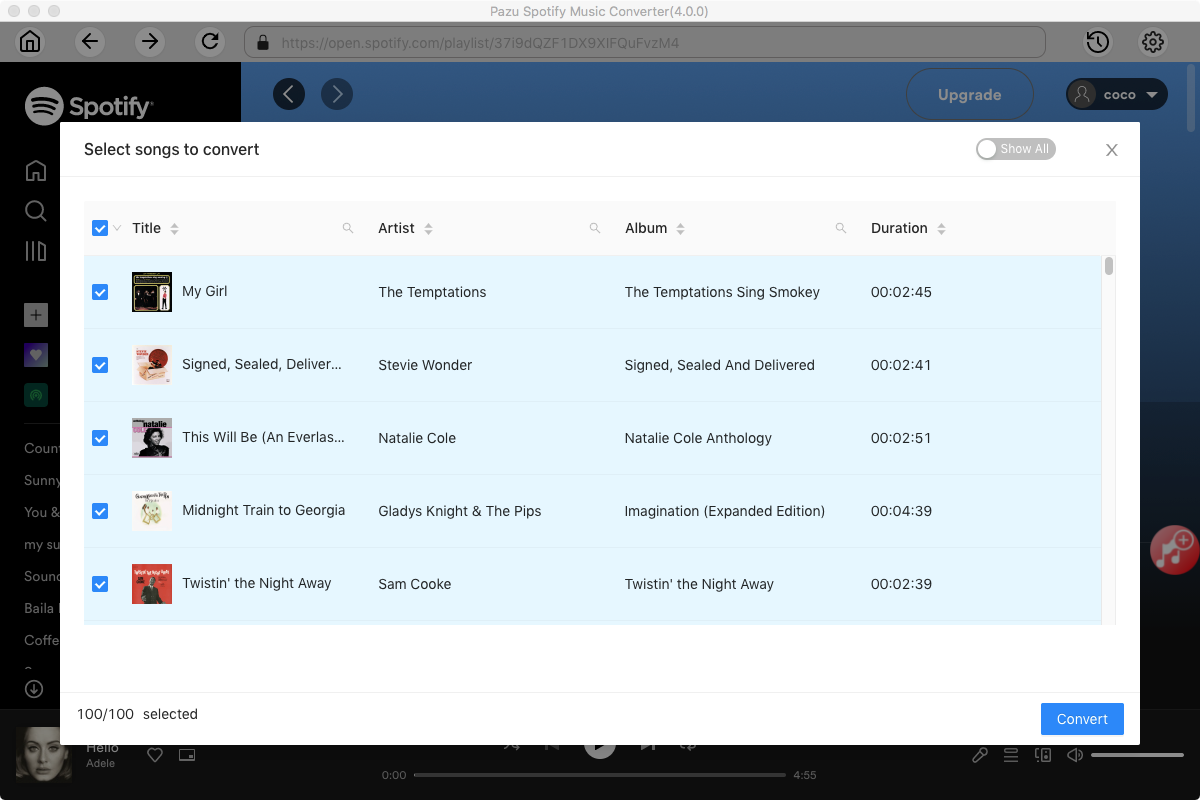
Step 3 Choose output format
Click the gear icon on the top right corner to open Settings. Here you can select output format (MP3/M4A/AAC/FLAC/WAV/AIFF), choose output audio quality, cover quality, change the output path, organize the output files in various ways, rename output files and more.

Step 4 Download and Convert Spotify Songs to Local
Click Convert button to start downloading the Spotify songs to your local computer.

Once the conversion is done, you can find your Spotify songs downloaded as local files by clicking below folder button or directly going to the output folder you customized in the previous step.
Note: The free trial version of Pazu Spotify Converter enables you to convert the first three minutes of each song. You can remove the trial limitation by purchasing the full version.
Buy Now Buy Now
Download and convert any Spotify songs, albums, playlists to MP3/M4A etc.