
Spotify is the most popular streaming app for music and podcast in the entire world. It saves all the songs, podcasts, your song history and search history. This feature lets you access the songs and playlists you played recently. And Spotify uses all this data to personalize playlists for you. However, everyone who follows you can access the “recently played” playlists. If you want to keep your music habits secret, you need to delete the “recently played” playlists on Spotify.
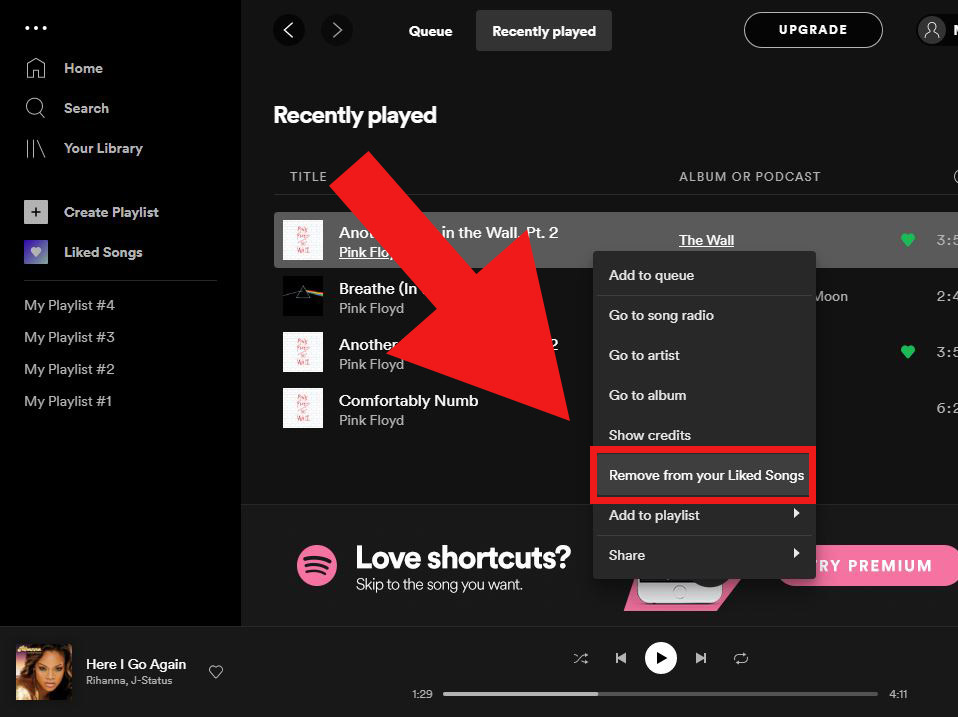
As the feature was recently removed from the mobile version, you can only clear your recently played playlist on the desktop version of Spotify. Here is how to delete your recently played on Spotify using your computer.
1. Open the Spotify app on your PC or Mac. In the left-hand menu, click the “Recently Played”.
2. You will see a list of your previously played songs, albums, and artists. Hover your mouse over one of the listed covers to view the available settings.
3. Click the three-dot menu icon, click the “Remove From Recently Played” option. Then the item will disappear from the “Recently Played” and other devices linked to your account.
You might need to clear your recent searches on Spotify if you do not want someone else using your account and seeing the music you search for. In a few simple steps, you can clear your recent searches in Spotify.
1. Start Spotify on your PC or mobile phone and click on the search bar.
2. You should now see a list of your recent searches and next to each entry there is an X symbol.
3. You can use the X symbol to clear individual entries, or scroll to the bottom and click “Clear recent searches” to clear the entire history.
Before deleting “Recently Played” playlists from your Spotify, you can download them to avoid you losing these songs. If you are looking for the best Spotify playlists downloader in the market, you can try Pazu Spotify Converter . It is not a Spotify downloader but a professional Spotify converter that supports to download and convert the protected Spotify songs to MP3, M4A, OGG, WAV, AIFF, and FLAC with ID3 was retained. It also can convert Spotify songs at up to 5x faster speed. The following are the simple steps to show you how to download recently played playlists.
You May Like:

Step 1 Run Pazu Spotify Converter
Download, install and run Pazu Spotify Converter on your Mac or Windows. Log in your Spotify account with the built-in Spotify web player. The steps are the same whether you have the Mac or Windows version of Pazu Spotify Converter.

Step 2 Select Spotify music
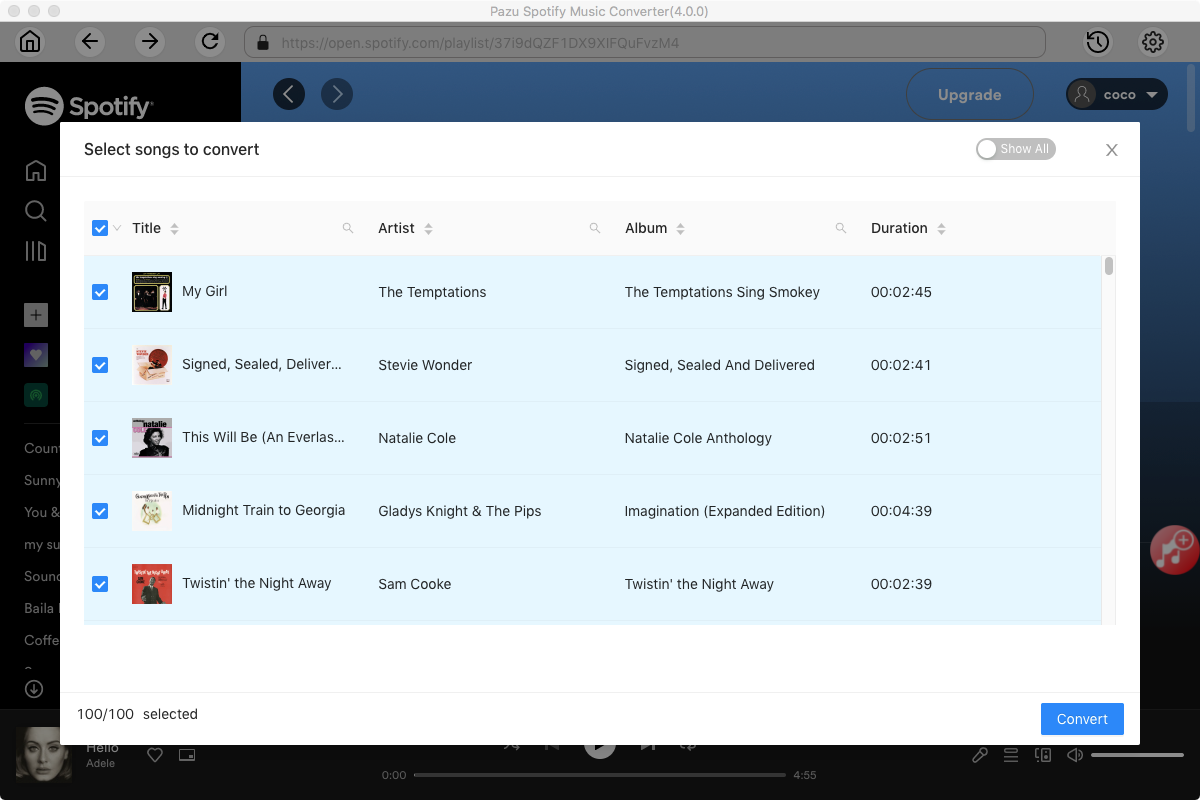
Use the integrated Spotify web player to search the songs, album, playlist or podcast you want to download. Click the Add to list button to load all songs in the album or playlist, uncheck the songs you don’t want to download if there are any.

Step 3 Choose output format
Click the gear icon on the top right corner to open Settings. Here you can select output format (MP3/M4A/AAC/FLAC/WAV/AIFF), choose output audio quality, cover quality, change the output path, organize the output files in various ways, rename output files and more.

Step 4 Download and Convert Spotify Songs to Local
Click Convert button to start downloading the Spotify songs to your local computer.

Once the conversion is done, you can find your Spotify songs downloaded as local files by clicking below folder button or directly going to the output folder you customized in the previous step. You can transfer them to your file manager or manage them anywhere you want.
Note: The free trial version of Pazu Spotify Converter enables you to convert the first three minutes of each song. You can remove the trial limitation by purchasing the full version.
Buy Now Buy Now
Download and convert any Spotify songs, albums, playlists to MP3/M4A etc.