
Spotify stands out as the largest streaming music application in the world. But you only can listen to Spotify on one device at a time. It is annoying if you are playing a song while the account is activating on another device the song just stops without a message. Can two people listen to Spotify on two devices at the same time? Yes, two people can listen to Spotify on two devices simultaneously. Here are some tricks that can help you and other person listen to Spotify music from a different device to enjoy songs at the same time.
The easier way to do this is to subscribe to a Spotty Premium. The Premium account allows you to download music to listen offline. If you listen to downloaded Spotify songs without being connected to the Internet, the system will not be able to verify that you are doing it on two devices at the same time.
1. When you’re online, go to what you want to download.
Note: You can’t download individual songs, but you can put them in a playlist and download the playlist.
2. Tap the download button to download. A green arrow indicates the download was successful. Downloads save to Your Library.
1. When you’re online, go to the playlist you want to download.
2. Switch Download on. A green arrow means the download was successful. Downloads save to Your Library.
Downloads play automatically when you lose internet, but you can use Offline Mode to make sure only your downloads play.
1. Tap Home.
2. Tap Settings.
3. Tap Playback.
4. Switch Offline on. Anything you haven’t downloaded is now grayed out and unavailable.
1. Open Spotify.
2. For Mac: In the Apple menu at the top of the screen, click Spotify.
For Windows: Click File in the Windows menu at the top of the screen.
3. Select Offline Mode. Anything you haven’t downloaded is now grayed out and unavailable.
Spotify Group Session is a beta feature for collaborative listening. Groups of two to five people can start listening to a song or a playlist on one device or their own devices in real-time. In a group session, everyone invited can control what plays.
1. Open Spotify and play something.
2. Tap the devices button at the bottom of the screen.
3. Tap START SESSION under Start a Group Session.
4. Tap INVITE FRIENDS. Here you can:
Share with any social or messaging app listed
Choose Copy Link to send your own way
Show them a Spotify code which they can scan to join
Listen on their own device
Listen on your device (and control it from their device)
Tap LEAVE SESSION under Group Session.
If you started the group session, tap END SESSION.
Specific devices (Sonos, Amazon Echo, Google Home, etc.) allow to be paired into groups in order to allow simultaneous playback. Spotify Premium plan has the Spotify Connect feature. All those speakers allow you to get Spotify connect multiple devices simultaneously.
1. In the Sonos app, go to Rooms. Then "Group" the speakers/rooms together as a single group.
2. Open Spotify. Under Devices you will now see the name of one of your speakers and then + number based on the number of speakers grouped. This will allow you to use Spotify Connect to grouped speakers.
All the approaches above work with Spotify Premium accounts only. So, how to listen to Spotify on two devices without Premium? Here is the ultimate way for you. You can download Spotify songs without Premium by Pazu Spotify Converter, then play them on two devices at the same time.
Pazu Spotify Converter can convert Spotify to MP3, M4A, OGG, WAV, AIFF, and FLAC without losing any quality. To use it, you do not need to have a Spotify Premium account. It can download Spotify songs without Premium. The converter runs up to 5x speed and keeps the same metadata and ID 3 tags as the original in the converted songs. Now let's see what the concrete steps are to make the Pazu Spotify Converter work.
You May Like:

Step 1 Run Pazu Spotify Converter
Download, install and run Pazu Spotify Converter on your Mac or Windows. Log in your Spotify account with the built-in Spotify web player. The steps are the same whether you have the Mac or Windows version of Pazu Spotify Converter.

Step 2 Select Spotify music
Use the integrated Spotify web player to search the songs, album, playlist or podcast you want to download. Click the Add to list button to load all songs in the album or playlist, uncheck the songs you don’t want to download if there are any.

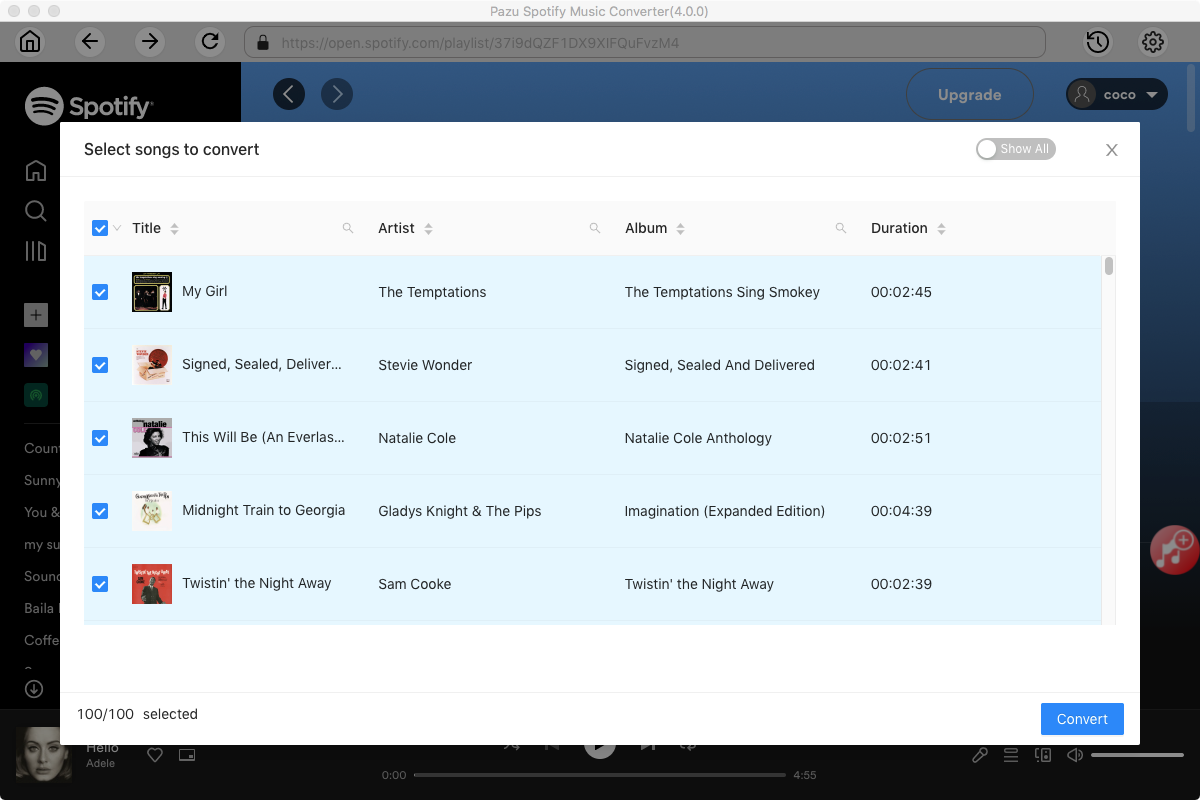
Step 3 Choose output format
Click the gear icon on the top right corner to open Settings. Here you can select output format (MP3/M4A/AAC/FLAC/WAV/AIFF), choose output audio quality, cover quality, change the output path, organize the output files in various ways, rename output files and more.

Step 4 Download and Convert Spotify Songs to Local
Click Convert button to start downloading the Spotify songs to your local computer.

Once the conversion is done, you can find your Spotify songs downloaded as local files by clicking below folder button or directly going to the output folder you customized in the previous step. You can transfer them to your file manager or manage them anywhere you want.
Note: The free trial version of Pazu Spotify Converter enables you to convert the first three minutes of each song. You can remove the trial limitation by purchasing the full version.
Buy Now Buy Now
Download and convert any Spotify songs, albums, playlists to MP3/M4A etc.