
Spotify has changed the way we listened to music everywhere. It lets you customize a variety of settings to personalize your entertainment, from volume to listening experience. If you are looking for solutions to make sound louder and better, the article is for you. We will talk about all the ways that you can make your Spotify sound louder and better to get the most out of your listen experience.
Spotify has a range of audio quality options to suit your device, plan, and preferences. But you can’t adjust music quality on the web player. Download the app to get more features!
Web player
Spotify free : AAC 128kbit/s
Spotify Premium: AAC 256kbit/s
Desktop, mobile, and tablet
Spotify free :
Automatic: Dependent on your network connection
Low: Equivalent to approximately 24kbit/s
Normal: Equivalent to approximately 96kbit/s
High: Equivalent to approximately 160kbit/s
Spotify Premium:
Automatic: Dependent on your network connection
Low: Equivalent to approximately 24kbit/s
Normal: Equivalent to approximately 96kbit/s
High: Equivalent to approximately 160kbit/s
Very high: Equivalent to approximately 320kbit/s
Podcast quality
Podcast quality is equivalent to approximately 96kbit/s on all devices except the web player where it’s 128kbit/s.
On mobile/tablet, if you change the audio quality to low, the podcast quality will lower to approximately 24kbit/s.
Change audio quality
Turn music quality up to hear the finer details or turn it down to save data. Note: You can’t change audio settings when using Spotify Connect to play on another device.
You can have different settings for when you listen online with WiFi or with cellular (streaming quality). You can also choose your download quality. Higher streaming quality uses more data, and higher download quality uses more space.
1. Tap Home.
2. Tap Settings.
3. Under Audio Quality, select your preferred settings.
Auto adjust quality
By default, the app adjusts your audio quality to play music without stuttering. To disable it, switch Auto adjust quality off.
Desktop
1. Click the drop button in the top-right corner and select Settings.
2. Under Audio Quality, select your preferred settings.
Audio normalization balances soft and loud songs, creating a more uniform listening experience. The Premium users can select the volume levels to adjust all tracks to your environment. On iOS or Android devices, you can’t change audio settings when using Spotify Connect to play on another device.
iOS
1. Tap Home.
2. Tap Settings.
3. Tap Playback.
4. Switch Enable Audio Normalization on, or off.
You can adjust the overall level for your environment. Next to Volume level, choose from:
Loud: Handy for noisy environments. You’ll hear less dynamic levels.
Normal: The default setting.
Quiet: Handy for quieter environments.
Android
1. Tap Home.
2. Tap Settings.
3. Switch Normalize volume on, or off.
You can adjust the overall level for your environment. Next to Volume level, choose from:
Loud: Handy for noisy environments. You’ll hear less dynamic levels.
Normal: The default setting.
Quiet: Handy for quieter environments.
Desktop
1. Click the drop button in the top-right and select Settings.
2. Under Music Quality, switch Normalize volume on, or off.
You can adjust the overall level for your environment. Next to Volume level, choose from:
Loud: Handy for noisy environments. You’ll hear less dynamic levels.
Normal: The default setting.
Quiet: Handy for quieter environments.
Equalizer lets you adjust the levels of bass and treble in music and podcasts. It can help you to find the right sound for you. Note: You can’t change audio settings when using Spotify Connect to play on another device.
iOS
1. Tap Home.
2. Tap Settings.
3. Tap Playback.
4. Tap Equalizer, and switch it on.
5. Choose a preset, or drag the dots on the equalizer to find a sound you like.
Android
Equalizer availability on Android varies depending on the manufacturer. Changes you apply also affect the sound of other apps.
1. Tap Home.
2. Tap Settings.
3. Under Music Quality, tap Equalizer.
4. Choose the sound you like in your device’s audio settings.
We have listed a few ways to help you make Spotify sound louder and better, but all the methods mentioned above require a Spotify Premium account. You can also try other tools to make Spotify sound louder and adjust the audio quality. As we all know, Spotify tracks are protected by DRM, in order to play Spotify music on other devices, you need to get the DRM-free version. How to remove the DRM restriction from Spotify tracks? Pazu Spotify Converter can help you download Spotify tracks and get rid of Spotify DRM protection without a Premium account.
Pazu Spotify Converter also allows you to convert Spotify tracks to MP3, M4A, OGG, WAV, AIFF, and FLAC with 100% original quality for free easily. The following is a detailed tutorial about how to download Spotify tracks and adjust the audio quality on other devices.
You May Like:

Step 1 Run Pazu Spotify Converter
Download, install and run Pazu Spotify Converter on your Mac or Windows. Log in your Spotify account with the built-in Spotify web player. The steps are the same whether you have the Mac or Windows version of Pazu Spotify Converter.

Step 2 Select Spotify music
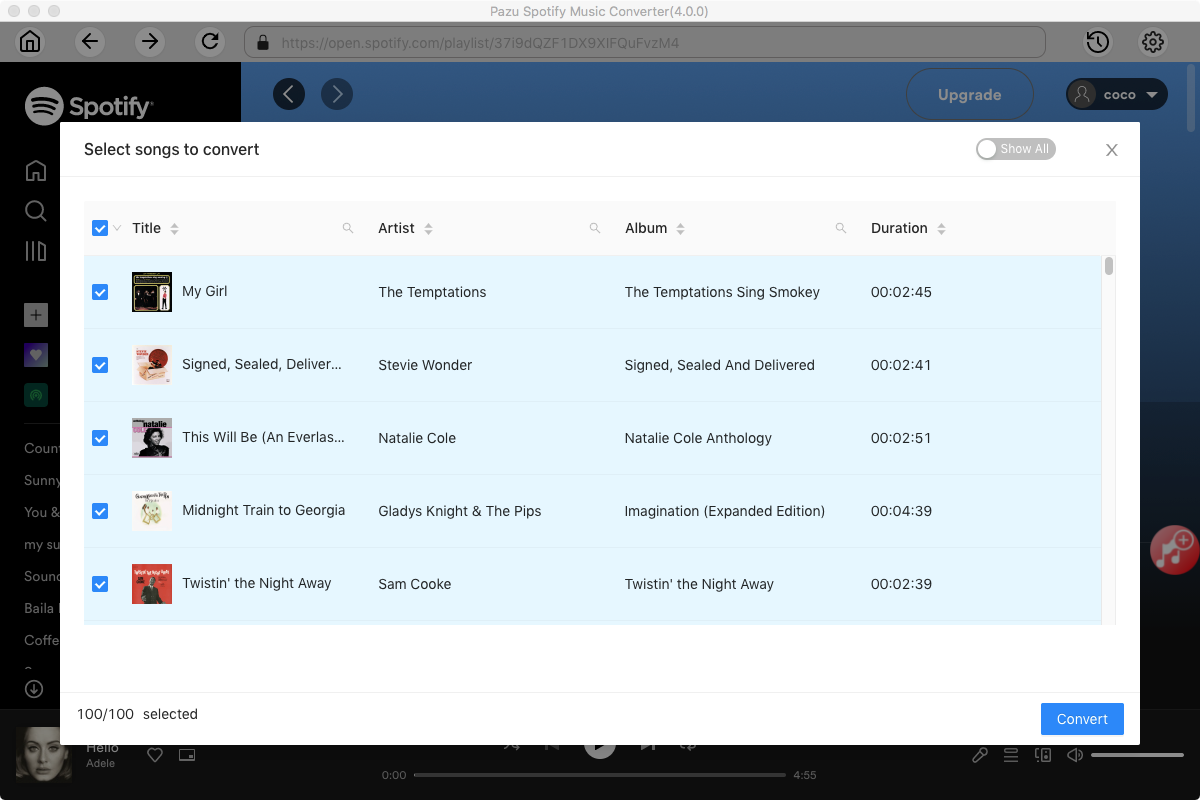
Use the integrated Spotify web player to search the songs, album, playlist or podcast you want to download. Click the Add to list button to load all songs in the album or playlist, uncheck the songs you don’t want to download if there are any.

Step 3 Choose output format
Click the gear icon on the top right corner to open Settings. Here you can select output format (MP3/M4A/AAC/FLAC/WAV/AIFF), choose output audio quality, cover quality, change the output path, organize the output files in various ways, rename output files and more.

Step 4 Download and Convert Spotify Songs to Local
Click Convert button to start downloading the Spotify songs to your local computer.

Once the conversion is done, you can find your Spotify songs downloaded as local files by clicking below folder button or directly going to the output folder you customized in the previous step. You can transfer them to your file manager or manage them anywhere you want.
Note: The free trial version of Pazu Spotify Converter enables you to convert the first three minutes of each song. You can remove the trial limitation by purchasing the full version.
Buy Now Buy Now
Download and convert any Spotify songs, albums, playlists to MP3/M4A etc.