
Spotify has finally rolled out its real-time lyrics feature globally. You no longer need to Google the song to find out lyrics. Lyrics are available to all free and premium users worldwide on iOS and Android devices, desktop, game consoles, and TVs. The lyrics are provided by the Italy-based Musixmatch, which says it has “over 8 million" lyrics in its catalog.
How to see lyrics on Spotify? We're going to tell you everything you need to know about lyrics on Spotify and how you can start using them on your different devices.
To view the lyrics for a song on an iPhone, iPad, or Android phone, use the official Spotify app.
1. Start by launching the Spotify app on your phone. Then, find your song and play it. Or tap on the “Now Playing View” on a song.
2. While listening, swipe up from the bottom of the screen.
3. You’ll see track lyrics that scroll in real time as the song is playing! As your song plays, Spotify will highlight the lyric words that are being sung. Tap the lyrics to open them in full screen.
4. To share, simply tap the “Share” button at the bottom of the lyrics screen and then select the lyrics you want to share—and where you want to share them—via third-party platforms.
In Spotify on the web, Windows, or Mac, you can use the same set of steps to access the song lyrics.
1. Start by opening Spotify in your web browser or on your Windows or Mac computer. Then, play the song for which you want to see the lyrics.
2. From the “Now Playing” bar, click on the microphone icon while a song is playing.
3. You’ll see track lyrics that scroll in real time while the song plays.
1. Open the “Now Playing View” on a song.
2. Navigate to the right corner to the “lyrics button” and select if you want to enable Lyrics.
3. Once enabled, you’ll see the lyrics in the “Now Playing” View.
This new lyrics feature creates the best possible listening experience, and you can delve into the deeper meaning behind each song through the lyrics. Can you see the lyrics even when Spotify is offline? Of course. Just open the track at least once when connected to the Internet, then it will download the lyrics of the song. In this way, you can enjoy any synced lyrics and their translation offline.
For Spotify premium users, you can listen to Spotify music without the Internet. However, what about the free users of Spotify? As for Spotify free users, you can't download and play Spotify offline. So, how to listen to Spotify offline without premium?
To get Spotify offline without Premium, Pazu Spotify Converter is here to help you. It is an effective tool for Spotify free and premium users to download Spotify songs. It can also convert Spotify to MP3/M4A/WAV/FLAC/OGG/AIFF at a 5X speed with 100% original quality.
Besides, users can modify the output audio parameters like channel, bitrate, etc. for Spotify music. By using this smart tool, you can easily get Spotify offline on computer. Follow the steps below, you can download and play Spotify with lyrics offline anywhere and anytime.
You May Like:

Step 1 Run Pazu Spotify Converter
Download, install and run Pazu Spotify Converter on your Mac or Windows. Log in your Spotify account with the built-in Spotify web player. The steps are the same whether you have the Mac or Windows version of Pazu Spotify Converter.

Step 2 Select Spotify music
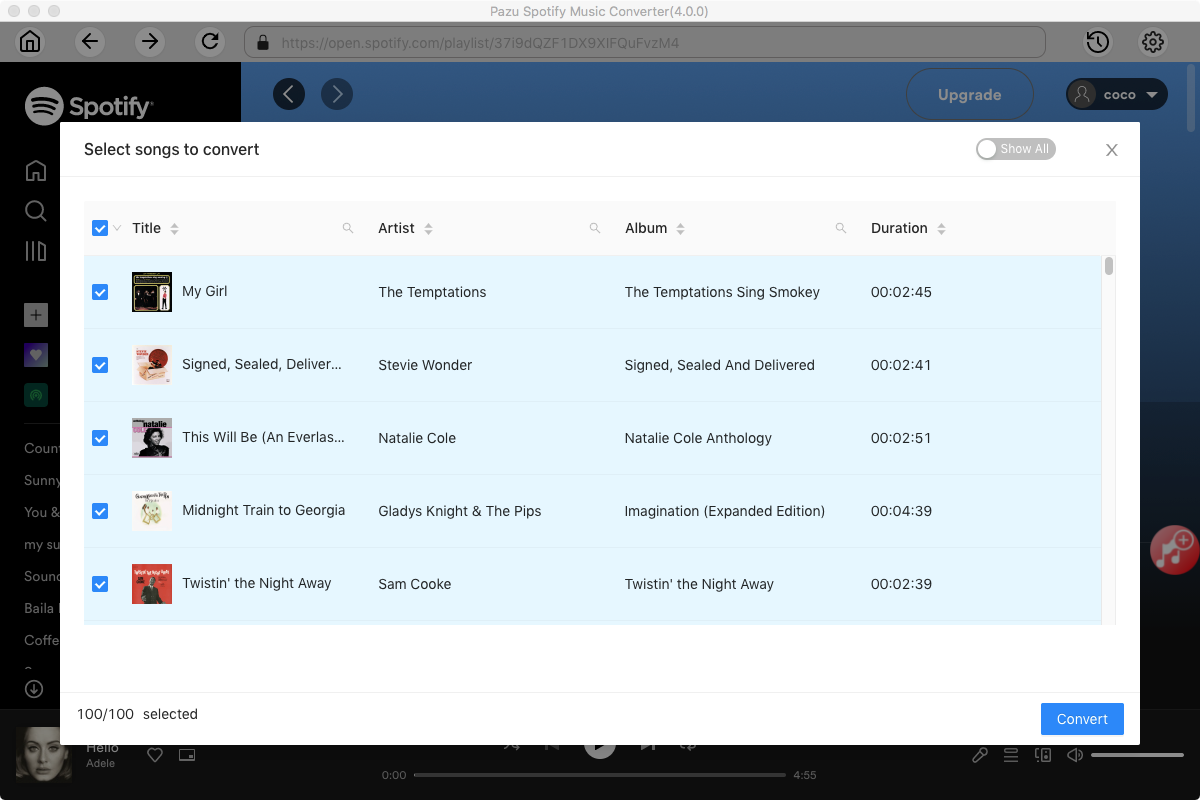
Use the integrated Spotify web player to search the songs, album, playlist or podcast you want to download. Click the Add to list button to load all songs in the album or playlist, uncheck the songs you don’t want to download if there are any.

Step 3 Choose output format
Click the gear icon on the top right corner to open Settings. Here you can select output format (MP3/M4A/AAC/FLAC/WAV/AIFF), choose output audio quality, cover quality, change the output path, organize the output files in various ways, rename output files and more.

Step 4 Download and Convert Spotify Songs to Local
Click Convert button to start downloading the Spotify songs to your local computer.

Once the conversion is done, you can find your Spotify songs downloaded as local files by clicking below folder button or directly going to the output folder you customized in the previous step.
Note: The free trial version of Pazu Spotify Converter enables you to convert the first three minutes of each song. You can remove the trial limitation by purchasing the full version.
Buy Now Buy Now
Download and convert any Spotify songs, albums, playlists to MP3/M4A etc.